







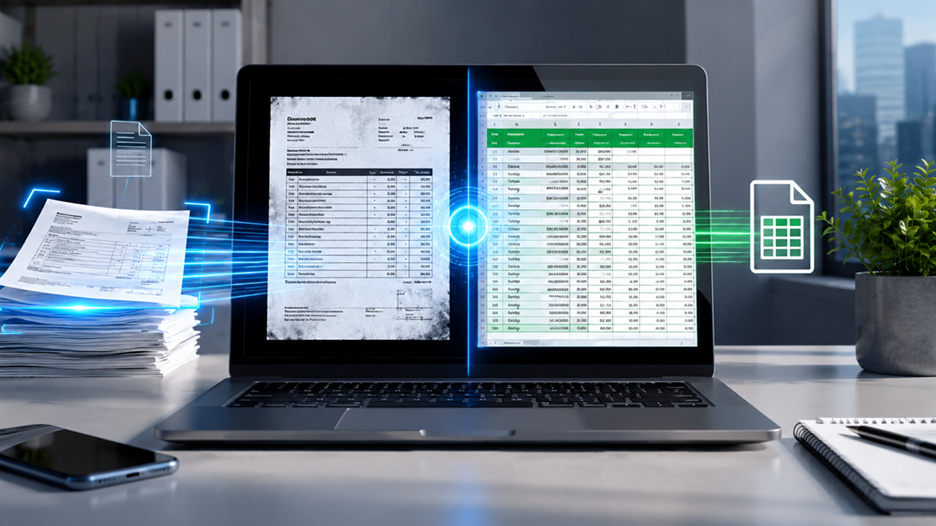
Modern OCR technology has made it easier than ever to convert scanned PDFs into editable Excel spreadsheets while preserving tables, rows, columns, and formatting. The best results come from AI-powered OCR tools that accurately recognize text and table structures instead of simply extracting characters. Recent improvements in OCR engines have significantly reduced manual cleanup, especially for invoices, bank statements, financial reports, and business documents.
Introduction
Have you ever received a scanned invoice, bank statement, or financial report and wished you could instantly edit it in Excel? You’re definitely not alone. Businesses, students, accountants, researchers, and office professionals face this challenge every day. A scanned PDF is essentially an image, meaning Excel cannot understand the text or tables until Optical Character Recognition (OCR) technology converts the image into machine-readable data. Without OCR, copying information usually results in broken tables, misplaced columns, and hours of frustrating manual corrections.
Fortunately, OCR technology has evolved dramatically. Today’s AI-powered converters recognize not only letters and numbers but also complete table layouts, merged cells, and multi-page documents. Whether you’re handling tax records, inventory sheets, or business reports, modern conversion tools can preserve formatting with impressive accuracy. This guide explains exactly how to convert scanned PDFs to Excel while keeping your formatting intact, helping you save time and avoid costly data-entry mistakes.
Understanding Scanned PDFs
A PDF isn’t always the same type of document. Some PDFs are created digitally from software like Microsoft Word or Excel, while others are simply scanned images of printed pages. Understanding this difference is the first step toward successful conversion.
Digital PDF vs. Scanned PDF
A digital PDF contains actual selectable text. You can highlight, copy, and search its contents without any additional processing. Since the text already exists electronically, converting it into Excel is relatively straightforward, and formatting is often preserved with minimal effort.
A scanned PDF, on the other hand, is simply a photograph of a document. The letters, numbers, and tables exist only as pixels. Excel sees it as an image rather than structured data. This is why OCR becomes essential. OCR software analyzes each character, identifies words, reconstructs tables, and creates editable spreadsheet cells that closely match the original layout.
Why Formatting Gets Lost
Many users blame Excel when formatting disappears, but the real issue lies in how PDFs store information. A PDF doesn’t save tables as spreadsheet grids. Instead, it records the exact position of every character on the page. During conversion, software must reconstruct rows, columns, merged cells, spacing, and alignment from visual clues.
Older converters often guessed incorrectly, producing misaligned columns and merged text. Modern AI-based OCR tools use layout detection and table recognition algorithms to rebuild the spreadsheet much more accurately, dramatically reducing manual editing.
How OCR Technology Works
OCR, or Optical Character Recognition, is the technology that bridges the gap between a static image and editable data. Imagine taking a photograph of a printed spreadsheet. To your eyes, it clearly contains rows, columns, numbers, and headings. A computer, however, initially sees nothing more than millions of colored pixels. OCR software analyzes those pixels, identifies characters, groups them into words, detects lines that form tables, and converts everything into structured data that programs like Microsoft Excel can understand. This process has become significantly more sophisticated over the past few years because OCR engines now use artificial intelligence instead of relying solely on pattern matching. AI models learn from millions of documents, enabling them to recognize unusual fonts, handwritten notes in some cases, and complex financial statements with a much higher degree of accuracy. That improvement is especially valuable when you’re working with invoices, tax forms, purchase orders, or scanned reports where preserving table structure matters just as much as extracting the text itself.
Another important advancement is layout recognition. Earlier OCR software focused primarily on recognizing letters and numbers, often ignoring how the information was arranged on the page. As a result, tables became long paragraphs of text after conversion. Modern OCR engines analyze the entire document layout before reading individual characters. They identify table borders, blank spaces, column separators, merged cells, headers, and even repeated page structures in multi-page documents. This allows the exported Excel file to closely resemble the original PDF instead of requiring extensive manual cleanup. Although no OCR system is perfect, today’s AI-powered solutions can achieve very high accuracy when working with clear, high-resolution scans. Using a scan with at least 300 DPI, straight pages, and good lighting dramatically improves the final spreadsheet.
AI-Powered OCR Explained
Artificial intelligence has changed OCR from a simple character-recognition tool into an intelligent document-processing system. Instead of identifying each letter independently, AI examines the surrounding context. For example, if a financial statement contains a column labeled “Total Amount,” the software expects numerical values beneath it. If a character appears ambiguous—such as “8” versus “B”—the AI considers neighboring characters and the overall table structure before making its decision. This contextual understanding greatly reduces conversion errors and produces cleaner Excel spreadsheets that require less editing.
AI also excels at recognizing tables with irregular formatting. Traditional OCR often struggled with merged cells, nested tables, or documents containing multiple sections. Modern OCR identifies relationships between cells, understands reading order, and reconstructs the spreadsheet accordingly. Some enterprise-grade solutions even detect checkboxes, signatures, stamps, logos, and form fields, making them useful for business automation. These capabilities save organizations countless hours of manual data entry while improving consistency across large document collections.
Accuracy Improvements in 2026
OCR technology continues to improve through advances in machine learning and document intelligence. Current OCR platforms are better at recognizing low-quality scans, faded print, rotated pages, multilingual documents, and complex financial tables than previous generations. Many solutions also include automatic image enhancement before recognition begins. They remove background noise, sharpen blurry text, straighten tilted pages, and increase contrast automatically. These improvements mean that users can often convert older scanned archives without rescanning every document.
Cloud-based OCR services have also become faster thanks to scalable computing resources. Large batches of scanned PDFs that once required hours can now be processed in minutes. Some platforms additionally verify extracted data using AI validation rules, reducing common errors involving dates, currency values, invoice numbers, and account totals. While reviewing the final Excel file is still recommended, the amount of manual correction needed has decreased significantly, making OCR an indispensable productivity tool for businesses, accountants, educators, and researchers.
Best Methods to Convert Scanned PDF to Excel

Different situations require different conversion methods. Some users only need to convert a single document occasionally, while others process hundreds of scanned files every week. Choosing the right approach depends on your document complexity, budget, security requirements, and desired accuracy.
Method 1 – Microsoft Excel Import
If you’re already using the latest version of Microsoft Excel, you may be able to import PDF data directly. Excel’s built-in PDF import works best with digitally created PDFs because the text is already machine-readable. When used with scanned PDFs, the results depend on whether OCR has already been applied. Simple tables often convert reasonably well, but heavily formatted documents usually require additional adjustments. The advantage of this method is convenience because everything happens within Excel without installing additional software. For basic office work, it offers a quick starting point.
The limitation becomes apparent when dealing with scanned images containing complex layouts. Since Excel is primarily a spreadsheet application rather than a dedicated OCR platform, table recognition may not match specialized OCR software. If maintaining exact formatting is critical—for example, preserving invoice columns or financial reports—you’ll generally achieve better results using professional OCR tools before importing the data into Excel.
Method 2 – Adobe Acrobat OCR
Adobe Acrobat remains one of the most trusted solutions for converting scanned PDFs into editable Excel files. Its built-in OCR engine analyzes document structure before exporting data, helping preserve rows, columns, fonts, and table alignment. Users simply open the scanned PDF, run the “Recognize Text” feature, verify the OCR output, and then export the document as an Excel workbook.
This method works particularly well for business documents because Acrobat handles multi-page reports, invoices, contracts, and forms with consistent accuracy. It also allows users to adjust OCR language settings, improve scanned images before recognition, and review detected text prior to export. Although it is a paid solution, the time saved through improved accuracy often justifies the investment for professionals who regularly work with scanned documents.
Method 3 – Online OCR Tools
Online OCR converters are popular because they require no installation and can process documents directly in a web browser. After uploading a scanned PDF, the service performs OCR on remote servers and returns an Excel spreadsheet for download. Many platforms support multiple languages, automatic table detection, and batch processing, making them convenient for occasional use.
Despite their convenience, online tools require careful consideration when working with confidential information. Financial statements, legal contracts, medical records, and customer data may contain sensitive information that should not be uploaded to third-party servers unless privacy policies meet your organization’s requirements. Always review security practices before using cloud-based OCR services for confidential documents.
Method 4 – Professional OCR Software
Organizations processing large numbers of scanned documents often rely on dedicated OCR applications designed specifically for document conversion and automation. These programs typically provide superior table recognition, advanced image enhancement, batch processing, workflow automation, and integration with document management systems. They can process hundreds or even thousands of scanned PDFs with minimal user intervention while maintaining consistent formatting across entire document collections.
Professional OCR solutions also include features such as automatic language detection, barcode recognition, handwritten text support in limited scenarios, and intelligent document classification. Although these capabilities exceed the needs of most casual users, they become invaluable for accounting firms, government agencies, financial institutions, and enterprises managing extensive paper archives.
Step-by-Step Guide to Convert a Scanned PDF to Excel Without Losing Formatting
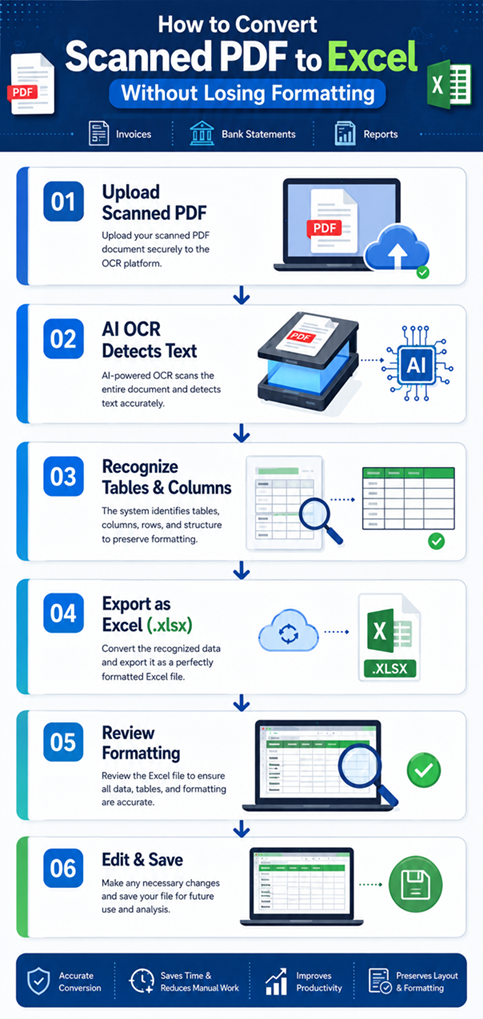
Converting a scanned PDF into an editable Excel spreadsheet isn’t difficult when you follow the correct workflow. Many people simply upload a document and expect perfect results, but spending a few minutes preparing the file can significantly improve OCR accuracy. Whether you’re converting invoices, bank statements, sales reports, or inventory sheets, these steps will help preserve the original formatting as much as possible.
Step 1: Prepare Your Scanned PDF
Before running OCR, inspect the quality of your scanned document. OCR software performs best when the scan is clear, straight, and free from unnecessary marks. If the document contains shadows, folded corners, coffee stains, or handwritten notes, consider cleaning it first using a PDF editor or image enhancement tool.
Aim for a scan resolution of 300 DPI or higher. Lower-resolution scans often produce recognition errors, especially for small fonts and detailed tables. If your document is skewed, rotate or straighten it before processing. Also, crop unnecessary borders because extra white space or scanner edges can confuse table detection algorithms.
Another useful practice is to ensure that all pages are oriented correctly. A document with mixed portrait and landscape pages can reduce OCR accuracy. Taking these small preparation steps often saves much more time later by reducing the amount of manual editing required in Excel.
Step 2: Run OCR on the Document
After preparing your PDF, open it in your preferred OCR software and start the recognition process. Most OCR applications automatically detect whether the document contains selectable text. If it is purely image-based, the software performs text recognition before allowing export.
Choose the correct language for the document. Selecting English for an English document improves recognition accuracy because the OCR engine uses language-specific dictionaries and grammar rules. If your document contains multiple languages, many modern OCR tools can detect them automatically.
During OCR, the software analyzes not only the characters but also the overall document structure. It identifies table borders, column spacing, headers, and merged cells. This stage determines how closely your Excel file will resemble the original PDF, making it one of the most important parts of the conversion process.
Step 3: Export as an Excel Workbook
Once OCR has finished, review the recognized document before exporting. Many applications display the detected text alongside the original scan, allowing you to correct obvious mistakes immediately.
When exporting, choose the Excel Workbook (.xlsx) format rather than CSV if you want to preserve formatting. CSV files contain only plain text separated by commas, so they cannot retain fonts, merged cells, column widths, colors, or formulas.
Some OCR programs also provide export options such as:
| Export Option | Best Use Case | Formatting Preserved |
| XLSX | Business spreadsheets | Excellent |
| CSV | Raw data analysis | No |
| XLS | Older Excel versions | Good |
| XML | Database import | Partial |
Selecting the correct export format helps minimize editing after conversion.
Step 4: Review and Correct Formatting
Even the best OCR software occasionally makes mistakes, especially when processing poor-quality scans or unusual document layouts. Open the exported Excel workbook and carefully review every worksheet.
Check:
- Column alignment
- Row spacing
- Numerical values
- Dates
- Currency symbols
- Merged cells
- Formulas (if applicable)
Compare the spreadsheet with the original PDF page by page. Financial documents deserve extra attention because a single misplaced decimal point can cause significant errors. Spending a few minutes reviewing the converted file ensures accuracy before sharing or analyzing the data.
Common Problems and Their Solutions
Even advanced OCR software encounters challenges with certain documents. Understanding these common issues helps you resolve them quickly without starting over.
Broken Tables
One of the most frequent problems occurs when table columns shift during conversion. This usually happens because the scanned document has faint gridlines or uneven spacing between columns.
To reduce this issue:
- Scan at 300 DPI or higher.
- Straighten tilted pages.
- Increase image contrast.
- Use OCR software with AI table recognition.
- Avoid scanning folded or wrinkled pages.
If the table still breaks, manually insert missing columns in Excel and use the original PDF as a reference.
Incorrect Numbers
OCR sometimes mistakes similar-looking characters such as:
- 0 and O
- 1 and I
- 5 and S
- 8 and B
These errors are particularly common in faded documents or decorative fonts. Always verify totals, invoice numbers, account numbers, and financial values after conversion. Using high-quality scans significantly reduces these recognition mistakes.
Missing Columns or Rows
Complex layouts occasionally cause OCR engines to ignore narrow columns or merged cells. This often happens with densely packed financial reports or engineering tables.
To improve results:
- Increase scan resolution.
- Split large pages into smaller sections.
- Run OCR again after image enhancement.
- Export individual pages separately instead of processing an entire document at once.
Breaking a complicated document into smaller pieces often produces cleaner Excel spreadsheets.
Best Practices for Perfect Results
Consistently achieving high-quality conversions requires more than simply choosing good OCR software. Following proven best practices improves both speed and accuracy.
Always keep original scanned PDFs as backup files. If you accidentally overwrite data during editing, you can quickly compare the spreadsheet with the original document.
Use high-resolution scans whenever possible. OCR accuracy depends heavily on image quality. Clean, well-lit scans with sharp text consistently outperform blurry or compressed images.
Avoid excessive image compression before OCR. Smaller file sizes may seem convenient, but aggressive compression removes details that OCR engines need for accurate character recognition.
For confidential business documents, use offline OCR software whenever privacy is important. Uploading sensitive financial records to unknown online converters may violate company security policies.
Finally, verify important numerical information manually. AI has become remarkably accurate, but human review remains essential for legal documents, accounting records, tax forms, and contracts.
Conclusion
Converting a scanned PDF into Excel without losing formatting is far easier today than it was just a few years ago. Advances in AI-powered OCR technology now allow software to recognize not only text but also tables, merged cells, document layouts, and complex formatting with impressive accuracy. Whether you’re working with invoices, financial reports, bank statements, inventory lists, or research data, choosing the right OCR tool and following a structured workflow can dramatically reduce manual editing.
Preparing high-quality scans, selecting the appropriate OCR software, exporting to the correct Excel format, and carefully reviewing the final spreadsheet are the key steps to achieving professional results. While no OCR solution is completely error-free, combining modern AI recognition with a quick manual review provides reliable spreadsheets that are ready for analysis, reporting, and business use. By following the techniques outlined in this guide, you’ll save time, improve productivity, and maintain the formatting that makes your data easy to read and work with.
Frequently Asked Questions
1. Can Excel directly open a scanned PDF?
No. A scanned PDF is an image rather than editable text. OCR software must first convert the image into machine-readable data before Excel can work with it effectively.
2. What scan resolution is best for OCR?
A resolution of 300 DPI is generally recommended. Higher resolutions may improve recognition for very small text but also increase file size.
3. Will OCR preserve formulas from the original Excel file?
No. If the PDF was created by printing an Excel workbook, formulas are converted into visible values. OCR cannot reconstruct the original formulas.
4. Are free OCR tools accurate enough?
Many free OCR tools work well for simple documents. However, professional OCR software usually provides better table recognition, formatting preservation, and batch-processing features.
5. Is it safe to upload confidential PDFs to online OCR services?
Only if you trust the provider’s privacy and security practices. For sensitive financial, legal, or medical documents, offline OCR software is generally the safer choice.


1 Comment
Pingback: Best Self-Hosted AI Apps for Home Servers in 2026 - Blackbud