







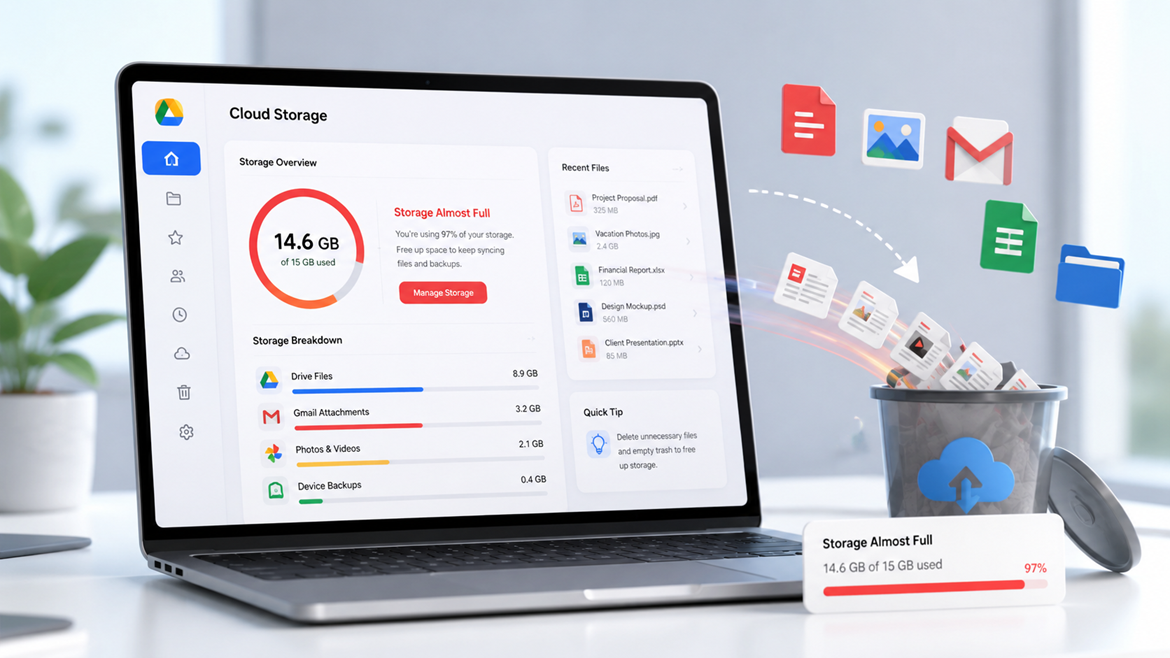
Deleting files from Google Drive feels like it should immediately create free space. You select large videos, old ZIP files, duplicate documents, and folders you no longer need, click the delete option, and expect the storage meter to drop. Yet sometimes the storage warning remains, leaving you wondering whether Google Drive is broken or whether your files somehow survived deletion. The good news is that this behavior usually has a straightforward explanation. When you delete a file in Google Drive, it normally moves to the Trash, rather than disappearing permanently. Google says files in the Trash continue to count toward your storage until they are permanently deleted. Files normally remain there for 30 days unless you manually empty the Trash, so deleting a 5 GB file may not immediately give you that 5 GB back.
There is another important detail that often causes confusion: Google Drive storage is not completely separate from your other Google services. Your Google Account storage is shared among services such as Google Drive, Gmail, and Google Photos, with additional storage usage potentially coming from WhatsApp backups and other supported Google data. Therefore, deleting 10 GB of Drive files will not necessarily make your account show 10 GB of free space if Gmail attachments, Photos videos, backups, or other stored data are using the quota. Google currently states that a personal Google Account can include up to 15 GB of storage shared across these services.
Why Google Drive Still Shows Full Storage After Deleting Files
Deleted Files Are Still in the Trash
The first thing to check is your Google Drive Trash. This is the most common reason people think their deleted files are still consuming storage. Moving a file to Trash is similar to putting an unwanted item into a recycling bin at home. The item is no longer sitting on your desk, but it has not actually left the house. Google Drive works in much the same way. Files that you move to Trash remain part of your storage calculation until they are permanently removed. Google confirms that files in Drive Trash count toward your storage quota.
To permanently remove those files, open Google Drive and select Trash from the left-hand menu. Review the contents carefully because emptying the Trash permanently deletes those files. If you are certain that you do not need anything there, choose the option to empty the Trash. You can also permanently delete individual files if you want to keep other items for possible recovery. This is especially useful when you have accidentally deleted a large video or project folder but still want to retain smaller files in the Trash.
Keep in mind that this action cannot be treated like an ordinary delete. Once the Trash is emptied, those files are permanently deleted and may no longer be recoverable through the normal restoration process. So, before clicking Empty Trash, make sure you have downloaded anything important. If your goal is simply to understand why storage has not changed, checking the Trash should be your first step.
Google Storage Is Shared Across Services
The second major reason is that your Google Account storage is shared. You might think you have a “Google Drive problem” because Drive displays a storage warning. However, the actual space may be consumed partly or mostly by Gmail, Google Photos, WhatsApp backups, or other supported account data. Google specifically explains that your account storage is shared across Google Drive, Gmail, and Google Photos, and its current storage documentation also lists WhatsApp backups and Android backup data among items that can affect storage.
Imagine you have one 15 GB suitcase. Google Drive, Gmail, and Google Photos are all putting their belongings into that same suitcase. Removing clothes from one section does not make the suitcase empty if another section is packed with heavy items. This is why deleting dozens of Drive files can sometimes make little visible difference. Your Drive folder may look much cleaner, but your Google Account can still be nearly full because another Google service is using the remaining capacity.
The easiest way to understand the situation is to open Google’s storage management area and look at the breakdown by service. Instead of guessing, check whether Drive, Gmail, Photos, or backups are responsible for the largest share. Google provides storage management tools specifically for identifying where your account space is being consumed.
How Google Drive Storage Actually Works
What Counts Toward Your Storage Limit
Google storage includes much more than ordinary documents. Depending on your account and the type of content you use, storage can include Drive files, Gmail messages and attachments, Google Photos media, backups, and certain data created through Google services. Google also notes that files created or edited in collaborative applications such as Docs, Sheets, Slides, Drawings, Forms, and Vids can count toward your quota under its current storage rules.
This matters because users often clean only the files they can see inside their main Drive folders. For example, you might delete a 4 GB video folder from Drive and still see almost no change because Gmail attachments are using 5 GB and Google Photos is using another 6 GB. The storage meter is calculating the entire account, not just the folder you recently cleaned.
Another detail is that shared files usually do not consume your storage simply because someone shared them with you. Google says shared files count toward the owner’s storage. However, if you make a copy of a shared file, upload your own content to a shared folder, or become the owner of a file, the storage implications can change.
That distinction can save you from deleting useful shared content unnecessarily. If someone shared a large presentation or video with you, you generally do not need to delete it simply because you see it in your Drive. Focus instead on files you own and other data that actually contributes to your account quota.
Why Storage Updates Can Take Time
Sometimes you really did delete enough files, empty the Trash, and remove other unnecessary content, yet the storage meter still looks unchanged. This does not necessarily mean the deletion failed. Google states that after deleting a large number of files, its systems can take 48 to 72 hours to accurately update the storage information.
This delay is particularly confusing when you remove a large batch of files. You might delete 20 GB of data and immediately refresh the page, only to see almost exactly the same storage number. It is tempting to repeat the deletion process or assume something went wrong. Before doing that, give Google’s storage calculation time to catch up.
For smaller cleanups, the change may appear sooner. Google also advises allowing some time after deleting files and emptying Trash before expecting the storage display to fully update. If you have already completed the cleanup and the account still shows full after a reasonable waiting period, move on to checking the other storage categories rather than repeatedly deleting the same files.
How to Free Up Google Drive Storage

Empty Your Drive Trash
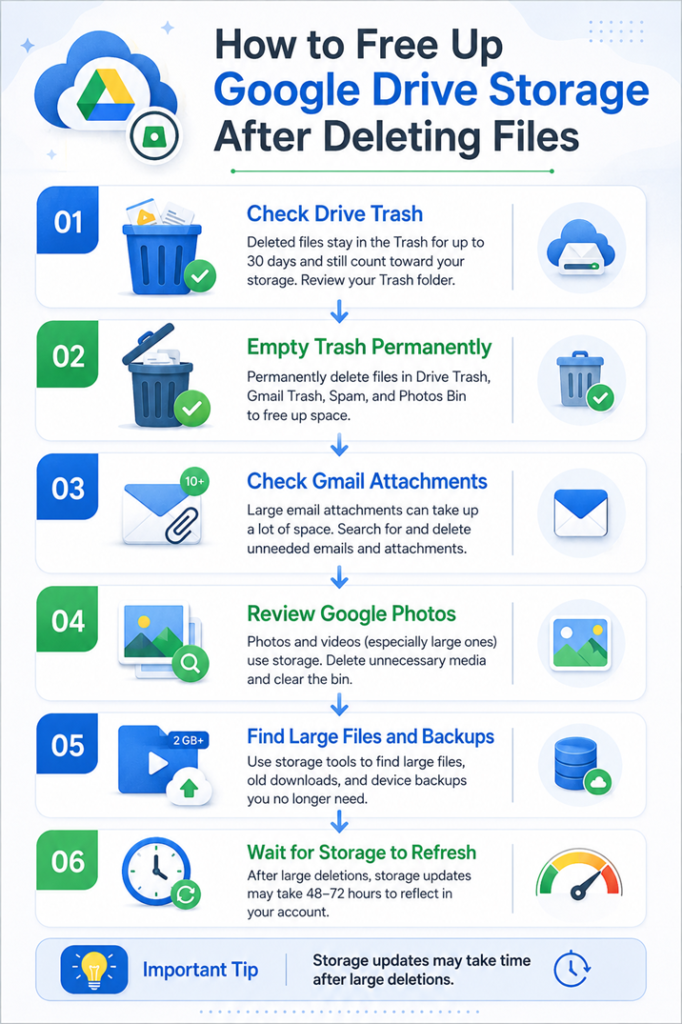
Start with the simplest solution: empty your Drive Trash. Open Google Drive, find Trash, and inspect the files inside. If you are sure you no longer need them, permanently delete them. This can be particularly effective if you have previously deleted large videos, backups, compressed archives, or old project folders.
Do not assume that deleting a file from its original folder automatically removes it from your storage. The normal deletion process sends the item to Trash first. Google confirms that files remain in Trash for up to 30 days before automatic permanent deletion, unless you manually empty the Trash.
You should also check whether your Google Photos and Gmail trash folders contain unnecessary items. Gmail’s Trash and Spam folders can contribute to storage usage, and Google recommends emptying those folders when trying to recover account space. Google Photos also has its own bin.
Check Gmail and Google Photos
If your Drive cleanup does not solve the problem, look beyond Drive. Gmail can quietly accumulate years of large attachments. A few hundred emails may not look significant, but messages containing videos, presentations, high-resolution images, ZIP archives, or large PDFs can add up over time. Google recommends using Gmail search operators to identify messages with large attachments, including searches such as has:attachment larger:10M.
Google Photos is another common storage consumer. A phone can automatically back up hundreds or thousands of photos and videos, often without you thinking about them. Videos are especially important because a relatively small number of large videos can consume a significant amount of account storage. Google’s storage management guidance specifically highlights large photos and videos as useful cleanup targets.
Before deleting anything from Photos, review your library carefully. Personal photos may be irreplaceable, so consider downloading important memories or ensuring another backup exists first. Once you have confirmed that unnecessary media can go, remove it and then clear the Photos bin if you need the space immediately.
Find Large Files and Backups
Instead of manually opening every Drive folder, focus on large files first. A single 8 GB video can matter more than hundreds of tiny documents. Google provides tools that help you identify files by size, making it easier to target the content that gives you the biggest storage benefit for the least effort.
Look for old videos, ISO files, ZIP archives, duplicate downloads, exported project files, outdated device backups, and large recordings. If you no longer need them, download them to another storage location if necessary and then permanently remove them from your Google Account.
Backups deserve special attention. Google says Android backup data and WhatsApp backups can contribute to Google storage. If you have old backups that you no longer need, they may be worth reviewing. However, be extremely careful with WhatsApp backups. Deleting a backup can permanently remove the stored backup and may affect your ability to restore chat history if you change phones or reinstall WhatsApp.
What to Do If Storage Is Still Full
Check Hidden and App-Related Data
If you have emptied Trash and checked Drive, Gmail, and Photos but the storage warning remains, look at the broader storage breakdown. Google notes that account storage can also include hidden app data and other background data that may not appear as ordinary files in your main Drive folders.
This is one reason simply browsing your Drive homepage can be misleading. The files you see there are only part of the storage picture. Your Google Account’s storage manager provides a more useful overview because it brings different services and categories together.
You should also avoid confusing local computer storage with Google cloud storage. Drive for desktop can make these numbers appear especially confusing. Google explains that your computer’s hard-drive space and your Google Account’s cloud quota are separate measurements, so the numbers shown by Windows File Explorer or macOS Finder do not necessarily match the amount shown by Google.
For example, your laptop might have only 20 GB of free disk space while your Google Account has 5 GB available. Those are two completely different storage limits. Cleaning your computer will not automatically create additional Google cloud storage, and deleting a cloud file will not necessarily free the same amount of local disk space depending on how Drive for desktop is configured.
Wait for Google’s Storage Calculation to Refresh
After a major cleanup, patience can be part of the solution. Google states that deleting a large number of files can require 48–72 hours for its storage system to accurately reflect the change.
That means you should not immediately conclude that your account is broken simply because the storage number has not changed. If the deleted files are permanently gone and the other storage categories have been checked, allow Google’s systems time to process the changes.
A useful approach is to record your storage usage before cleaning. Then empty the relevant bins, remove large unnecessary files, and check again later. This gives you a clear baseline instead of relying on memory. If the number eventually drops, you know the cleanup worked. If it does not, you can investigate another storage category rather than deleting more files blindly.
How to Prevent Google Drive From Filling Up Again
Build a Regular Storage Cleanup Routine
Once you solve the immediate problem, the best strategy is to prevent the same situation from returning. You do not need to perform a huge cleanup every few months if you make small checks part of your routine. A quick monthly review of large Drive files, Gmail attachments, Google Photos videos, and backups can prevent your account from quietly reaching its limit.
Start with the biggest files because they give you the fastest results. A folder full of tiny documents may be inconvenient to organize, but a single large video can consume more space than thousands of text files. Therefore, storage management should be based on impact rather than file count.
It also helps to avoid using Google Drive as an unlimited archive. If you have old installation files, temporary exports, duplicate videos, or completed projects that you rarely access, consider moving them to another suitable storage location. Keep your Google Account focused on files that you actually need to access regularly.
Finally, monitor automatic backups. Automatic photo and device backups are convenient, but they can steadily increase your storage usage without requiring any action from you. Reviewing your backup settings and periodically checking Google’s storage manager can help you spot growth before it becomes an emergency.
Conclusion
If your Google Drive storage is still full after deleting files, the files themselves are not necessarily the problem. The first thing to remember is that deleted Drive files can remain in Trash and continue using storage until they are permanently removed. Your Google Account storage is also shared across Drive, Gmail, Google Photos, and other supported data, so cleaning Drive alone may not be enough.
Start by emptying Drive Trash, then check Gmail Trash and Spam, Google Photos, large files, and backups. Use Google’s storage management tools to see exactly which service is consuming the most space instead of guessing. If you have deleted a large number of files, remember that Google’s storage calculation can take 48–72 hours to update accurately.
The key is to think of Google storage as one shared bucket, not three completely separate buckets. Once you understand that, the mystery becomes much easier to solve. Clean the largest sources first, permanently remove files you no longer need, protect important data before deleting it, and give the storage system time to refresh.
FAQs
1. Why is Google Drive full when I deleted everything?
Your deleted files may still be in the Drive Trash, where they continue to count toward your storage quota. Your Google Account may also be using space through Gmail, Google Photos, WhatsApp backups, or other supported data. Empty the relevant bins and check the Google storage manager to identify the actual source of the usage.
2. How long does Google Drive take to update storage after deleting files?
After deleting a large number of files, Google says its storage calculation can take 48–72 hours to accurately update. Smaller changes may appear sooner, but a delayed storage number does not necessarily mean your files were not deleted.
3. Does emptying Google Drive Trash free storage immediately?
Emptying the Trash permanently deletes the files and should make the space available, but the storage display may not update immediately. Google recommends allowing time for the storage calculation to refresh, particularly after large-scale deletions.
4. Can Gmail make my Google Drive storage full?
Yes. Google Account storage is shared across Gmail, Google Drive, and Google Photos. Large Gmail attachments, messages, and items in Gmail’s Trash and Spam folders can therefore contribute to your overall storage usage.
5. What should I delete first to free Google storage quickly?
Start with large files and videos, then check Drive Trash, Google Photos, Gmail attachments, and unnecessary backups. Large videos and other media usually provide more immediate storage savings than deleting hundreds of small documents. Google’s storage management tools can help identify the biggest cleanup targets.


