


What Are Hidden Tracking Cookies on iPhone Safari?
If Safari seems to remember websites even after you delete your browsing history, you may wonder whether hidden tracking cookies are still sitting somewhere on your iPhone. The answer is a little more complicated than simply looking for a folder called “cookies.” Safari stores different kinds of website data, including cookies, cached files, local storage, databases, and other information that websites use to remember settings or maintain sessions. Some of this data is useful, while some can contribute to advertising and cross-site tracking. Apple has built several privacy protections into Safari, including Intelligent Tracking Prevention, which is designed to limit how websites and advertisers can track people across different sites.
The important point is that clearing Safari history does not always mean removing every piece of website data. A site may still have stored information that allows it to remember preferences, login states, or previous interactions. That does not automatically mean your iPhone has been compromised or that someone is secretly watching you. Think of Safari website data like small notes left behind after visiting different stores. Some notes help the store remember your preferences, while others may help advertising systems understand your browsing activity. If your goal is to make Safari as private as possible, you need to manage both stored website data and Safari’s privacy settings rather than relying on one “clear history” action.
First-Party vs. Third-Party Tracking Data
Not every cookie is a tracking cookie. First-party cookies are created by the website you are actively visiting and can be useful for keeping you signed in, remembering language preferences, or maintaining shopping-cart information. Third-party tracking is different because data can be associated with services or domains that appear across multiple websites. Safari’s privacy system is specifically designed to reduce this type of cross-site tracking.
This distinction matters because aggressively deleting every cookie can make browsing less convenient without necessarily giving you a proportional privacy benefit. For example, deleting all website data may sign you out of websites you use every day. It may also remove preferences and saved site settings. A better approach is to first enable Safari’s tracking protections, then clear stored website data when you have a specific reason to do so. This gives you a cleaner privacy setup without treating every cookie as a threat.
Why Safari Stores Tracking Data on Your iPhone
Safari stores website information because modern websites need somewhere to keep temporary and persistent data. When you log into an online service, add something to a cart, choose a preferred language, or interact with a web application, the site may need to remember information between page loads. Cookies are only one part of this system. Safari can also store cached resources and other website-specific information. Apple’s current Safari documentation explains that clearing browsing data can remove cookies and other website data, while cached files may also be removed as part of the process.
This is why the phrase “hidden cookies” can be misleading. There usually isn’t a secret collection of cookies deliberately concealed from you. Instead, Safari manages several types of website information behind the scenes. You may not see every individual item through the normal Safari interface, but that doesn’t mean it is invisible to the operating system. Apple’s privacy architecture intentionally abstracts much of this technical information so users don’t have to manage databases manually.
How Cross-Site Tracking Works
Imagine visiting ten different websites during the day. If the same advertising or analytics ecosystem can recognize signals associated with your activity across those sites, it can potentially build a picture of your browsing interests. Cross-site tracking attempts to connect activity across different websites rather than simply remembering what happened on one website.
Safari’s Intelligent Tracking Prevention (ITP) was created to reduce this type of tracking. Apple says Safari uses on-device machine learning and other privacy protections to help prevent trackers from following users across websites.
This means that simply finding and deleting one cookie isn’t the whole privacy story. The stronger strategy is to use Safari’s built-in privacy protections continuously. Think of deleting cookies as cleaning your desk, while tracking prevention is more like installing a filter on the door. Cleaning removes information already there; prevention helps reduce unwanted information being collected in the first place.
How to Clear Website Data in Safari
If your primary goal is to remove cookies and other stored website information from Safari on an iPhone, Apple’s settings provide a direct way to do it. The exact appearance of the Settings app can vary slightly depending on your iOS version, but Safari’s privacy and website-data controls remain the place to start. Before clearing everything, remember that website data can include useful login and preference information.
Open Settings, select Apps, choose Safari, and look for the option to clear browsing data. On some iOS versions, Safari may appear directly under Settings rather than inside Apps. Apple provides controls for clearing history and website data, as well as options for managing individual website data.
If you want the broadest cleanup, use the option that clears your browsing history and website data. If you only want to remove information associated with particular sites, use the more targeted website-data controls instead. This distinction is important because a complete cleanup is disruptive, while targeted deletion can solve a privacy or website problem without affecting every site you use.
Delete All Safari Website Data
To perform a broad Safari cleanup, open your iPhone’s Settings app and navigate to Safari. Depending on your iOS version, look for the command to clear history and website data. Review the confirmation screen carefully before proceeding because this action can remove browsing information and stored website data.
After clearing the data, Safari may behave as though you are visiting many websites for the first time. You may need to log back into accounts, recreate certain preferences, or allow websites to store information again. This is normal and doesn’t mean the cleanup failed.
If your reason for clearing data is privacy, consider combining the cleanup with Safari’s privacy controls. Apple’s Safari settings include Prevent Cross-Site Tracking, which is designed to restrict third-party tracking. Keeping that protection enabled is generally more useful than repeatedly deleting cookies every few days.
Remove Data From Specific Websites
You don’t always need to wipe everything. If one website is behaving strangely, repeatedly showing outdated information, or you simply want to remove its stored information, targeted deletion is often the better option.
Go to Safari’s settings and look for the advanced website-data section. From there, you can inspect stored website data and remove individual entries where the interface allows it. This approach is especially useful when you rely on many websites and don’t want to lose every saved session.
Targeted deletion also helps you understand what Safari is storing. Instead of thinking of cookies as one giant hidden database, you can think of website data as information associated with individual domains. Removing one site’s data doesn’t necessarily affect another site’s data.
How to Block Cross-Site Tracking on iPhone
Deleting existing tracking data is only half the job. If you continue browsing with weak privacy settings, new website data can accumulate again. Safari therefore includes controls intended to limit tracking while you browse.
Open Settings → Apps → Safari and review the privacy section. Make sure Prevent Cross-Site Tracking is enabled. Apple’s documentation describes this feature as a way to prevent content providers from tracking you across websites.
You may also see additional privacy-related controls depending on your iOS version and device configuration. Don’t switch off privacy protections just because a particular website behaves differently. If a website requires an exception, understand why before changing a setting globally.
Check Safari Privacy Settings
Your Safari privacy settings should be viewed as a group rather than as isolated switches. Cross-site tracking prevention reduces certain forms of tracking, while private browsing changes how browsing sessions are handled. Safari can also display privacy information about websites and trackers.
For everyday browsing, the simplest setup is usually to leave Apple’s privacy protections enabled unless you have a specific compatibility problem. If a website doesn’t work correctly, troubleshoot that website first instead of disabling every privacy feature.
A good privacy setup should feel almost invisible. You shouldn’t have to manually delete cookies every night. The goal is to let Safari handle as much tracking protection as possible automatically.
How to Clear Safari History, Cookies, and Cache Together
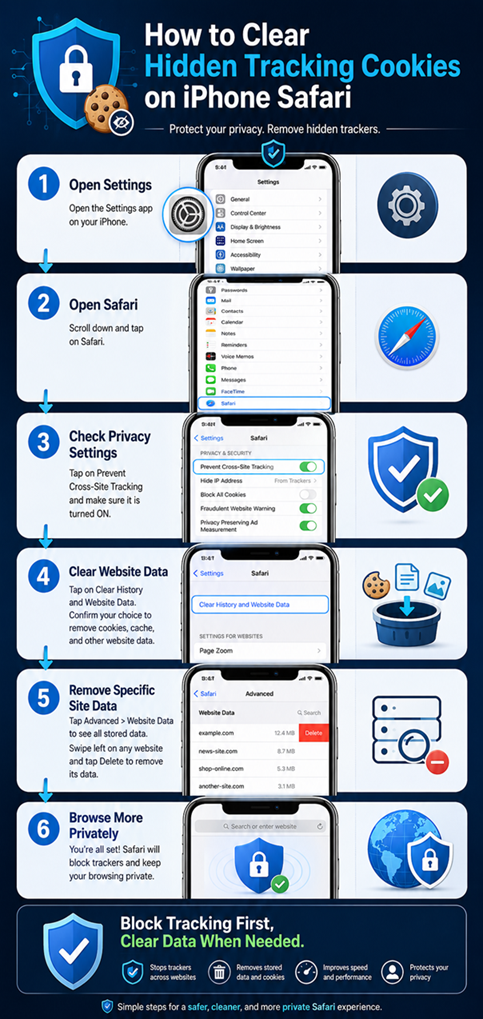
Sometimes you want a complete reset because Safari is acting strangely. A website may load an old version of a page, refuse to recognize a changed account state, or behave differently after an update. In these situations, clearing Safari’s history and website data can be a useful troubleshooting step.
Apple notes that clearing Safari browsing data can remove information such as browsing history, cookies, and other website data. The exact results depend on the clearing option you choose and the iOS version you’re using.
Before doing it, make sure you know which accounts you may need to sign into again. If you use a password manager, this is usually much easier because your login credentials remain available separately from Safari’s website cookies.
What You Lose When You Clear Safari Data
The biggest downside is convenience. Cookies often maintain login sessions, so clearing them can sign you out. Websites may also forget language preferences, consent choices, shopping-cart states, or other local settings.
This is why clearing all Safari data should not become a routine privacy ritual. If Safari already has tracking protections enabled, constantly deleting all cookies can create unnecessary friction. A targeted cleanup is often enough when you’re troubleshooting a single website.
Think of it like cleaning a house. You don’t need to throw away every item to remove dust from one room. Start with the smallest effective cleanup, then move to a full reset if the problem remains.
How to Remove Tracking Data That Seems Hidden
If Safari still appears to remember a website after you cleared your history, don’t immediately assume that hidden tracking cookies are responsible. The website may be using another form of local storage, your account itself may retain information, or Safari may have synchronized certain browsing information through iCloud depending on your settings.
Safari’s Advanced settings can provide additional controls for website data. If you’re troubleshooting privacy or website behavior, inspect these settings rather than repeatedly clearing the same history screen.
Also remember that removing browser data doesn’t erase information stored on a website’s own servers. If you create an account on a website, the company may still retain account information after you delete Safari cookies. Browser cleanup and server-side account deletion are two different things.
Check Advanced Safari Settings
Advanced Safari settings are useful when basic cleanup doesn’t solve the issue. Depending on the version of iOS you use, you may find additional website-data and privacy-related controls there.
Don’t change technical settings randomly. Some controls exist for compatibility and developer use rather than ordinary privacy management. If you’re unsure what a setting does, leave it at its default until you understand the consequence.
The most practical strategy is simple: use Apple’s normal privacy protections, clear website data when necessary, and investigate advanced settings only when a specific problem requires it.
Does Private Browsing Delete Tracking Cookies?
Private Browsing is not the same thing as deleting all tracking data. It is designed to provide a more private browsing session by limiting what Safari saves locally after the session. It doesn’t mean that every website suddenly becomes incapable of tracking activity.
Private Browsing is useful when you don’t want a particular browsing session mixed with your regular Safari history. It can also be useful when using a shared device. But it should not be treated as an invisible cloak for online activity.
Websites can still receive information during a private browsing session. Network providers, websites, and other services can have their own logging systems. Safari’s privacy protections still matter even when you’re browsing privately.
Private Browsing Limitations
One common misunderstanding is that Private Browsing makes you anonymous. It doesn’t. It mainly changes what Safari stores locally and how the browsing session is separated from your regular browsing activity.
For stronger everyday privacy, combine normal Safari privacy settings with sensible browsing habits. Keep cross-site tracking protection enabled, avoid unnecessary permissions, and clear website data when there is a real reason to do so.
Private Browsing is best viewed as a privacy feature for the browsing session, not a replacement for all other privacy tools.
How to Stop Tracking Cookies From Returning
Cookies and website data will naturally return as you browse. That’s not necessarily a failure. Websites need to store some information to function correctly, and Safari can’t simply prevent all website storage without breaking many modern services.
The goal is to reduce unwanted tracking, not eliminate every cookie. Keep Safari’s cross-site tracking protection enabled and use Apple’s privacy features as your first line of defense. When a website’s stored data becomes unnecessary, remove it selectively.
You can also reduce tracking by limiting the number of websites and services you grant unnecessary permissions to. Review location, notification, camera, microphone, and other permissions when appropriate. Privacy is often less about one dramatic setting and more about reducing the amount of information you give away over time.
Use Safari’s Privacy Features
Safari includes several privacy-oriented features that work together. Cross-site tracking prevention is one of the most important because it addresses the behavior behind many advertising trackers rather than merely deleting the evidence afterward. Apple’s approach is designed to limit tracking while keeping websites usable.
If you’re using Safari because you want better privacy, keep these protections active instead of relying on frequent manual deletion. You can still clear website data occasionally, especially after using shared devices or troubleshooting a website.
The best setup is therefore proactive. Block unnecessary tracking first, clean stored data when needed, and avoid disabling privacy controls without a clear reason.
Common Problems After Clearing Safari Cookies
After deleting Safari cookies, some websites may suddenly ask you to log in again. Others may display setup screens, forget your preferred language, or ask you to accept cookie and privacy choices again. These behaviors are normal because the browser no longer has the stored information that helped the website recognize your previous session.
If a site stops working correctly after a cleanup, first reload it and sign in again. If that doesn’t help, check whether Safari’s privacy settings are blocking something the website legitimately requires. Avoid disabling all privacy features as the first troubleshooting step.
In many cases, the problem can be solved by restoring a single website’s data rather than changing global Safari settings. This is another reason targeted cleanup is preferable when you know which website is causing the issue.
Websites Asking You to Sign In Again
Being signed out after clearing cookies is expected. A login cookie can act like a temporary ticket proving that your browser has already authenticated. When you remove that ticket, the website asks you to authenticate again.
This doesn’t mean your account has been deleted. It simply means Safari no longer has the local session information needed to automatically recognize you.
If you use two-factor authentication, keep your authentication method available before performing a complete Safari cleanup. That small preparation can save a lot of frustration.
Conclusion: Keep Safari Tracking Data Under Control
Clearing hidden tracking cookies on an iPhone isn’t really about hunting for a secret folder of invisible files. Safari manages several types of website information, and some of that information is necessary for websites to work properly. The smarter approach is to understand the difference between useful website data and unwanted cross-site tracking, then use Safari’s built-in privacy protections to limit tracking automatically.
Start by checking Prevent Cross-Site Tracking in Safari’s settings. If you need a fresh start, clear Safari’s history and website data. If only one website is causing problems, remove its stored data instead of wiping everything. And remember that Private Browsing isn’t the same as complete online anonymity.
The most effective privacy habit is not constant cookie deletion. It’s a combination of tracking prevention, sensible permissions, targeted data cleanup, and informed browsing. Once those habits are in place, Safari can handle much of the work for you.
FAQs About Hidden Tracking Cookies on iPhone Safari
1. How do I completely remove tracking cookies from Safari on iPhone?
Go to Settings → Apps → Safari and use the option to clear browsing history and website data. This can remove cookies and other stored website information. For ongoing protection, keep Safari’s cross-site tracking prevention enabled.
2. Why do cookies come back after I delete them?
Cookies and other website data are recreated when you visit websites again. That’s normal. Websites need some local data for logins, preferences, shopping carts, and other functions. The goal is to limit unwanted tracking rather than prevent every website from storing information.
3. Does clearing Safari history remove all cookies?
Clearing history and website data can remove cookies and other website information, but the exact result depends on the option selected and your iOS version. If you’re trying to remove data from a specific website, use Safari’s website-data controls where available.
4. Does Private Browsing stop all tracking on iPhone?
No. Private Browsing mainly limits what Safari saves locally during a private session. It does not make you completely anonymous online. Safari’s normal privacy protections, including cross-site tracking prevention, remain important.
5. Should I delete Safari cookies regularly?
Usually, you don’t need to delete all cookies on a fixed schedule. Safari already provides privacy protections designed to reduce unwanted tracking. Clear website data when you have a privacy reason, need to troubleshoot a website, or want to reset stored browser information.

2 Comments
Pingback: Common Phishing Scams, Warning Signs, and Safety Tips
Pingback: Best Programming Languages to Learn - Blackbud