

Imagine having your own AI assistant running quietly on a computer in your home, ready to answer questions, summarize documents, help with coding, organize photographs, and automate everyday tasks. You do not have to depend entirely on external AI services or send every request to a third-party platform. Instead, you can build a personal AI environment using software installed on a home server, mini PC, NAS, or spare desktop computer. This approach is becoming increasingly attractive to technology enthusiasts who want more control over their data, applications, and computing resources.
The best self-hosted AI apps for home servers in 2026 make this setup more practical than ever. You can run language models locally, create a browser-based chat bot, search your personal documents, generate images, recognize speech, and connect AI with smart-home devices. Some applications are designed for beginners, while others offer powerful customization for experienced home lab users. The right combination depends on your hardware, technical experience, budget, and the tasks you want to automate.
In this guide, we will explore ten useful self-hosted AI applications, compare their strengths, and explain how to combine them into a practical home AI stack. Whether you are starting with an ordinary desktop computer or already operate a dedicated home server, you will find options worth exploring.
What Is Self-Hosted AI and Why Does It Matter?
Self-hosted AI means running an AI application or its supporting services on hardware you control rather than relying exclusively on a provider’s hosted platform. Your server may run the language model itself, provide a web interface, store searchable documents, or coordinate AI-powered automation. For example, you could install a local model runtime, connect it to a chat bot interface, and let the chat bot retrieve information from selected files stored on your network. These components work together like a small personal AI ecosystem.
However, self-hosting does not automatically mean every part of your system operates offline. Some applications can connect to cloud-based AI models, external search services, or online integration. If your goal is maximum privacy, you should choose local models and local supporting services wherever practical, then review each application’s network behavior and configuration. A well-designed setup lets you decide which tasks remain on your hardware and which, if any, use outside services.
Key Benefits of Running AI at Home
The first major benefit is greater control over your data. When configured to use local models without external integration, your prompts and documents can remain inside your own environment. This can be valuable when working with personal notes, household records, private projects, or internal documentation. You also gain flexibility because you can experiment with different models and applications without committing your entire workflow to one AI platform.
Another advantage is customization. You can choose lightweight models for quick tasks, larger models for more demanding reasoning, and specialized tools for speech or image generation. Your home server can also support several services at once, allowing you to build a system that grows with your needs. The trade-off is that you become responsible for updates, backups, access controls, hardware limitations, and troubleshooting. Self-hosted AI offers independence, but that independence works best when you manage the server carefully.
What Hardware Do You Need for a Home AI Server?
You do not necessarily need an expensive workstation to begin experimenting with self-hosted AI. A spare desktop or mini PC can handle lightweight language models, AI interfaces, document indexing, and basic automation. Memory capacity, processor performance, storage space, and GPU availability all affect the experience. Larger language models generally demand more memory, while a compatible GPU can substantially accelerate inference and image generation.
Here is a practical starting point rather than a strict hardware requirement. Actual performance varies with the model, quantization, context length, operating system, and number of simultaneous users.
| Hardware setup | Suitable workloads | Main limitation |
| 8 GB RAM, modern CPU | Lightweight experiments and basic services | Limited model size and multitasking |
| 16 GB RAM, modern CPU | Small local models, chat interfaces, document tools | Larger models may be slow or memory-constrained |
| 32 GB RAM or more | More demanding local models and multiple services | Performance still depends on model size and CPU/GPU |
| GPU with sufficient VRAM | Faster language-model inference and image generation | Higher cost, power consumption, and compatibility requirements |
| NAS or mini PC with limited resources | AI interfaces, integrations, automation, and remote model access | May need a separate machine to run models efficiently |
For beginners, a sensible strategy is to start with hardware you already own. Install one model runtime and one interface, measure performance, and upgrade only when you encounter a clear limitation. If your server is primarily a NAS, you can often run the interface and document services there while a more powerful desktop handles model inference. This split architecture avoids forcing every application onto one machine.
10 Best Self-Hosted AI Apps for Home Servers in 2026
These ten applications cover different parts of a personal AI setup. Some run models, others provide user-friendly interfaces, and several specialize in tasks such as home automation, document search, or image generation. They are not all direct alternatives to one another; in many cases, the best results come from connecting two or three complementary tools.
1. Ollama — Run AI Models Locally
If you want to run a chat bot on your home server, Ollama is one of the most convenient places to start. It provides a straightforward way to download, manage, and run supported AI models on your own hardware. Instead of building a complicated inference environment from scratch, you can use its command-line interface or API to make models available to other applications. That makes Ollama a useful foundation for a personal AI server.
You can experiment with models for everyday questions, coding assistance, stigmatization, and other text-based tasks. The experience depends heavily on the model you choose and the resources available to your machine. Smaller, quantize models can work on modest hardware, while larger models typically need more memory and may benefit from a GPU. For a home lab, Ollama’s biggest advantage is how easily it connects with applications such as Open WebUI and AnythingLLM.
Why choose it: It is an excellent starting point if you want to understand local AI without immediately managing complex infrastructure.
2. Open WebUI — Your Private AI Chat Interface
Running an AI model from a terminal is useful, but typing commands is not how most people want to interact with an assistant every day. Open WebUI solves this problem by providing a browser-based chat interface that can connect to Ollama and other compatible model providers. You can open the interface from a browser, choose a model, ask questions, and manage conversations without repeatedly using terminal commands. Its documentation also covers document uploads, knowledge retrieval, voice-related capabilities, and additional integration.
For a home server, Open WebUI can become the main dashboard for your AI services. You might use it for researching a topic, explaining code, summarizing a document, or switching between different models for different tasks. It can also work with cloud-based providers, so you should check your connections if you specifically want an offline setup. A local interface alone does not guarantee that every request stays on your machine.
Why choose it: Pair it with Ollama for an accessible personal chat bot that you can use across devices on your home network.
3. AnythingLLM — Chat With Your Documents
A general-purpose chat bot can answer questions about the world, but what if you want answers based on your own files? AnythingLLM is designed to help you build document-focused AI workspace using techniques such as retrieval-augmented generation, commonly called RAG. You can provide selected documents and ask questions about their contents rather than manually searching through dozens of files. The application supports local language-model workflows and can also be deployed as a server-based service for multiple users.
Imagine storing equipment manuals, technical notes, personal research, and project documentation on your home server. Instead of opening each file individually, you could ask where a particular setting is explained or request a summary of a long report. The quality of the answer depends on document extraction, indexing, retrieval settings, and the underlying model, so you should verify important details against the original files. For sensitive information, choose local model and embedding services and review any external connections.
Why choose it: It is a strong choice for people who want an AI assistant that can search and discuss a personal document collection.
4. LocalAI — A Flexible AI API Server
LocalAI is worth considering if you want a flexible back end that exposes AI capabilities through familiar API formats. Rather than focusing only on a chat bot interface, it provides a runtime for different AI tasks, including text generation, embedding, audio, image-related features, and other supported back ends. Its modular design allows you to select the components needed for your particular setup.
This is particularly useful when you want several applications to share an AI service. For example, a custom dashboard, an automation workflow, and another self-hosted application might all connect to the same back end instead of each maintaining a separate inference environment. That architecture can reduce duplication and simplify integration, although you still need to configure compatible models and manage resource consumption.
LocalAI may involve more configuration than a beginner-oriented application. It is a better fit if you are comfortable with Docker, APIs, model configuration, and troubleshooting. You should also verify the compatibility of each model and back end before planning your entire system around it.
Why choose it: Select LocalAI when API compatibility and a broad range of local AI capabilities matter more than having a ready-made chat interface.
5. Home Assistant — AI-Powered Smart Home Automation
Home Assistant is primarily a home automation platform rather than a standalone language model. Its value comes from connecting supported smart devices, sensors, lights, switches, and automation into a system you control. With compatible AI integration, you can add natural-language interactions and let a configured model work with the tools exposed by Home Assistant. Its official documentation describes how language models can interact with devices and answer questions about your home.
Consider a simple scenario: you want to control lights using natural language or ask an assistant about the current state of supported devices. Home Assistant can provide the device and automation context, while an AI integration interprets the request. The exact capabilities depend on the model, integration, exposed entities, and permissions you configure. Start with low-risk actions and require confirmation or explicit restrictions for anything that could affect security, heating, locks, or other critical equipment.
Why choose it: If your goal is to make your home smarter rather than simply run a chat bot, Home Assistant is a particularly useful addition to a self-hosted AI environment.
6. Whisper — Local Speech Recognition
If you record meetings, interviews, voice notes, or spoken ideas, Whisper can turn audio into text. It is a speech-recognition model rather than a complete home-server dashboard, so you will need an appropriate application, script, or integration to make it convenient for daily use. Depending on your implementation and model size, transcription can run locally without sending recordings to an external transcription service.
A local transcription workflow can be useful for private recordings, searchable meeting notes, and converting spoken ideas into written drafts. You could also connect speech recognition to a larger automation system, where transcribed audio becomes input for a language model. Keep in mind that recognition accuracy varies with background noise, accents, microphone quality, and overlapping speakers. Transcripts should be reviewed when names, numbers, or important decisions matter.
Why choose it: Whisper is a practical component when you want speech-to-text capabilities inside your own AI environment.
7. ComfyUI — Local AI Image Generation
Text-based AI is only one part of the picture. ComfyUI provides a node-based interface for constructing image-generation workflows and other supported generative-media pipelines. Instead of treating image creation as a single prompt-and-result operation, you connect processing steps into a visual graph. This gives you detailed control over model selection, image dimensions, sampling, conditioning, and other workflow settings.
For a home server, ComfyUI can support blog illustrations, concept art, product mock ups, thumbnails, and experimental visual projects. You can build repeatable workflows and reuse them whenever you need a similar result. However, image generation can demand substantial GPU memory, particularly with larger models or high-resolution outputs. Before installing multiple models, check their hardware requirements and license terms, and make sure your storage has room for model files and generated images.
Why choose it: ComfyUI is a good fit when you want more control over local image-generation workflows than a basic web interface offers.
8. Immich — AI-Powered Photo Management
Immich is a self-hosted photo and video management application that can bring your personal media library into one searchable place. Its machine-learning features support capabilities such as smart search and face-related organization, depending on configuration. You can upload photographs from supported mobile apps and manage your collection through your own server. The official setup guide describes a Docker-based installation and explains that your media files need their own backup strategy.
This makes Immich particularly useful if you want to reduce dependence on third-party photo platforms while maintaining convenient access to your images. You can organize years of family photographs, travel pictures, and personal videos in a library you manage. Since photos and face-related features can involve sensitive personal information, secure account access and network exposure are important. Most importantly, self-hosting is not the same as having a backup: maintain an independent copy of your original photos and videos.
Why choose it: Immich is a strong addition to a home server if photo management and control over personal media are among your priorities.
9. PrivateGPT — Ask Questions About Private Documents
PrivateGPT focuses on building question-answering workflows around documents in a privacy-conscious environment. It is relevant when you want to explore how a local AI system can ingest files, retrieve useful passages, and generate responses based on that material. Rather than relying only on the model’s general knowledge, a document-based system can use the contents of your selected files to ground its answers.
A possible home-server use case is creating a searchable collection of technical manuals, research papers, or project notes. You can ask questions in natural language and use the retrieved content to find relevant information more quickly. Nevertheless, local processing does not guarantee that every component is configured for offline operation, so review the project’s current setup requirements and any external services before uploading sensitive documents. As with other RAG systems, verify important answers against the original source.
Why choose it: Consider PrivateGPT if document-focused AI and privacy are your priorities and you are comfortable configuring a more specialized application.
10. n8n — Automate AI-Powered Workflows
A home AI server becomes much more useful when its applications can work together. n8n is a workflow automation platform that connects services, APIs, triggers, and processing steps through a visual editor. Depending on your configuration, you can use it to pass information between a local language model, a document service, a database, or another supported application.
For example, you might create a workflow that receives a document, extracts its text, sends the content to a local model for stigmatization, and saves the result to a designated folder. Another workflow could process incoming information and prepare a draft report for you to review. Start with straightforward automation, and add permissions and error handling before allowing workflows to make changes automatically. Also, confirm which connectors send data to external services.
Why choose it: n8n is an excellent option when you want your home AI tools to perform repeatable tasks rather than operate as isolated applications.
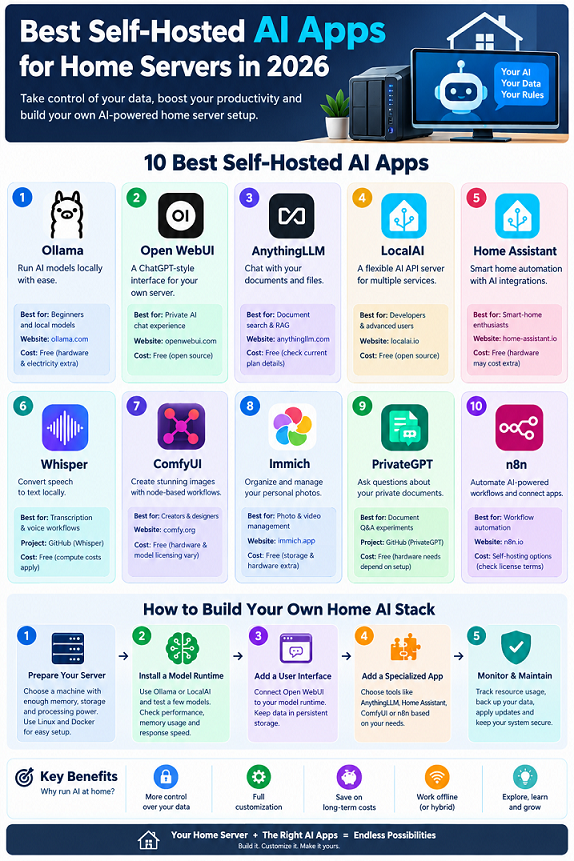
Comparison of the Best Self-Hosted AI Apps
The best tool depends on what you want your home server to accomplish. Ollama and LocalAI provide model-serving capabilities, while Open WebUI offers a convenient interface. Other tools focus on documents, media, smart-home devices, or workflow automation.
| Application | Primary purpose | Best suited for |
| Ollama | Run local language models | Beginners |
| Open WebUI | Browser-based AI chat | Everyday AI assistance |
| AnythingLLM | Document search and RAG | Personal knowledge bases |
| LocalAI | Flexible AI inference API | Developers |
| Home Assistant | Smart-home automation | Home automation enthusiasts |
| Whisper | Speech recognition | Transcription workflows |
| ComfyUI | Generative image workflows | Creators |
| Immich | Photo and video management | Personal media libraries |
| PrivateGPT | Private document Q&A | Document-focused experiments |
| n8n | Workflow automation | Advanced automation |
Software capabilities, licenses, and hardware compatibility can change. Check the official documentation linked above before installing an application or building a production workflow.
How to Build Your Own Home AI Stack
You do not need to install all ten applications at once. A better approach is to start with a small number of services and expand when you understand their resource requirements. For most beginners, a model runtime, a browser-based interface, and one specialized application provide a useful foundation.
Conceptual architecture: each service is optional and may need its own model, storage, permissions, and network configuration.
Step 1: Prepare Your Server
Choose a machine with sufficient memory, storage, and processing power for your intended workload. For a beginner setup, Linux and Docker Compose are practical options because many self-hosted applications provide container-based installation instructions. Before installing anything, update the operating system, configure storage locations, and make sure you can recover your data if a disk fails.
Step 2: Install a Model Runtime
Install Ollama or LocalAI and start with a model compatible with your hardware. Test a few basic prompts before connecting additional services. Pay attention to response speed, memory usage, and whether the model can handle your intended tasks. A smaller model that responds reliably may be more useful than a larger model that overwhelms your machine.
Step 3: Add a User-Friendly Interface
Connect Open WebUI to your model runtime and verify that requests are processed correctly. Keep application data in persistent storage so that recreating a container does not accidentally remove your conversations and settings. Open WebUI’s official documentation provides Docker instructions, model-provider configuration, and guidance for connecting to a separately hosted Ollama instance.
Step 4: Add One Specialized Application
Choose AnythingLLM if you want document search, Home Assistant if you want smart-home control, or ComfyUI if your main interest is image generation. Test the application independently before integrating it with other services. This makes troubleshooting easier because you can identify whether a problem belongs to the model, the interface, or the specialized application.
Step 5: Monitor and Maintain Your System
Monitor CPU usage, RAM, GPU memory, storage space, and temperatures. Back up configuration files, databases, uploaded documents, and other important application data. Keep a record of the versions you install, and test upgrades before making major changes to a system that you rely on every day.
Security, Privacy, and Maintenance Tips
Running AI at home can give you more control, but it does not remove the need for security. A server that contains personal documents, conversations, photographs, and automation credentials deserves the same care as any other computer holding valuable information.
- Keep services private by default. Bind services to appropriate interfaces and avoid exposing model APIs or administration dashboards directly to the public internet.
- Use strong authentication. Protect browser interfaces, administrator accounts, and any remote-access service with unique credentials. Enable multi factor authentication where supported.
- Separate network access. Consider using firewall rules or separate network segments for AI services, personal devices, and smart-home equipment.
- Back up important data. Keep an independent backup of documents, configuration files, databases, and original media. Test restoring your backups.
- Update carefully. Read release notes, back up persistent volumes, and avoid automatically deploying untested versions of critical services.
- Review external connections. Local applications may still use cloud models, external APIs, telemetry, or remote integration. Check the settings and documentation for each service.
- Limit AI permissions. Give an AI agent or automation workflow only the access it needs. Require human approval for destructive actions, financial operations, account changes, or security-sensitive device controls.
- Check model and software licenses. Open-source application code does not necessarily mean every model or downloaded asset has unrestricted commercial-use rights.
One particularly important point is remote access. If you want to use your AI assistant away from home, use a properly secured VPN or another carefully configured access method instead of casually forwarding every service port on your router. Also remember that a local model can produce incorrect answers, misunderstand instructions, or generate insecure code. Treat its output as assistance rather than unquestionable authority.
Conclusion
The best self-hosted AI apps for home servers in 2026 are the ones that solve real problems without making your setup unnecessarily complicated. Ollama provides a convenient starting point for running local language models, and Open WebUI makes them easier to use through a browser. AnythingLLM and PrivateGPT are worth exploring for document-focused workflows, while LocalAI offers a flexible inference back end for more technical projects.
Beyond chat, Home Assistant can bring AI into household automation, Whisper can support transcription, ComfyUI can power image-generation workflows, Immich can help manage personal media, and n8n can connect applications into automated processes.
For most beginners, the best starting combination is Ollama + Open WebUI. Once that setup works reliably, add a document assistant or another specialized application based on your needs. You can begin with existing hardware, measure its performance, and upgrade only when necessary.
A home AI server does not need to be a massive rack of computers. With sensible software choices, careful configuration, and regular maintenance, even a modest home lab can become a useful personal AI environment that you control.
Frequently Asked Questions
1. What is the best self-hosted AI app for beginners in 2026?
Ollama is a practical starting point for running supported language models locally. Pair it with Open WebUI to get a convenient browser-based chat interface. This combination lets you experiment with local AI without building a custom interface from scratch.
2. Can I run self-hosted AI on a normal PC?
Yes. A regular desktop or mini PC can run lightweight models and many AI-related applications. The model’s size, available memory, processor, GPU, and concurrent workload determine performance. Start with a smaller model and test it before investing in additional hardware.
3. Is self-hosted AI completely private?
Not automatically. Local inference can keep prompts and data on your hardware, but applications may still connect to external providers or services. For a privacy-focused setup, use local models, review network connections, secure access, and verify where your files and logs are stored.
4. Do I need a powerful GPU for a home AI server?
No. A GPU can improve performance for many workloads, especially language-model inference and image generation, but it is not mandatory for every application. CPU-based inference and lightweight models can be sufficient for experimentation, basic automation, and less demanding tasks.
5. Which self-hosted AI app is best for chatting with PDFs and documents?
AnythingLLM is a good option for creating document-focused AI workspace. PrivateGPT is another project to investigate for local document question-answering workflows. In either case, verify important responses against the original documents and review the configuration if the files contain sensitive information.
