





Pinterest has become a powerhouse for visual discovery, driving enormous traffic back to blogs, online stores, and personal brands. The secret to standing out on this platform lies in creating pins that are compelling, visually consistent, and optimized for sharing. Canva—with its intuitive drag-and-drop tools and rich design assets—makes this achievable even for beginners.
In this article, you’ll learn how to use Canva to design pins that not only look great but are strategically built to go viral on Pinterest.
Why Pinterest Pin Design Matters
Pins are more than pretty images—they’re click drivers. Pinterest operates like a visual search engine, meaning well-designed pins get discovered in search results and shared across boards. Good design influences engagement, saves, and ultimately, conversions.
Setting Up in Canva
Before creating pins, make sure your workspace is ready.
Create or Log in to Your Canva Account
Canva offers free and paid plans. While the free plan includes plenty of useful assets, Canva Pro gives you access to premium images and templates, which can elevate your pin designs.
Choose the Right Dimensions
Pinterest favors vertical pins because they take up more space and attract attention.
- Recommended size: 1000×1500 px (2:3 ratio)
- Avoid square or horizontal pins for best performance
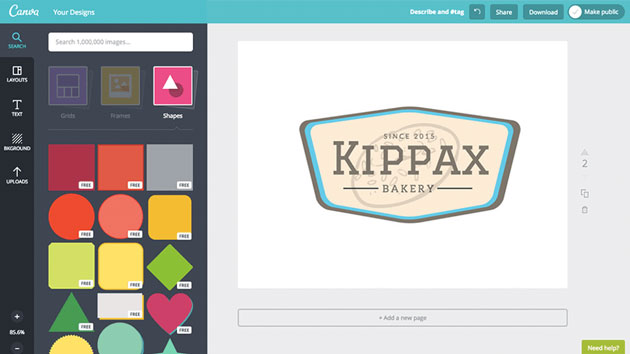
Search “Pinterest Pin” in Canva to instantly open an optimized canvas size.
Key Elements of Viral Pins
A viral pin isn’t random—it’s built with intention.
Strong Visual Hierarchy
Good pins direct the viewer’s eye:
- Bold headline at the top
- Supporting imagery in the middle
- Call-to-action (CTA) at the bottom
Example: For a blog post about meal planning, the headline could read “Easy 30-Minute Dinners,” followed by an image of a plated meal, and a CTA like “Get the Recipes.”
Eye-Catching Colors and Fonts
Pinterest favors high-contrast visuals.
- Use warm colors like orange, red, or yellow for action words
- Stick to 2–3 fonts max—one for the headline, one for body text
- Maintain brand consistency if you’re designing pins regularly
Canva’s Brand Kit lets you save colors and fonts for future use.
High-Quality Images
Use crisp, relevant images.
- Choose photos that match your topic
- Avoid blurry or overly cluttered visuals
Canva’s photo library is rich, but you can also upload your own professional images.
Step-by-Step: Designing a Viral Pin in Canva
Here’s a practical workflow:
1. Pick a Template
Canva has hundreds of Pinterest pin templates. Choose one that matches your niche.
For example, if you’re in lifestyle blogging, a clean template with space for text and imagery works well.
2. Customize Headline and Text
Make your text:
- Descriptive
- Benefit-oriented
- Keyword-rich (for Pinterest SEO*)
Example headline: “10 DIY Home Decor Ideas You’ll Love”
*Pinterest acts like a search engine, so putting relevant keywords in your headline and description helps people discover your pin.
3. Add a Strong CTA
A clear CTA can make a difference:
- “Click for Ideas”
- “Save This Pin”
- “Learn More”
Keep it short and action-focused.
4. Enhance With Graphics
Use icons, shapes, and design elements to:
- Highlight your text
- Create visual balance
- Make your pin pop in feeds
Tip: Use soft shadows behind text for better readability.
5. Export as PNG
PNG files retain high quality, which looks sharper on Pinterest.
SEO for Pinterest
Design alone isn’t enough. Your pins must be discoverable.
Write an Optimized Pin Title and Description
Use relevant keywords naturally. For example, if your pin is about vegan dessert recipes:
Title: Easy Vegan Desserts
Description: Discover 12 mouth-watering vegan dessert recipes perfect for every occasion. Save this pin!
Add Hashtags
Use 3–5 relevant hashtags in descriptions to improve search visibility.
For more on Pinterest SEO best practices, check out HubSpot’s guide on Pinterest marketing with data-backed recommendations.
Real-World Examples
Example 1: Travel Blog Pin
A pin titled “Ultimate Iceland Itinerary (7 Days)” used high-contrast colors, a scenic photo, and a CTA “Plan Your Trip.”
Result: Saved thousands of times and drove consistent blog traffic.
Example 2: DIY Craft Tutorial
A step-by-step carousel pin with numbered steps and bold text. The visuals simplified a complex project and boosted engagement.
Canva Tips for Faster Workflow
Use Folders and Templates
Save your best designs as templates in Canva folders. This reduces repetitive work and keeps branding consistent.
Resize Easily
Canva Pro’s Magic Resize lets you adapt existing pins to new sizes (for Pinterest, Instagram, etc.) in one click.
Keep a Style Guide
Standardizing fonts, colors, and layouts builds recognition across pins and increases credibility.
Pitfalls to Avoid
- Overloading text: Keep headlines readable at a glance
- Low-contrast visuals: Hard-to-read pins get ignored
- Ignoring SEO: Great design with no discoverability won’t perform
Conclusion
Designing viral Pinterest pins with Canva is both achievable and strategic. By combining strong visual hierarchy, keyword-rich headlines, and consistent branding, your pins can attract attention and drive traffic. Remember that Pinterest rewards discoverability just as much as stunning visuals, so integrate SEO best practices into every design. With practice and a thoughtful workflow, you’ll be creating pins that get clicked, saved, and shared.


