

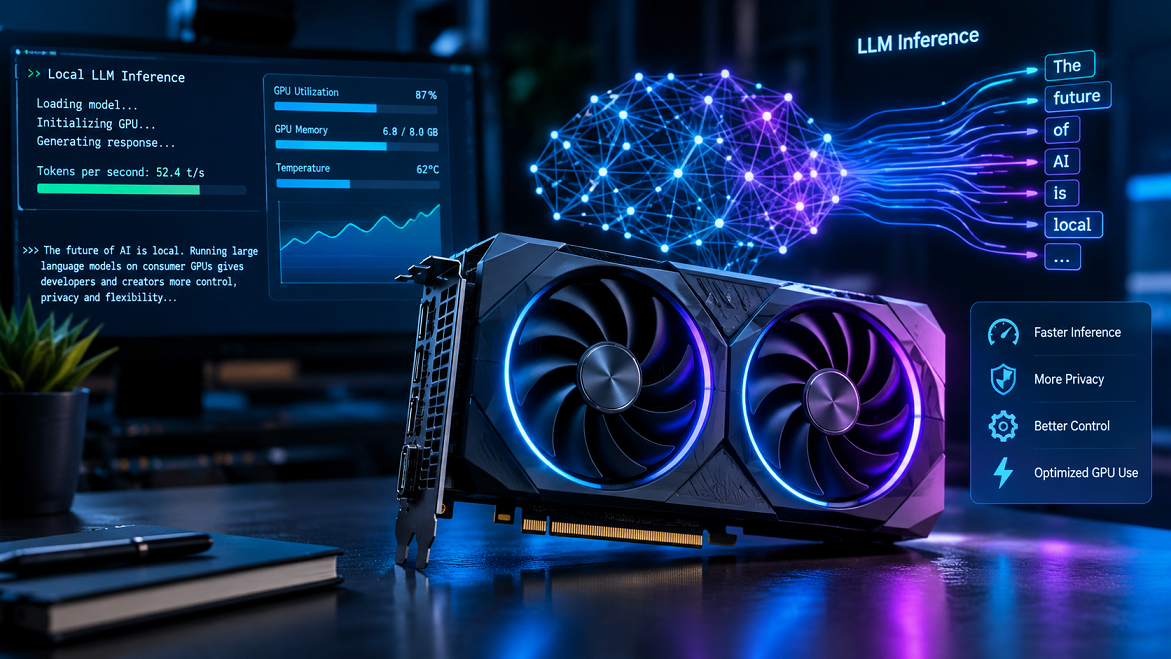
Running a large language model locally can feel like trying to drive a sports car through a narrow street. Your GPU might be powerful, your model might be impressive, and your software might be configured correctly, yet responses still arrive painfully slowly. The good news is that you can often improve local LLM inference speed significantly without buying an expensive GPU. The trick is understanding how models use memory, how inference workloads behave, and which optimizations deliver measurable improvements on your particular hardware.
This guide explores practical ways to accelerate local large language model (LLM) inference on consumer graphics cards, including NVIDIA GeForce and AMD Radon GPUs. You’ll learn how quantization, GPU memory management, attention kernels, context length, batching, and inference engines affect performance. We’ll also cover bench marking, common configuration mistakes, and strategies for balancing speed, output quality, and memory usage.
Whether you’re running a 7B model on an 8 GB graphics card, experimenting with a 14B model on a 16 GB GPU, or trying to make a larger quantized model usable on a 24 GB card, the goal is the same: get more useful tokens per second from the hardware you already own.
1. Understanding Local LLM Inference Performance
Prefill Speed Versus Token Generation Speed
Before changing your configuration, you need to understand what actually makes a local language model slow. LLM inference generally consists of two major stages: prefill and decode. During prefill, the model processes your entire input prompt and calculates the internal representations needed to answer it. During decode, it generates the response one token at a time, using previously computed information to avoid processing the complete conversation from scratch. These two stages stress your hardware differently, which explains why a model can analyze a long document quickly but then generate its answer slowly, or respond quickly to a short prompt but struggle with a massive context window.
Prefill performance is commonly measured in prompt-processing tokens per second, while decode performance is measured in generated tokens per second. Prefill often benefits from substantial parallel computation, making GPU compute throughput and efficient attention kernels particularly important. Decode, on the other hand, frequently depends on moving model weights through memory repeatedly, so memory bandwidth and model size can become the dominant limitations. Hugging Face’s inference optimization documentation describes how repeated token generation and growing input sequences contribute to inference costs.This distinction matters because optimizing the wrong stage wastes time. If your first response takes several seconds to begin, investigate prompt processing, model loading, and context length. If the response begins promptly but individual words arrive slowly, focus on decode speed, quantization, memory bandwidth, and GPU utilization. Measure both stages independently before deciding which optimization deserves your attention.
VRAM, Memory Bandwidth, and Compute Bottlenecks
Your graphics card’s advertised processing power tells only part of the story. Local LLM inference also depends on video memory (VRAM), memory bandwidth, GPU compute capabilities, and the efficiency of the software running the model. VRAM determines whether the model’s weights, temporary tensors, attention cache, and runtime overhead can fit comfortably on the GPU. Memory bandwidth determines how quickly those weights and other tensors can move between memory and the GPU’s processing units. Compute throughput determines how quickly the GPU performs the mathematical operations needed to produce predictions. A graphics card with excellent raw compute performance may still deliver disappointing generation speed if memory bandwidth becomes the limiting factor.
Consider a model with seven billion parameters stored at approximately four bits per parameter. Its raw weight storage would be roughly 3.5 GB using decimal units, but the complete runtime requires additional memory for quantization metadata, the KV cache, temporary buffers, and other allocations. A nominally 4 GB graphics card therefore cannot be assumed to run that model entirely in VRAM. Similarly, a 12 GB GPU might load a model comfortably at one context length but run out of memory when processing a much longer conversation. You should think of VRAM as your workspace, not simply as a container for model weights. The more efficiently that workspace is organized, the less likely your system is to fall back to slower CPU memory or encounter allocation failures. Your first optimization goal is to identify the actual bottleneck rather than assuming that every slow response requires a more powerful GPU.
2. Choose the Right Model and Quantization
Selecting a Model That Fits Your GPU
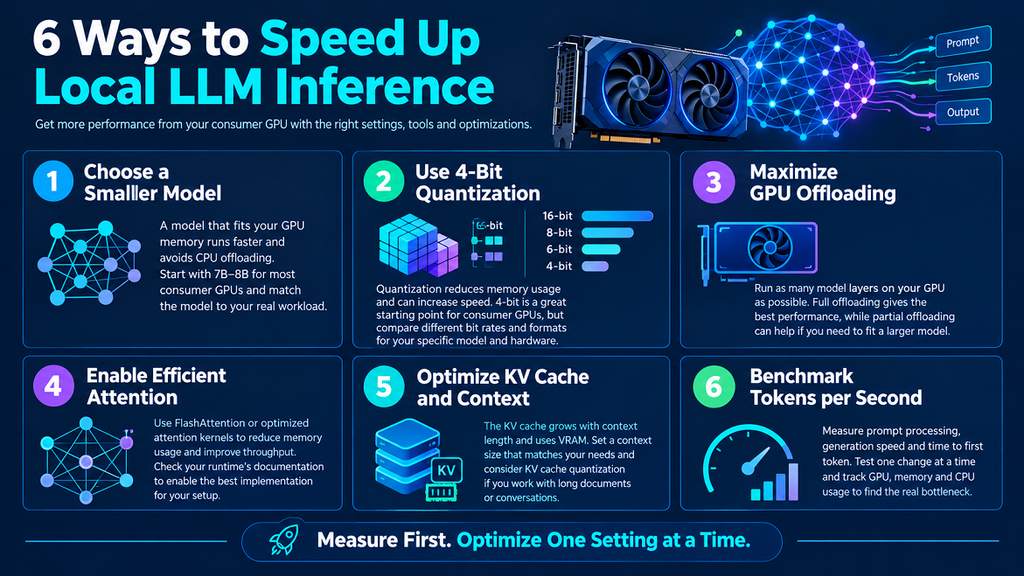
One of the most effective ways to speed up local LLM inference is to choose a model that fits your hardware without excessive CPU offloading. A larger model may produce more sophisticated answers, but its additional capabilities can come at the cost of slower generation and higher memory requirements. A smaller, well-trained model that fits entirely in GPU memory can feel substantially more responsive than a larger model that constantly transfers data between system RAM and VRAM. This is particularly important on consumer computers, where PCIe transfers and CPU-side computation can introduce significant overhead.
As a practical starting point, consider a 3B–4B model for constrained GPUs, a 7B–8B model for mainstream gaming cards, or a 12B–14B model for cards with greater memory capacity. These are broad starting points rather than guarantees; architecture, quantization format, context length, and runtime overhead all influence what will fit. Mixture-of-experts models can behave differently because only some experts are activated for a given token, although their total weight storage can still be substantial. Before downloading a model, inspect its parameter count, supported context length, license, quantization variants, and compatibility with your inference engine. Also consider the task: summarization, coding, document extraction, and conversational assistance may require different model capabilities. Instead of automatically choosing the biggest model available, find the smallest model that reliably completes your real workload. You may gain more practical productivity from a responsive 8B model than from a powerful 30B model that takes several seconds to produce each token.
Comparing 4-Bit, 5-Bit, 6-Bit, and 8-Bit Quantization
Quantization reduces the precision used to represent model weights, allowing the model to occupy less memory and sometimes run faster. Instead of storing every weight in a higher-precision format, a quantized model represents weights using fewer bits, together with additional information needed to reconstruct approximate values during computation. This can make the difference between running a model entirely on your GPU and having to offload some of it to your CPU. Quantization does not automatically guarantee higher speed, however, because the result depends on the GPU, quantization format, inference kernels, and workload. Hugging Face similarly cautions that quantization can reduce memory requirements while introducing some computational overhead in certain configurations.
The following table summarizes the general trade-offs. The exact memory requirements and quality differences depend on the model architecture and quantization implementation.
| Weight format | Approximate bits per weight | Memory use | General trade-off |
|---|---|---|---|
| FP16 | 16 | Very high | High numerical precision and broad support |
| 8-bit | 8 | High | Often preserves quality well while reducing memory |
| 6-bit | 6 | Moderate to high | Useful compromise between memory and fidelity |
| 5-bit | 5 | Moderate | Balances model size and output quality |
| 4-bit | 4 | Low | Often a strong starting point for consumer GPUs |
| 3-bit or lower | 3 or less | Very low | Greater compression, with potentially larger quality losses |
For many consumer GPU setups, a good-quality 4-bit quantization is a sensible first experiment. If you have enough VRAM, compare it with a 5-bit or 6-bit version and evaluate both response quality and tokens per second. Do not assume that the lowest-bit model will always be fastest: some GPUs have specialized hardware or optimized kernels that favor particular formats. Quantization also comes in different schemes, such as GGUF quantization variants used by llama.cpp and formats designed for specific GPU inference frameworks. Choose a format supported efficiently by your runtime instead of selecting one based only on its filename. The best quantization is the one that delivers acceptable quality while keeping the model and its working memory within your hardware budget.
3. Optimize Your Inference Engine
Use GPU-Optimized Runtime and Kernels
Your inference engine determines how model operations are mapped onto your hardware. Two applications can load the same model and produce similar answers yet deliver noticeably different performance because they use different kernels, memory-management strategies, and execution paths. For many desktop users, llama.cpp is an excellent starting point because it supports quantized models and multiple hardware back ends. NVIDIA users can explore CUDA-enabled builds, while supported AMD configurations may benefit from Vulkan or ROCm, depending on the GPU, operating system, and application. Other options include Ollama for convenient local deployment and Hugging Face Transformers for Python-based workflows and more customization inference pipelines.
The key is to avoid comparing runtime without controlling the test conditions. Use the same model weights, prompt, output length, context configuration, and generation parameters whenever possible. Confirm that your runtime actually uses the intended GPU back end; merely installing a GPU-capable application does not guarantee that acceleration is active. The official llama.cpp build documentation describes CUDA support and several kernel-related configuration options, including choices that affect memory consumption and quantized matrix multiplication.
Keep your graphics drivers, runtime, and supported acceleration libraries reasonably up to date, but avoid blindly replacing a stable setup just because a new version exists. A useful strategy is to benchmark one runtime as your baseline, test an alternative, and keep whichever performs better for your specific model and task. The fastest application for interactive chat may not be the fastest option for processing a large batch of prompts, so choose the runtime according to how you intend to use it.
Configure GPU Offloading and Memory Allocation
GPU offloading determines how much of a model’s computation runs on the graphics card instead of the CPU. If your GPU has enough memory for all model layers and the necessary runtime buffers, full GPU offloading is usually a strong starting point for maximizing decode performance. In llama.cpp, the -ngl or --n-gpu-layers option controls how many layers are placed on the GPU; supported builds commonly accept -ngl all to request all eligible layers.
Here, -m specifies the model file, -ngl all requests GPU offloading for all eligible layers, -c 4096 sets the context size, and -n 256 limits the generated output to 256 tokens. Exact option support and behavior can vary by release, so check the help output for your installed version. If the model does not fit, reduce the number of GPU layers until the application loads reliably, then measure the performance trade-off. Partial offloading can still be useful when it enables a larger model that would otherwise be impossible to run, but it often reduces generation speed because CPU and GPU work must be coordinated.
Memory allocation deserves equal attention. Leave enough VRAM for the KV cache, temporary buffers, and the desktop environment, especially if your monitor is connected to the same graphics card. A model that consumes nearly all available VRAM may work for short prompts but fail during longer prefill operations. If you encounter out-of-memory errors, reduce the context size, decrease concurrent request capacity, or select a smaller quantization before making more complicated changes. The llama.cpp multi-GPU documentation also recommends reducing context size or parallel sequences when those settings cause allocation problems.The objective is not merely to force a model to load. It is to configure enough memory headroom that inference remains stable under the actual workload you plan to run.
4. Improve Attention and Context Processing
Enable Flash Attention and Efficient Attention Kernels
Attention is one of the core operations in a transformer model, and its memory requirements can become increasingly important as the context grows. Traditional attention implementations may create large intermediate tensors or perform unnecessary memory transfers. FlashAttention improves attention computation by organizing the operation to reduce expensive reads and writes to GPU memory. Supported implementations can improve prompt processing, reduce memory pressure, and make long-context workloads more practical. PyTorch also offers scaled dot-product attention (SDPA), which can select an appropriate optimized attention implementation when the hardware, software versions, and tensor shapes permit it.
The implementation details matter more than the name of the option. In a compatible Transformers configuration, you can explicitly request FlashAttention-2 using the model-loading argument attn_implementation="flash_attention_2", provided the required packages, hardware, and model support are available. Other frameworks may enable an optimized attention path automatically, meaning an extra command-line flag will not necessarily change anything. A June 2026 community benchmark on an RTX 5060 Ti, for example, reported essentially unchanged performance when toggling llama.cpp’s FlashAttention option because that build already had the optimization enabled by default. This is a useful reminder that a feature being enabled is different from a feature producing an additional speedup.Check your runtime documentation and logs, then measure prompt-processing speed, decode speed, and VRAM use before and after changing attention settings. If your results remain within normal run-to-run variation, move on to a bottleneck that actually affects your workload.
Manage KV Cache and Context Length
The key-value cache, commonly called the KV cache, stores attention information from previously processed tokens so the model does not have to recompute everything at every generation step. Without an effective cache, auto regressive generation would waste substantial computation repeatedly processing earlier tokens. The catch is that the cache itself consumes memory, and its size generally grows with the number of cached tokens, layers, and attention heads, subject to the model architecture and cache implementation. Consequently, a large context window can use substantial VRAM even when the model’s weights remain unchanged.
If you routinely use a 32K-token context but usually work with short conversations, you may be reserving memory you do not need. Lowering the context limit to 4K or 8K can free memory for model weights and other runtime allocations, depending on how the engine allocates its cache. This can help avoid CPU offloading or out-of-memory failures. However, reducing context does not guarantee faster token generation in every workload; the improvement depends on the cache implementation, actual sequence length, and attention kernel. For workflows that genuinely require long documents, investigate supported KV-cache quantization and optimized attention instead of simply cutting off relevant information. Cache quantization can reduce memory use, but supported data types and performance characteristics differ by runtime and GPU. Start with a context length that matches your real tasks, monitor memory usage as the conversation grows, and increase it only when you need the additional capacity. This is often a more effective approach than leaving the largest available context enabled by default.
5. Tune Generation Settings and Workloads
Adjust Batch Size, Parallel Requests, and Speculative Decoding
Generation settings influence how efficiently your GPU processes requests. Batch size determines how many input sequences or tokens are processed together, while parallel request capacity determines how many conversations the server can handle simultaneously. Increasing the batch size can improve overall throughput because the GPU can perform more useful work in each operation. Yet this does not necessarily make an individual conversation respond faster. Larger batches also require additional memory, and on a consumer GPU with limited VRAM, aggressive batching may cause allocation failures or reduce interactive responsiveness.
If you are building a personal chat bot, start with one active request and establish your baseline. If you are hosting a local API for several applications, experiment with a small number of concurrent requests and compare total throughput, individual response latency, and peak VRAM usage. Continuous batching can help serving workloads by admitting and scheduling requests dynamically instead of waiting for every sequence in a fixed batch to finish. Hugging Face documents continuous batching as a technique for improving GPU utilization in inference servers. However, a lightweight desktop application may not need a sophisticated serving stack. Choose concurrency settings that reflect real demand instead of maximizing them simply because the option exists.
Another technique worth testing is speculative decoding. It uses a smaller draft model to propose several tokens that a larger target model can verify, potentially allowing multiple tokens to be accepted from a single verification step. When the draft model predicts well and the runtime implements the method efficiently, generation can become faster without requiring the target model to sacrifice its output distribution. The speedup depends on draft-model quality, acceptance rate, target-model size, memory bandwidth, and verification overhead. A draft model that is too large may consume valuable VRAM or introduce enough extra work to cancel out the benefit. Start with a lightweight draft model supported by your runtime, measure the result against ordinary decoding, and keep the feature only if the complete response becomes faster. The right benchmark is useful end-to-end latency, not the theoretical number of tokens processed in one verification operation.
Optimize CPU, GPU, and Storage Interactions
Even when a GPU handles most of the model computation, the rest of your computer still influences performance. The CPU performs tokenization, prepares inputs, schedules work, and may execute model layers that have not been offloaded. System RAM holds model data and other application resources, while storage speed affects model loading and swapping. If the CPU becomes overloaded or the system begins using its disk as virtual memory, the entire inference pipeline can become sluggish. This is why two computers with the same graphics card may deliver different user experiences.
Start by closing unnecessary GPU-intensive applications, including games, video editors, and other machine-learning processes. Check GPU utilization, dedicated VRAM consumption, system RAM use, CPU utilization, clock speeds, and temperatures while generating a representative response. If your graphics card is thermally throttling, improving case airflow or adjusting a safe, supported power profile may help maintain consistent performance. Avoid assuming that the highest possible power limit is always the best option; cooling, noise, power consumption, and sustained clock behavior matter too. On CPU-heavy configurations, test thread counts rather than automatically assigning every logical processor to inference. Excessive threading can create scheduling overhead and contention with other tasks. Keep model files on reasonably fast storage, but remember that once the weights are loaded into memory, SSD speed is usually less important to steady-state token generation than memory bandwidth and compute efficiency. If your system is consistently memory-constrained, closing applications and reducing model size can be more effective than purchasing a faster SSD.
6. Benchmark, Diagnose, and Troubleshoot Performance
Measure Tokens Per Second and Latency
You cannot optimize inference reliably without measuring it. A model that feels faster during a quick demonstration might simply have received a shorter prompt or generated fewer tokens. A meaningful benchmark should control the model version, quantization, prompt length, output length, context configuration, runtime, and hardware conditions. Record at least three important metrics: prompt-processing speed, generation speed, and time to first token. Prompt processing reveals how quickly the system handles input; generation speed measures the pace of output after generation begins; time to first token captures how long a user waits before seeing the initial response.
For repeatable testing, the llama-bench utility included in the llama.cpp ecosystem can help measure prompt processing and token generation separately. You can also benchmark the actual application you use, because a command-line benchmark and a chat interface may have different overheads. Warm up the model before timing, repeat each test, and compare median results rather than relying on a single run. Use a fixed prompt and a consistent generation limit, and avoid running unrelated GPU workloads during measurements. Record memory consumption alongside speed: a configuration that gains a fraction of a token per second while consuming all available VRAM may be less useful than a slightly slower setup that remains stable.
A simple experiment log helps separate real improvements from noise. For example, compare a 4-bit model with a 5-bit model, then compare the original runtime with an optimized runtime, changing only one variable at a time. Track whether the change affects prefill, decode, first-token latency, or memory use. If a setting improves one metric but harms another, decide which matters most for your intended workload. Interactive chat prioritizes low latency and a steady generation rate, while batch summarization may prioritize overall throughput. There is no universal winner; a good benchmark tells you which configuration works best for your needs.
Fix Common GPU Inference Bottlenecks
When inference is slow, diagnose the symptom before changing several settings at once. If GPU utilization remains low while CPU utilization is high, check whether too many model layers are running on the CPU, whether the GPU back end is active, and whether CPU-side processing is limiting throughput. If VRAM usage sits near capacity and the application fails on longer prompts, reduce context size or use a smaller quantization. If a model loads quickly but generation is sluggish, compare a smaller model, check for CPU offloading, and inspect the graphics card’s sustained clock speeds. Short prompts perform well but long prompts become progressively slower, investigate context growth, attention implementation, and KV-cache memory consumption.
The following table connects common symptoms with practical first steps.
| Symptom | Likely cause | What to try first |
|---|---|---|
| Low GPU utilization | CPU bottleneck or inactive GPU backend | Verify GPU offloading and inspect CPU usage |
| Out-of-memory errors | Weights, cache, or buffers exceed available VRAM | Lower context size or use a smaller quantization |
| Slow token generation | Memory bandwidth limits or CPU offloading | Test a smaller model that fits entirely in VRAM |
| Slow first response | Long prompt, expensive prefill, or model loading | Shorten the prompt and benchmark prefill separately |
| Performance drops over time | Thermal throttling or growing context | Check temperatures and monitor cache consumption |
| Poor multi-user responsiveness | Excessive concurrency or inefficient scheduling | Reduce parallel requests and test batching |
| Little change after a tuning option | Feature already enabled or bottleneck elsewhere | Verify runtime settings and measure again |
One important detail is that GPU utilization alone does not tell the whole story. A card can report high utilization while delivering disappointing throughput because the workload is memory-bound, and low utilization can arise from synchronization or CPU-side delays. Look at multiple indicators together. Avoid applying obscure environment variables or experimental kernel settings simply because someone reports a large speedup on different hardware. The llama.cpp build documentation describes tuning options whose effects depend on GPU architecture and workload, including trade-offs between memory consumption and performance. Establish a stable baseline first, then test advanced options only when you understand which limitation they are intended to address.
7. Conclusion: Get More Speed From the GPU You Already Own
Speeding up local LLM inference is rarely about finding one magical setting. The best results usually come from combining several sensible improvements: choosing a model that fits your available VRAM, selecting an efficient quantization format, using a well-optimized inference engine, and configuring context length and GPU offloading appropriately. These changes address the practical limitations that often hold consumer GPUs back, including memory bandwidth, insufficient VRAM, inefficient kernels, and unnecessary CPU computation. Once the fundamentals are right, more advanced techniques such as FlashAttention, KV-cache quantization, continuous batching, and speculative decoding may offer additional improvements. The important thing is to test each technique rather than assume every optimization will help every GPU.
If you want a straightforward starting point, choose a suitable 4-bit model, install a compatible GPU-accelerated runtime, and enable full GPU offloading if your memory budget allows it. Set a realistic context length, benchmark prompt processing and token generation separately, and record your results before experimenting with advanced options. If performance remains disappointing, investigate the actual bottleneck instead of immediately replacing your graphics card. A smaller model, a more suitable quantization, or a better runtime configuration may deliver a more noticeable improvement than a hardware upgrade.
Ultimately, the fastest local LLM setup is the one that balances speed, memory usage, output quality, and reliability for your particular workload. You do not need a data-center GPU to build a useful local AI environment. With careful configuration and repeatable testing, a consumer graphics card can provide responsive, private, and cost-effective inference for coding, writing, research, and everyday assistance.
Frequently Asked Questions (FAQs)
1. What is the fastest way to speed up local LLM inference on a consumer GPU?
Start by selecting a model and quantization that fit comfortably in VRAM, then ensure your inference engine is using the GPU correctly. Full GPU offloading, where supported and feasible, can avoid the performance penalty of running model layers on the CPU. After that, benchmark generation speed and adjust context length, attention kernels, and runtime settings as needed. The most effective optimization depends on whether your system is limited by memory bandwidth, GPU compute, CPU processing, or available VRAM.
2. Does 4-bit quantization make an LLM faster?
It can, particularly when it reduces memory traffic or allows the entire model to fit in GPU memory. However, speed depends on the GPU architecture, quantization format, and availability of optimized kernels. Some configurations may run faster at 4-bit precision, while others benefit from higher-precision weights. Compare actual tokens per second and answer quality rather than assuming that lower precision always means faster inference.
3. How much VRAM do I need to run a local LLM?
The amount depends on the model’s parameter count, weight precision, context length, KV cache, and inference runtime. A 7B–8B model in a suitable 4-bit format is often a practical starting point for GPUs with around 8–12 GB of VRAM, although available memory and the model’s architecture determine whether a particular setup will fit. Larger models generally require more memory, especially at higher precision or longer context lengths. Always leave room for runtime allocations and other applications rather than calculating memory requirements from model weights alone.
4. Is llama.cpp better than Ollama for GPU inference speed?
Neither is universally faster in every configuration. llama.cpp offers detailed control over model loading, GPU offloading, and bench marking, making it useful for performance tuning. Ollama provides a convenient interface for managing models and running local AI applications, and it uses llama.cpp-derived technology for supported model configurations. Actual performance depends on the model, runtime version, GPU back end, quantization, and settings. Test both under equivalent conditions if raw inference speed is your main priority.
5. Does increasing context length reduce LLM generation speed?
It can increase memory requirements and slow certain workloads, particularly when long prompts make attention processing more expensive or the KV cache approaches available VRAM limits. However, the impact on token generation varies with the architecture, attention implementation, cache configuration, and actual context used. If you rarely need long conversations or large documents, reducing the configured context length may free memory and improve reliability. If long-context processing is essential, consider optimized attention kernels and supported KV-cache quantization instead of sacrificing useful context.
