

AI image generation has changed how designers, bloggers, marketers, developers, and digital artists create visual content. A few words can now become a cinematic landscape, a product mock up, a fantasy character, or a polished illustration in minutes. Mid journey helped popularize this creative workflow, but it isn’t the only option available. If you want more control over your images, prefer to keep your prompts and source files on your own computer, or want to experiment without paying for every generation service, local AI image generation is worth exploring.
The open-source ecosystem offers several ways to build your own image generation setup. Some tools focus on making image creation straightforward, while others provide detailed control over models, image composition, editing, and automation. Popular choices include Stable Diffusion, FLUX, ComfyUI, AUTOMATIC1111, InvokeAI, Focus, and SD.Next. However, there is an important distinction: some projects are open-source interfaces, some are model families with different licensing terms, and some combine multiple components into a complete creative workflow.
This guide compares the leading options, explains their strengths and limitations, and helps you decide which setup fits your computer and creative goals.
Why Look for a Local Mid journey Alternative?
Mid journey provides a convenient hosted service, but its approach doesn’t suit every creator. You depend on an external platform, its subscription structure, its available features, and its rules for generating and managing images. A local alternative gives you a different kind of experience: you install software, download compatible model files, and generate images using your own hardware. Once everything is configured, you can often create images without an active internet connection, depending on the software and models involved.
Local generation also changes how you manage your creative process. Instead of relying entirely on a hosted interface, you can save prompts, reuse settings, train or apply compatible style adapters, and build repeatable workflows. A photographer could experiment with product backgrounds, a developer could automate thumbnail generation, and an illustrator could maintain a consistent visual style across a collection of images. The trade-off is that you become responsible for installation, updates, storage, performance, and troubleshooting. In other words, local generation exchanges some of the convenience of a managed service for greater control over the tools.
Privacy, Cost, and Creative Freedom
Privacy is one of the biggest reasons to generate images locally. When your workflow runs entirely on your computer, prompts, reference images, and generated files generally don’t need to be uploaded to an image-generation provider. This can be useful when working with unpublished products, confidential design concepts, or personal creative projects. However, local software may still contact external services for updates, model downloads, telemetry, or optional online features, so check its settings and network behavior before assuming that everything remains offline.
Cost is another consideration, but free software does not mean a completely free workflow. You may need a suitable graphics card, enough system memory, additional storage, and electricity to run larger models. On the other hand, once you own compatible hardware, you can avoid paying a recurring generation subscription for many local workflows. Creative freedom is equally valuable: different checkpoints, LoRAs, samplers, and image-conditioning tools can produce dramatically different results from the same starting prompt. For creators who enjoy experimenting, this flexibility can be more appealing than relying on one provider’s particular aesthetic.
Best Open-Source Alternatives at a Glance
Before choosing an image generator, separate the model from the interface. Stable Diffusion and FLUX are model families, while ComfyUI, AUTOMATIC1111, and InvokeAI are applications that help you run and control image generation. You can often combine different interfaces with compatible models, although support varies by model version, hardware, and software release.
Here is a practical comparison of the leading options.
| Tool or model | Best for | Main advantage | Main limitation |
|---|---|---|---|
| Stable Diffusion | General-purpose image creation | Large ecosystem of models and extensions | Quality and requirements vary by checkpoint |
| FLUX | Detailed images and prompt adherence | Strong capabilities in supported variants | Some versions are resource-intensive or commercially restricted |
| ComfyUI | Advanced workflows | Detailed, modular node-based control | Learning curve can be steep |
| AUTOMATIC1111 | Traditional image-generation interface | Familiar controls and extensive extensions | Newer model support can vary |
| InvokeAI | Creative editing and canvas workflows | Integrated visual editing experience | Compatibility differs across model families |
| Fooocus | Simpler image generation | Accessible, streamlined interface | Less suited to complex custom pipelines |
| SD.Next | Flexible experimentation | Broad configuration and model support | More settings can mean more setup work |
These choices aren’t direct equivalents. For example, installing ComfyUI doesn’t automatically give you the image quality of a particular model; it gives you a flexible environment for running supported models. Likewise, installing a model doesn’t guarantee an easy user experience. Your final results depend on the combination of model quality, prompt design, image dimensions, settings, hardware, and post-processing.
Top Tools for Local AI Image Generation
1. Stable Diffusion: Best for Flexibility and Customization
Best for
Creators who want a large model ecosystem
Difficulty: Beginner to advanced, depending on the interface
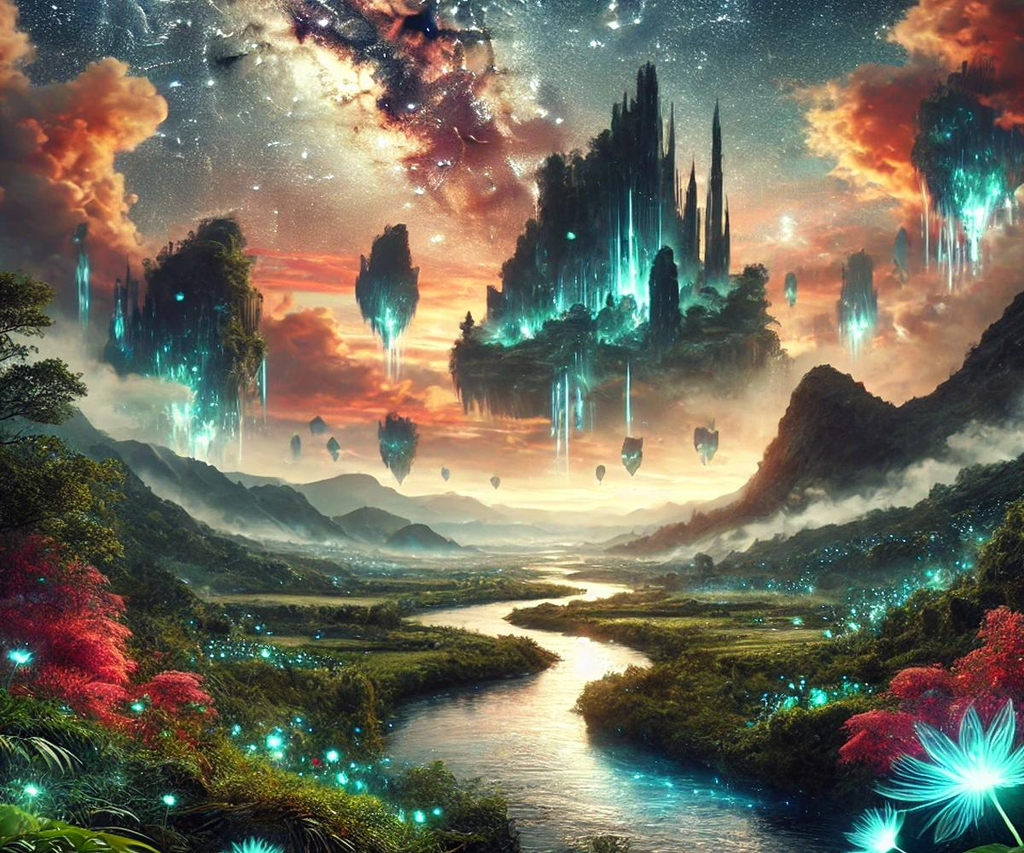
Stable Diffusion remains one of the most useful starting points for anyone exploring local AI image generation. Its ecosystem includes multiple model generations, community-created checkpoints, style-specific models, LoRAs, and tools for controlling image composition. Rather than being limited to one general-purpose visual style, you can choose models designed for photo realistic portraits, architectural visualization, anime, concept art, illustrations, or product imagery. This variety makes Stable Diffusion particularly appealing to creators who want to develop a recognizable visual identity instead of repeatedly prompting a single model for similar results.
Another advantage is the range of available interfaces. Beginners can use graphical applications, while advanced users can experiment with Python libraries and custom workflows. You can generate images from text, modify existing pictures, create variations, and use techniques such as inpainting to replace selected regions. Performance and output quality depend on the specific model and hardware, so a lightweight checkpoint may be more practical than a larger one on a modest computer. For a broad introduction to the ecosystem, Stable Diffusion is difficult to overlook.
The main drawback is that the ecosystem can feel fragmented. Different checkpoints have different strengths, recommended settings, and licensing conditions. Some models perform beautifully with short prompts, while others benefit from detailed descriptions and carefully selected sampling parameters. You’ll need to experiment before finding the right combination for your work.
Explore: Stable Diffusion models on Hugging Face.
2. FLUX: Best for Detailed Images and Prompt Following

Best for
High-detail visuals and complex prompts
Difficulty: Intermediate
FLUX is a family of image-generation models developed by Black Forest Labs. It is a strong option for people who want detailed images and good adherence to complex textual descriptions. Depending on the version, it can be useful for editorial artwork, product concepts, portraits, atmospheric scenes, and creative compositions that require several visual elements to work together. FLUX also has specialized variants for tasks such as filling masked regions and controlling image structure. Its official repository documents local inference options and distinguishes the licenses attached to different models.
One important distinction is that not every FLUX model has the same license or hardware requirements. FLUX.1 [schnell] is released under the Apache 2.0 license, whereas FLUX.1 [dev] uses a non-commercial license. The latter may be attractive for experimentation, but you should not assume that its license permits commercial deployment. Newer or specialized variants can have their own terms, so check the precise model card before using any checkpoint in a business workflow.
Hardware is another consideration. Larger FLUX models can require substantial memory, especially when using higher resolutions or running without memory-saving optimizations. Quantization and CPU offloading may make some setups more practical, although they can introduce trade-offs in speed or complexity. If your priority is visual quality and detailed prompt interpretation, FLUX deserves a place near the top of your shortlist, provided your computer can handle the version you select.
Explore: Official FLUX repository.
3. ComfyUI: Best for Advanced Creative Workflows
Best for
Technical users, artists, and automation
Difficulty: Intermediate to advanced
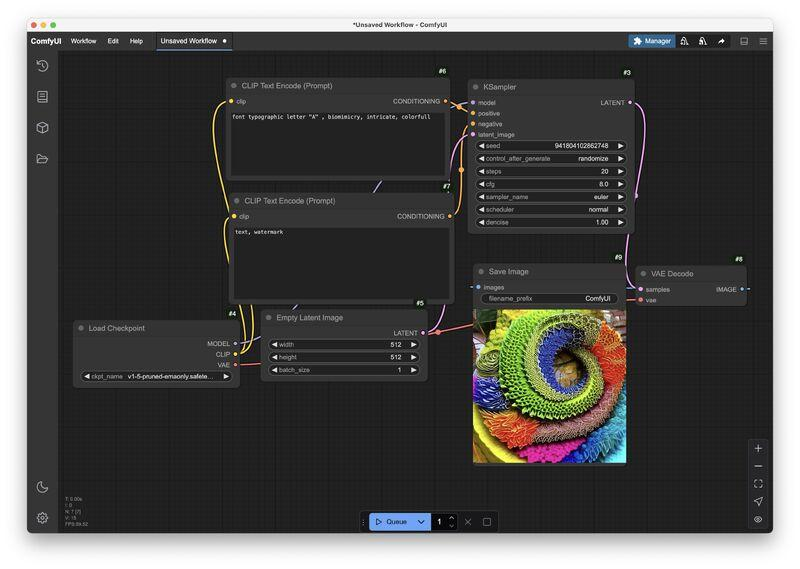
ComfyUI takes a different approach from traditional image-generation applications. Instead of presenting every operation as a simple sequence of form fields, it uses a node-based interface in which individual components are connected to build a workflow. A node might load a model, encode a prompt, process an image, apply a control mechanism, or save the final output. By connecting these components, you can create a visual pipeline that reflects exactly how you want your images to be generated.
This approach becomes especially useful when your projects involve more than basic text-to-image generation. You can design workflows for image-to-image transformation, masked editing, upscaling, repeated generation, and other supported operations. Once a workflow works reliably, you can reuse it rather than rebuilding your settings for each project. Developers can also use workflows as a foundation for more structured creative pipelines, which makes ComfyUI attractive for batch processing and repeatable production tasks.
The trade-off is complexity. A beginner may open a workflow and see a confusing web of nodes, connections, and model dependencies. You might need to download separate model files, install additional nodes, and troubleshoot compatibility issues when updating the application. Still, if you want precise control over the image-generation process, ComfyUI is one of the most versatile interfaces to investigate.
Explore: ComfyUI on GitHub.
4. AUTOMATIC1111 Stable Diffusion WebUI: Best for Traditional Controls
Best for
Users who prefer a conventional interface
Difficulty: Beginner to intermediate
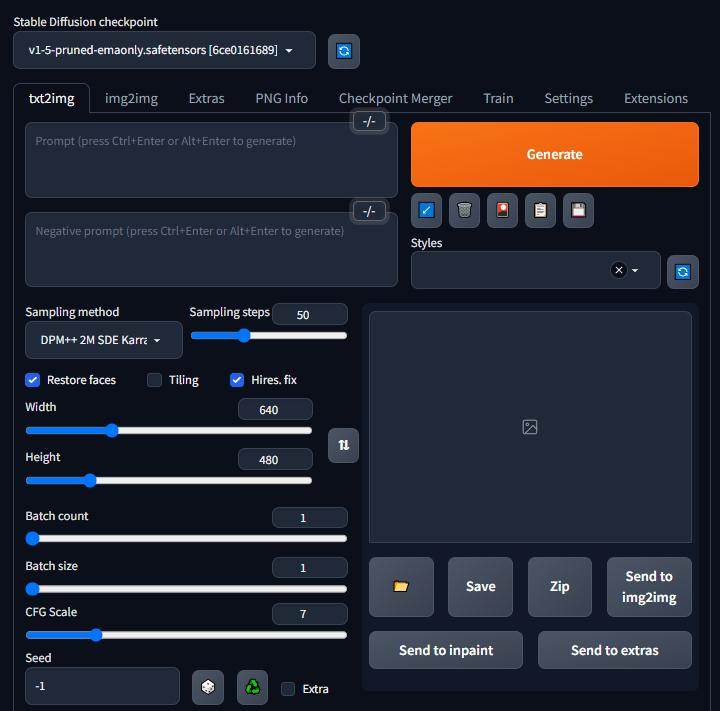
AUTOMATIC1111’s Stable Diffusion WebUI is a well-known interface for running image generation locally. It presents familiar controls for prompts, negative prompts, sampling methods, image dimensions, generation steps, and other settings. Instead of constructing a node graph, you generally enter your prompt, choose the relevant parameters, and generate an image. This layout makes it easier to understand the relationship between individual settings, particularly if you want to learn how image-generation parameters affect the final result.
Its ecosystem of extensions and model compatibility has made it popular among hobbyists and experienced creators alike. Depending on the installed version and extensions, you can explore features such as image-to-image generation, inpainting, LoRA support, and other editing or generation techniques. This can be useful when you want detailed controls without building every workflow from scratch. You can also save prompts and settings to make repeated experiments easier to compare.
However, software support changes over time, and not every new model family works equally well in every version of the interface. If you plan to use a newer architecture, confirm that the application and its extensions support it before downloading large model files. AUTOMATIC1111 is particularly appealing when your preferred model is compatible and you value a familiar, parameter-driven workflow.
Explore: AUTOMATIC1111 Stable Diffusion WebUI.
5. InvokeAI: Best for Canvas-Based Image Editing
Best for
Artists and visual design projects
Difficulty: Beginner to intermediate
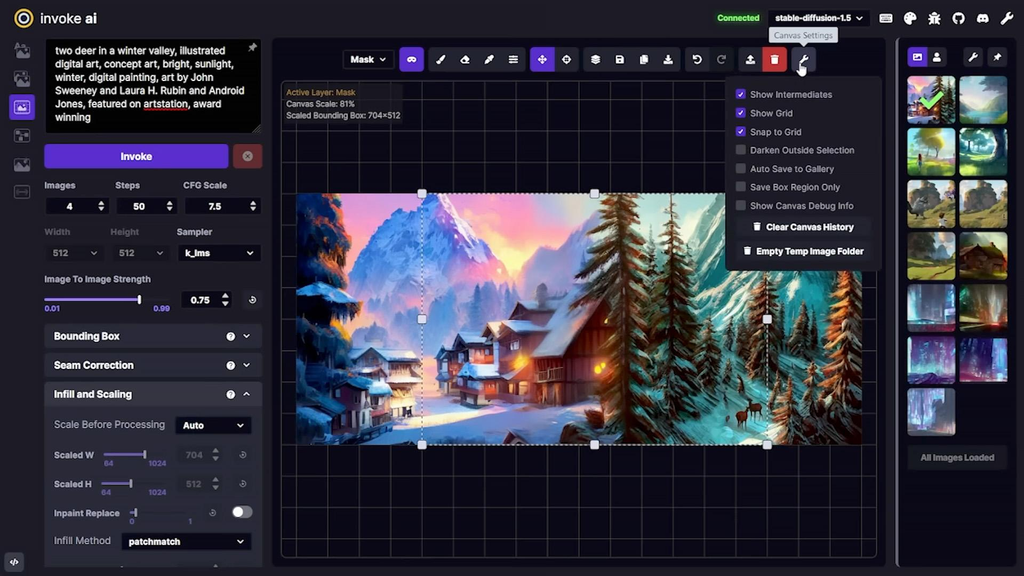
InvokeAI is worth considering if you think of image generation as an ongoing design process rather than a series of isolated prompts. Its canvas-oriented workflow helps you work with generated images, make targeted edits, and explore compositions visually. Instead of generating a new image whenever one detail looks wrong, you can use supported editing features to revise selected regions or extend a composition. This approach can be especially useful for concept art, book illustrations, marketing visuals, and creative projects that evolve through multiple rounds of refinement.
The integrated visual workspace also makes it easier to manage the relationship between an original image and its variations. Imagine creating a product scene in which the background looks right but the lighting or surrounding objects need work. A canvas-based workflow gives you a more direct way to approach those changes than starting over with a completely new prompt every time. The exact editing capabilities depend on the selected model and the installed version, so check compatibility before planning a workflow around a specific feature.
InvokeAI may be a better starting point than ComfyUI if you prefer visual editing over technical pipeline construction. Nevertheless, advanced workflows and newer model architectures can involve setup requirements of their own. Check the project’s current installation instructions and model support to make sure it suits your machine.
Explore: InvokeAI on GitHub.
6. Focus: Best for a Simpler Image-Generation Experience
Best for
Beginners who want fewer settings
Difficulty: Beginner, subject to current compatibility
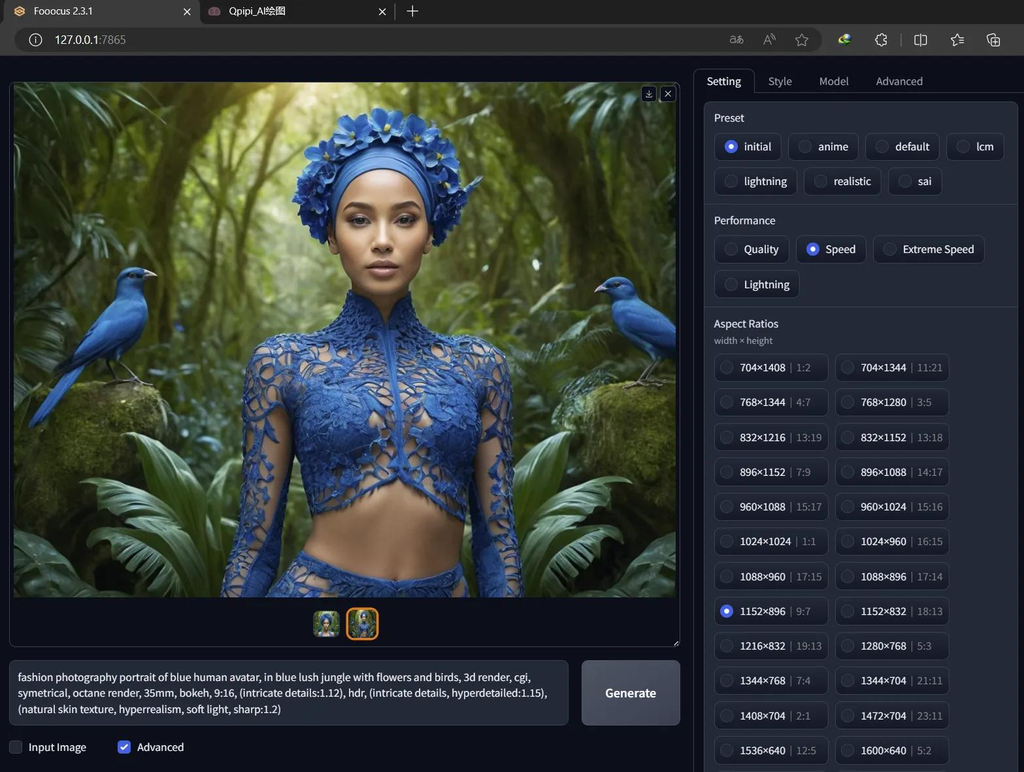
Focus became popular because it emphasized accessibility. Its approach reduces the number of technical decisions users need to make before generating an image, allowing them to focus more on the creative prompt and less on sampler settings or complex configuration. For someone who has never worked with local diffusion models, that simplicity can make the learning process much less intimidating. Rather than immediately exploring every parameter, you can start with a subject, describe the desired appearance, and gradually learn which adjustments improve your results.
A simplified interface can be useful for quick illustrations, concept exploration, and general experimentation. It also helps demonstrate an important point about local AI tools: you do not need to understand every detail of a model’s architecture to begin creating images. You can learn through experimentation and move to a more configurable application when your requirements become more demanding.
There is a caveat, however. Focus has historically focused on particular Stable Diffusion model families, and its maintenance status and compatibility should be checked before choosing it for a new long-term setup. Don’t assume it supports every newer architecture simply because another local generator does. If ease of use matters more than access to the newest model families, it remains a project worth evaluating against its current repository and installation documentation.
Explore: Focus on GitHub.
7. SD.Next: Best for Users Who Want Flexible Configuration
SD.Next is another interface to consider if you want to explore multiple image-generation configurations without committing to a node-based workflow. It provides a web interface for managing supported models and generation settings, with an emphasis on flexibility across different environments. Depending on the current version, available backend, and installed dependencies, it can offer a practical environment for experimentation with supported diffusion models and related features.
Its appeal lies in the balance between a conventional interface and a configurable technical environment. Users who have outgrown a simplified generator may appreciate being able to change more settings while still working through a graphical interface. It can also be useful when evaluating different models or testing how hardware and software choices affect generation performance. As with other interfaces, though, compatibility is version-dependent, so a model being available in the broader ecosystem does not guarantee that your particular SD.Next installation can run it.
For beginners, the number of options can create a learning curve. For more experienced users, those options may be precisely the point. Before installing it, review the project’s current documentation, supported architectures, and recommended hardware configuration. SD.Next makes the most sense when its particular compatibility and configuration options solve a problem you have with another interface.
Explore: SD.Next on GitHub.
Hardware Requirements for Local Image Generation
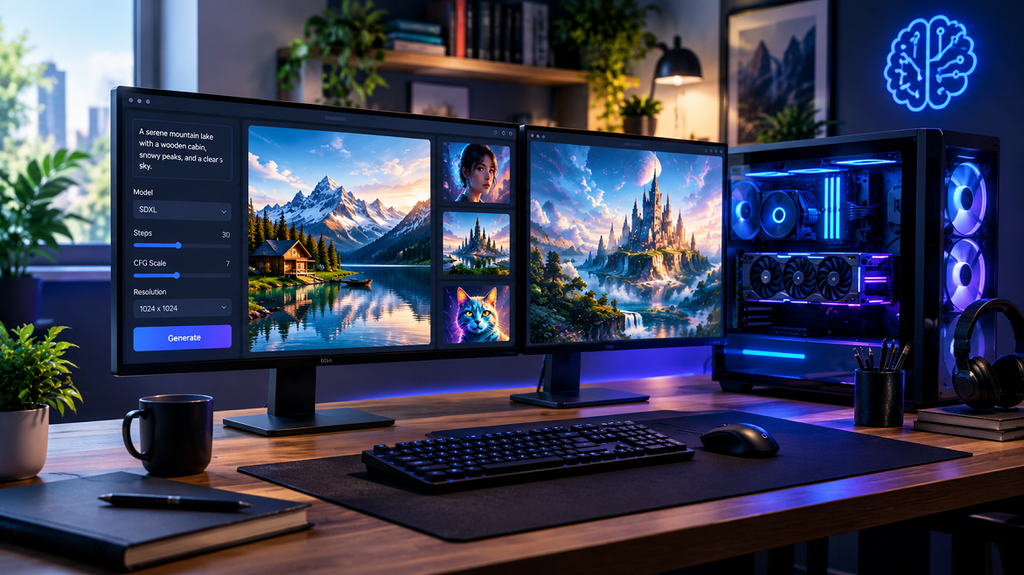
Your hardware has a major influence on which models you can run comfortably. A lightweight model may work on a computer with limited graphics memory, while a larger model can require considerably more resources. The most important component is usually your GPU, particularly its available video memory, commonly called VRAM. System RAM, storage capacity, processor performance, and model optimizations also matter. There is no single hardware specification that guarantees good performance across every model, but the following table provides a useful starting point.
| Hardware component | Practical starting point | Better for demanding workflows |
|---|---|---|
| GPU memory (VRAM) | 6–8 GB for selected smaller models | 12–24 GB or more |
| System RAM | 16 GB | 32 GB or more |
| Storage | SSD with 50–100 GB of available space | 500 GB or more for multiple models and outputs |
| GPU type | Compatible NVIDIA, AMD, or Apple hardware, depending on the software | A supported GPU with more memory and strong compute performance |
These figures are planning guidelines, not universal minimum requirements. Some models can run below these levels with quantization, CPU offloading, or other optimizations, while others may need significantly more memory. AMD GPU support depends on the operating system and software backend, and Apple Silicon uses a different hardware and software stack from most NVIDIA-based installations. Check the specific model’s requirements before deciding whether your computer is suitable.
If you’re building a new system, prioritize sufficient VRAM rather than focusing exclusively on raw GPU speed. A fast card with limited memory can struggle with a large model, whereas a card with more memory may handle the same workload more comfortably. An SSD also makes a noticeable difference when you regularly switch between large checkpoints. Most importantly, start with a model that matches your existing hardware instead of assuming that you need an expensive workstation to begin experimenting.
How to Choose the Right AI Image Generator
The best alternative depends on what you want to create, how much technical setup you’re willing to handle, and how much control you need over the final image. A blogger who generates occasional featured images has different requirements from a concept artist producing hundreds of variations or a developer building an automated image-generation service. Instead of choosing the most popular name, begin with your actual workflow and work backward.
If you want flexibility and a broad selection of community models, start by exploring Stable Diffusion. If detailed prompt interpretation is your priority, test a suitable FLUX variant and compare its results on your hardware. If you want to control every stage of the generation process, consider ComfyUI. For users who prefer conventional settings panels, AUTOMATIC1111 or SD.Next may be more comfortable, while InvokeAI is worth investigating for canvas-based editing. Focus is a potential option for a simpler experience, provided its current maintenance and model compatibility meet your needs.
You should also consider the type of images you generate most frequently. Photo realistic portraits, stylized illustrations, product mock ups, and architectural concepts may respond differently to the same model. Test a few representative prompts before committing to a large download or building a complex workflow. Keep the prompt, resolution, and other settings as consistent as possible when comparing results. That way, you can judge the model’s strengths rather than accidentally comparing different configurations.
Finally, remember that the model and the interface are separate decisions. You might use ComfyUI with one model for a complex editing task and another interface with a different model for quick image creation. You don’t have to choose one application for every creative project.
How to Set Up a Local Image Generation Workflow
Getting started is easier when you approach installation as a series of small steps instead of trying to configure everything at once. First, check your operating system, GPU, VRAM, available storage, and the model families supported by your preferred application. Then choose an interface and follow its official installation instructions. Avoid downloading random installers or model files from unverified sources, particularly when those files require access to your system.
Next, download a compatible model from its official repository or a trusted model-hosting platform. Read the model card, confirm the license, and check whether the model requires additional files. Some architectures depend on specific text encoders, configuration files, or software versions. Missing dependencies are a common reason why an apparently correct installation fails to generate an image.
Once the model is installed, begin with a straightforward text-to-image prompt. For example, try generating a photograph of a ceramic coffee mug on a wooden desk beside a window, with soft morning light and a neutral background. Use a moderate resolution supported by your hardware and leave most advanced settings unchanged. This gives you a baseline for testing whether the application, model, and GPU are working correctly.
After your first successful image, experiment with prompts, aspect ratios, and generation settings one at a time. Save promising outputs and their settings so that you can reproduce them later. When you’re comfortable with the basics, explore inpainting, image-to-image generation, LoRAs, upscaling, and more advanced workflows. Adding one feature at a time makes troubleshooting easier and helps you understand which tools actually improve your results.
A reliable local workflow should also include basic file organization. Keep model files in clearly labeled folders, separate original images from edited versions, and maintain backups of your favorite prompts and workflows. If you create images for clients or a business, document which model and version you used. This small habit can save considerable time when you need to reproduce a design or investigate a licensing question months later.
Licensing, Commercial Use, and Privacy ConsiderationsComfyUI
One of the most common mistakes in local AI image generation is assuming that a free download automatically permits every type of use. Open-source software and open-weight AI models are not interchangeable terms, and a project’s software license does not necessarily determine the license of the model it runs. A free interface can support models with very different conditions, including restrictions related to commercial use, redistribution, or acceptable use.
For example, FLUX.1 [schnell] uses the Apache 2.0 license, while FLUX.1 [dev] uses a non-commercial license. Stable Diffusion 3.5 Large is released under Stability AI’s Community License, which includes conditions related to organizational revenue and commercial licensing. These differences can materially affect whether a model is suitable for a business.
Before using any model commercially, review the exact license associated with the specific checkpoint and version. Also consider whether any additional restrictions apply to the model’s use, distribution, or integration into a product. If you intend to generate images for clients, sell digital assets, or build a commercial application, don’t rely on a general statement that a model is open source. Read the official license and seek legal advice if the intended use raises significant uncertainty.
Privacy deserves similar care. Running a model locally can reduce the need to share confidential prompts or source images with a third-party generation service, but the level of privacy depends on the entire setup. Verify whether your application uses cloud-based features, remote APIs, telemetry, or online extensions. Keep your software updated, download files from reputable sources, and avoid exposing a local generation interface to the public internet without appropriate security controls.
Common Challenges and How to Solve Them
Local image generation can be rewarding, but the first setup doesn’t always work perfectly. One frequent problem is running out of GPU memory. If a model fails to load or generation stops unexpectedly, try a smaller model, reduce the image resolution, close other GPU-intensive applications, or use supported memory-saving features. Quantization and CPU offloading may also help, although performance can decrease. Increasing image dimensions or running multiple generations simultaneously usually increases resource demands, so adjust one variable at a time.
Another challenge is poor prompt adherence. The image may contain the right subject but miss the intended composition, lighting, or number of objects. Instead of adding dozens of adjectives, make the prompt more specific about the subject, setting, viewpoint, lighting, and relationships between elements. For example, describe a red ceramic mug in the foreground, a notebook to its left, and a softly blurred window in the background. If the model still struggles, consider a compatible image-conditioning workflow or use inpainting to correct the troublesome region.
You may also encounter inconsistent results between software versions. An update can change dependencies, introduce new model support, or affect existing workflows. Before updating a setup you depend on, save your configuration, back up important workflows, and record the versions that currently work. This is particularly important for production environments where you need to reproduce previous outputs.
Finally, don’t judge a model by a single image. Generate several samples using comparable settings, then assess anatomy, composition, texture, text rendering, and adherence to your prompt. AI image generators can produce convincing results while still making mistakes in hands, object geometry, repeated patterns, or small lettering. Treat generated images as creative drafts that may require human review and editing rather than assuming every output is ready for publication.
Conclusion
The best open-source alternative to Mid journey for local image generation isn’t one universal tool. It’s the combination of a suitable model, a compatible interface, and hardware that matches your needs. Stable Diffusion offers a broad and flexible ecosystem, FLUX provides compelling options for detailed image generation, and ComfyUI gives advanced users extensive control over complex workflows. AUTOMATIC1111 and SD.Next appeal to people who prefer conventional interfaces, while InvokeAI and Focus offer different approaches to accessibility and creative editing.
If you’re just starting out, choose one application and one model rather than installing everything at once. Test a few real-world prompts, check performance, and learn how to save repeatable settings. As your requirements grow, you can explore more specialized models and advanced editing workflows. With a little patience, local image generation can become a flexible creative toolkit that gives you greater control over your images, your workflow, and how you use your hardware.
The most important thing is to choose based on your actual needs, not hype. A well-configured local setup that runs reliably on your computer is far more useful than an impressive model you can barely load.
Frequently Asked Questions
1. What is the best free, open-source alternative to Mid journey?
Stable Diffusion is an excellent starting point because it offers a broad ecosystem of models, customization options, and local interfaces. ComfyUI is particularly useful if you want advanced workflow control, while Focus may appeal to beginners who prefer a simpler interface. The best choice depends on your hardware, preferred image style, and the features you need. Remember that software availability and model licensing are separate considerations.
2. Can I generate AI images locally without an internet connection?
Yes. Many local image-generation applications can generate images offline once the application, required model files, and dependencies have been downloaded. You generally don’t need to send prompts to an external image-generation service when using a fully local workflow. However, installation, model downloads, updates, and optional integrations may require internet access. Check your application’s behavior if offline operation is essential.
3. How much RAM and VRAM do I need for local AI image generation?
A computer with 16 GB of system RAM and a GPU with 6–8 GB of VRAM can be a reasonable starting point for selected smaller models. Larger models and demanding workflows often benefit from 32 GB of RAM and 12–24 GB or more of VRAM. Actual requirements vary considerably with model architecture, precision, resolution, and optimization methods. Check the documentation for your chosen model before upgrading your hardware.
4. Can I use locally generated AI images commercially?
Yes, in many cases, but commercial use depends on the specific model’s license and any other applicable restrictions. Some models allow commercial use under defined conditions, while others impose non-commercial limitations or additional licensing requirements. You should also consider applicable copyright, trademark, privacy, and publicity rights. Always review the exact license for your chosen model before using its outputs in client projects, advertising, or products for sale.
5. Is FLUX better than Stable Diffusion for local image generation?
Neither is universally better. FLUX offers model variants designed for detailed image generation and complex prompt interpretation, while the Stable Diffusion ecosystem provides a wide selection of checkpoints, styles, and customization options. Your results will depend on the specific models, settings, and hardware you use. The most reliable approach is to test both with the same prompts and compare image quality, speed, memory requirements, and licensing conditions.
