

1. What Are LM Studio and Ollama?
Running artificial intelligence on your own computer is becoming an appealing alternative to relying entirely on cloud-based chat bots. Instead of sending every question to an online service, you can download a compatible language model and run it locally. This approach can help you experiment with AI, summarize documents, write code, brainstorm blog posts, and explore different models while maintaining greater control over your data. However, getting started requires software that can load the model, manage available computer resources, and let you interact with it. Two popular options are LM Studio and Ollama.
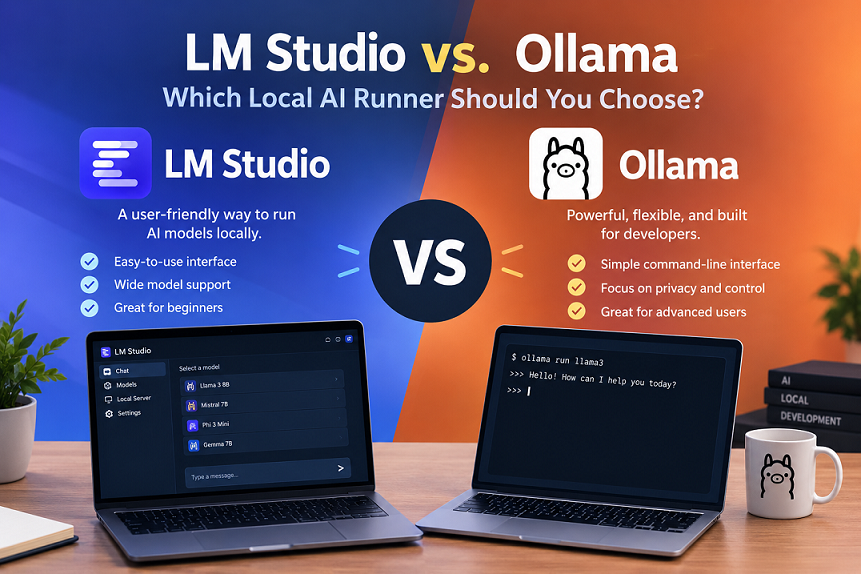
Both tools help you run local large language models (LLMs), but they approach the experience differently. LM Studio emphasizes a graphical interface for discovering, managing, and chatting with models, while Ollama emphasizes a straightforward runtime and command-line workflow that developers can integrate into applications and scripts. These differences affect how quickly beginners can get started and how easily experienced users can automate their work. Neither option is automatically better for every computer or project. Your ideal choice depends on your comfort with technical tools, your hardware, and what you want your local AI assistant to accomplish.
Understanding LM Studio
LM Studio is a desktop application designed to make local AI more approachable. After installing it, you can browse available models, download a suitable option, load it into memory, and begin chatting through a visual interface. You do not need to start by memorizing terminal commands or writing code. The application also provides model configuration options, developer tools, and local API capabilities for people who want to move beyond ordinary conversations. Its official documentation describes support for Windows, macOS, and Linux, with hardware and runtime compatibility depending on the computer you use.
One particularly useful feature is the ability to experiment with different models without building a separate application for each one. You can test a model’s writing ability, compare answers, adjust available settings, and decide which model suits your needs. LM Studio also supports document-based interactions and can operate offline after the required model files have been downloaded. For a blogger, student, researcher, or curious AI beginner, this creates a convenient environment for learning how local models behave. You can spend more time exploring AI and less time figuring out how to launch it.
Understanding Ollama
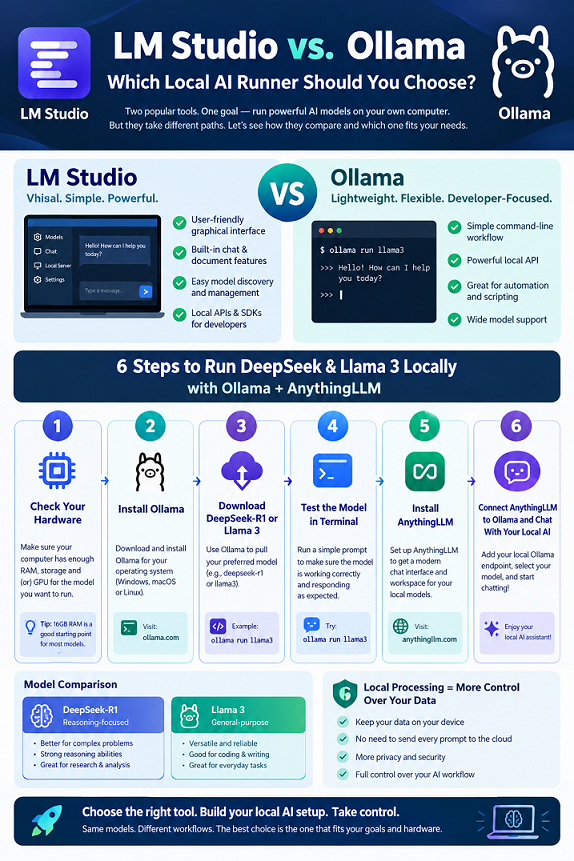
Ollama takes a more runtime-oriented approach to local AI. You install the software, download a supported model, and run it using commands or compatible applications. For example, a beginner can open a terminal and execute ollama run llama3.2, provided that the model is available in the installed Ollama library and the computer has sufficient resources. Ollama handles much of the work involved in retrieving and running the model, making it easier to use local AI without manually assembling every component.
Its appeal becomes even clearer when you want AI to do more than answer questions in a chat window. Developers can connect Ollama to Python scripts, development environments, automation tools, and other applications through its API. You can build workflows that generate text, analyze information, or assist with repetitive tasks while keeping inference on your own machine. Ollama also supports GPU acceleration on compatible hardware, with performance depending on the model, drivers, and available memory. Its lightweight command-oriented workflow makes it a strong option for people who want to integrate local AI into their existing technical setup.
2. LM Studio vs. Ollama: Key Differences
Before installing either application, it helps to understand how their features compare. Both can run local models, and both provide ways to connect AI capabilities to other software. However, the user experience, model management, and development workflows are different enough to influence your decision. LM Studio is often more convenient when you prefer to see your available models and settings on screen. Ollama is often more convenient when you prefer commands, scripts, and applications that communicate with a local AI service.
The following table summarizes the main differences to consider. Specific capabilities can change with software updates, so check the official documentation before choosing a tool for a demanding technical project.
| Feature | LM Studio | Ollama |
|---|---|---|
| Main approach | Desktop app with graphical controls | Local AI runtime with a command-line workflow |
| Beginner experience | Very approachable visual interface | Simple commands; less visual by default |
| Model discovery | Built-in model discovery and downloads | Model library and terminal-based commands |
| Starting a conversation | Built-in chat interface | Terminal or compatible chat application |
| Local API | Yes | Yes |
| Automation | CLI, SDKs, APIs, and integrations | API, CLI, and integrations |
| Model configuration | Visual controls and runtime settings | Commands, model configuration, and API options |
| Offline operation | Available after downloading model files | Available after downloading model files |
| Document workflows | Built-in document-chat capabilities | Typically requires a compatible application or custom workflow |
| Best-known strength | Convenient model exploration and visual interaction | Practical integration into developer workflows |
| Operating systems | Windows, macOS, Linux | Windows, macOS, Linux |
| Cost | Free to use, subject to applicable terms | Free to use, subject to applicable terms |
The important distinction is not that one can run AI while the other cannot. Both are capable local AI tools. Instead, think about the amount of setup and control you want. If you want a desktop environment for testing models, LM Studio is an attractive starting point. If you want a runtime that fits naturally into scripts and applications, Ollama deserves serious consideration.
3. Ease of Installation and Setup
Your first experience with local AI should not feel like configuring a complicated server. Fortunately, both tools aim to reduce that barrier, although the initial steps differ. You will generally need to download the application, obtain a model, and make sure your computer has enough memory to run it. The actual download size and loading time depend on the model you choose. A smaller model is usually a more sensible starting point than immediately attempting to run a very large one.
Setting Up LM Studio
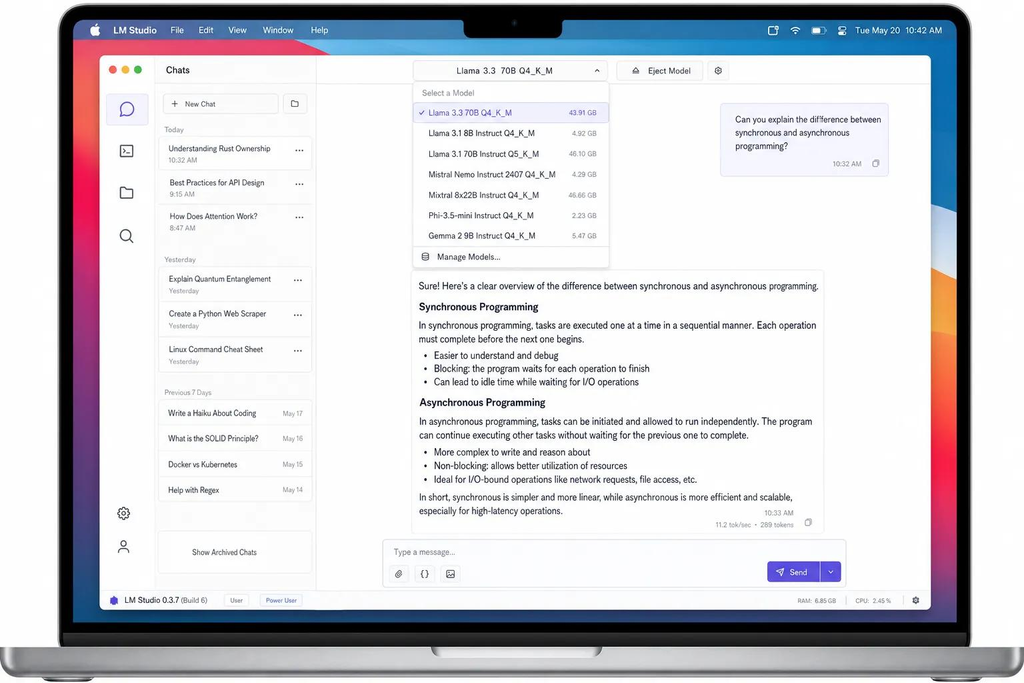
LM Studio is a natural choice if you prefer installing an application and exploring its features visually. After downloading the appropriate installer, launch the application and open its model-discovery area. Search for a model that matches your needs, download a compatible version, and load it into memory. Once the model is ready, open the chat interface and start asking questions. The graphical workflow helps you understand what is happening without requiring you to learn several commands first.
For example, suppose you want a local assistant to help you outline articles for a technology blog. You can download a suitable instruction-following model, ask it to create an outline, and evaluate the response directly in the application. If the answers are too slow or the model struggles with your prompts, you can experiment with a smaller model or adjust supported settings. This makes the process accessible even if you have never worked with machine learning software before.
Setting Up Ollama
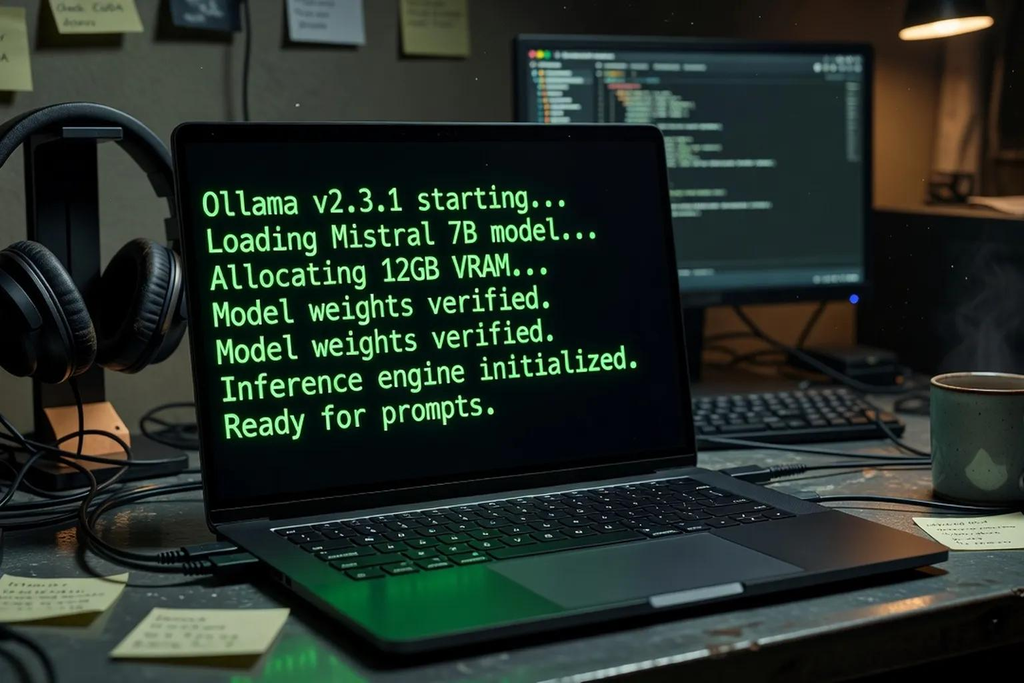
Ollama also provides a relatively straightforward installation process, but its familiar workflow involves the terminal. After installing the software, you can run a command such as:
This command requests the specified model and starts an interactive session when the model is available. If it has not been downloaded yet, Ollama will generally retrieve it before running it. The precise model name should be checked against the current model library, because model variants and tags can change.
Once the model is running, you can enter prompts directly into the terminal. This is useful for quick tests, but it also gives you a foundation for automation. For instance, a developer can use a script to submit repeated prompts, process generated text, or connect a local model to an application. You do not have to build a graphical interface before experimenting with these workflows.
Setup winner: LM Studio is generally easier for beginners who prefer visual controls. Ollama is especially convenient for users who are comfortable with terminal commands or want to build automated workflows.
4. User Interface and Everyday Experience
The user interface can have a surprisingly large effect on how often you use a tool. Even a powerful AI model becomes frustrating if every task requires unnecessary setup. LM Studio makes model experimentation feel more like using a conventional desktop application. You can browse models, select one, manage loading options, and chat without switching between several tools. For people who want to compare models or learn through experimentation, this visual approach removes much of the initial friction.
Ollama’s default experience is different. Its terminal interface is practical and direct, but it may feel unfamiliar if you have never used a command prompt. You enter a command, interact with the model, and exit when you finish. That simplicity can be an advantage for experienced users because it keeps the workflow focused. However, people who expect a polished chat bot window may prefer to connect Ollama to a separate graphical application.
There is an important qualification: Ollama does not have to remain a terminal-only experience. You can use compatible third-party interfaces and applications to create a more visual workflow. Likewise, LM Studio is not restricted to chatting through its desktop interface; it also offers developer-oriented capabilities. The difference is the starting experience rather than an absolute division between visual users and programmers.
Consider how you plan to work. If you frequently switch between models, adjust settings, and test different prompts, LM Studio’s interface may save time. If you mainly need a model to respond to a script or power another application, Ollama may fit more naturally into your daily routine.
5. Model Support and Compatibility
Choosing a local AI runner is only half the decision. You also need a model that performs well on your hardware and handles the tasks you care about. Some models are designed for general conversation, while others specialize in coding, reasoning, summarization, multilingual tasks, or lightweight operation. A model’s quality, size, context length, and memory requirements can affect your experience more than the choice between these two runners.
LM Studio supports compatible models from a range of model families, including Llama, Qwen, Mistral, Gemma, and other available options. Its model-discovery interface helps users locate downloadable models, including supported GGUF files and other compatible formats. On Apple Silicon computers, it also supports Apple’s MLX runtime for compatible models. These choices can make it easier to explore different model families without building a custom setup from scratch.
Ollama provides a model library and commands for retrieving and running supported models. You can select a model by its library name and tag, then use it through the CLI or API. Its model ecosystem is designed to make common tasks straightforward, whether you want a conversational assistant, a coding helper, or a model for another supported workload. Advanced users can also customize model behavior through supported configuration mechanisms.
The key question is whether the exact model you want is supported in the form and runtime you plan to use. Do not assume every model available on a model-sharing website will run identically in both applications. File formats, quantization, architecture support, context settings, and runtime requirements all matter.
For example, if you want to experiment with a quantized model downloaded from a model repository, check the file format and compatibility instructions before downloading several gigabytes of data. If you want a simple model-pulling workflow, check whether the model is available in the Ollama library. If you want to browse and compare options visually, LM Studio may be more convenient.
Model support winner: Neither tool wins universally. Choose based on your preferred model, its supported format, and how easily you can manage it in your chosen runner.
6. Performance, RAM, and GPU Requirements
Performance is one of the biggest concerns when running local AI. A model that responds quickly on a high-end workstation might feel painfully slow on an older laptop. Before choosing either runner, check your available RAM, graphics memory, processor, storage, and operating system. Both applications depend on the underlying hardware, and neither can make an oversize model run smoothly without sufficient resources.
What hardware do you need?
There is no single RAM requirement that applies to every model. A small, quantized model may run on a modest computer, while a much larger model can require substantially more memory. You also need room for the operating system, the runtime, the model’s working memory, and any other applications running at the same time. Context length and workload can increase memory consumption, so the size of the model file alone does not tell the whole story.
As a practical starting point, consider these broad guidelines rather than strict minimum specifications:
| Computer memory | Reasonable starting approach |
|---|---|
| 8 GB RAM | Try very small, heavily quantized models; performance may be limited |
| 16 GB RAM | Explore smaller models and selected medium-sized quantized models |
| 32 GB RAM | More flexibility for larger models and longer contexts |
| 64 GB RAM or more | Greater room to experiment with larger models, depending on architecture and other hardware |
These are approximate planning guidelines, not guarantees. A model may need more memory than its file size suggests, and a machine with a capable GPU or unified memory architecture can behave differently from another computer with the same RAM capacity.
Does LM Studio run faster than Ollama?
There is no reliable universal winner without testing the same model under comparable conditions. Performance depends on the model version, quantization, runtime, GPU backed, available memory, prompt length, and generation settings. Even different builds of the same model can produce different results.
Ollama’s runtime continues to evolve. For example, its official June 2026 update described improved GGUF compatibility and performance optimizations, including reported throughput gains on certain NVIDIA hardware and broader GPU support through Vulkan. Those reported results apply to particular configurations, not every computer or model.
LM Studio also supports multiple inference back ends, including llama.cpp and MLX on compatible Apple Silicon systems. Therefore, the best way to compare the tools is to run the same model on your computer, use the same prompt, and observe both generation speed and memory usage.
If you are buying hardware specifically for local AI, prioritize adequate memory and compatible acceleration rather than choosing a runner based on an unsupported claim that it is always faster. A well-matched small model can provide a much better everyday experience than an oversize model that constantly pushes your computer to its limits.
7. Features for Developers and Automation
For developers, the biggest difference between LM Studio and Ollama often appears after the first conversation. You may want to build a chat bot, create an AI writing assistant, summarize documents automatically, or integrate a local model into an existing application. In these situations, API access, scripting, model management, and compatibility become more important than the appearance of the chat window.
Using LM Studio for development
LM Studio provides local APIs, SDKs, and OpenAI-compatible endpoints. Its developer documentation also describes integrations involving Python, TypeScript, structured outputs, embedding, and Model Context Protocol (MCP). This gives developers several ways to connect local models to their own software without sending every inference request to a cloud AI provider.
For example, you could build a Python application that sends a question to a locally running model and displays the answer in your own interface. You can also use the LM Studio command-line interface to download models, manage the runtime, and start the local server. The availability of a graphical application and developer tools in the same product is convenient when you want to test models manually before incorporating them into a project.
LM Studio’s headless option, called llmster, is another consideration. It supports deployments where a desktop interface is unnecessary, such as certain server and continuous-integration workflows. As a result, LM Studio is no longer best understood simply as a graphical chat application; it also has a developer-oriented side.
Using Ollama for development
Ollama is particularly appealing when you want a straightforward local service that applications can call. You can download a model, start a session, and use its API to submit prompts pro grammatically. Developers can connect it to scripts, local websites, automation workflows, and other compatible software.
Imagine that you publish several technology articles each month and want to automate an initial proofreading pass. A Python script could submit article text to a local model, request a list of unclear sentences, and save the suggestions for manual review. You could later extend the same workflow to summarize research notes or organize content ideas. The local runner becomes a reusable part of your development environment rather than just a place to chat.
Install the package first and make sure the Ollama service is running and the model is available. The example demonstrates the basic interaction; production applications should also handle errors, model availability, timeouts, and potentially long responses.
Developer verdict: Both are capable choices. Ollama is an excellent starting point for a simple local-runtime workflow, while LM Studio offers a convenient combination of graphical model testing, APIs, SDKs, and headless deployment options.
8. Privacy, Offline Use, and Security
Privacy is one of the main reasons people explore local AI. You might want to summarize private notes, analyze internal documents, or experiment with prompts without routinely sending the content to an external AI service. Running a model locally can help because inference can take place on your own computer rather than a remote model provider’s servers.
Both LM Studio and Ollama can support offline workflows once the required software, model files, and other dependencies have been downloaded. LM Studio explicitly documents offline use, including local document interactions after the necessary resources are available.
However, local AI does not automatically guarantee complete privacy. Initial model downloads require a network connection, and other features or integrations may use external services. If you connect a third-party interface, enable a remote integration, or send prompts to a cloud-based tool, information may leave your computer. Configuration matters just as much as the software you choose.
For sensitive work, consider these precautions:
- Download models from trusted sources and review their licenses.
- Check which applications and integrations can access your prompts and files.
- Avoid exposing a local API server to the public internet without appropriate authentication and network controls.
- Review firewall settings and remote-access configuration.
- Test offline behavior if your workflow requires that no external connection be used.
- Keep private documents in locations that are accessible only to authorized users.
API security deserves particular attention. A service listening on your own computer is not necessarily safe if it becomes reachable from other devices or networks. LM Studio documents configurable API-token authentication, while Ollama deployments should also be configured with appropriate network restrictions and any required access controls.
For most personal experiments, either tool can be part of a privacy-conscious setup. For confidential business information, sensitive research, or regulated data, assess the entire workflow rather than relying solely on the phrase “runs locally.”
9. Pricing and Licensing
Cost is another reason local AI runners are attractive. Both LM Studio and Ollama offer software that can be used without a conventional per-message cloud inference bill for local model execution. That does not mean every related expense disappears. You still need a computer with sufficient resources, electricity, storage, and potentially paid hardware or supporting software.
LM Studio is available for experimentation and local model use under its applicable terms. Ollama also provides its local runner without a required per-request payment for ordinary local inference. Their software terms, commercial-use provisions, and the licenses of individual models are separate considerations, so verify the relevant terms before deploying either tool in a business.
| Cost consideration | LM Studio | Ollama |
|---|---|---|
| Local inference | No standard per-message cloud fee | No standard per-message cloud fee |
| Hardware | Your computer’s resources | Your computer’s resources |
| Internet for initial downloads | Generally needed | Generally needed |
| Internet for local inference | Not inherently required after setup | Not inherently required after setup |
| Model licensing | Depends on the selected model | Depends on the selected model |
| Commercial deployment | Check current software and model terms | Check current software and model terms |
| Optional third-party services | May introduce additional costs | May introduce additional costs |
One detail is easy to overlook: a free model download does not necessarily mean unrestricted commercial use. Some model publishers impose specific conditions, and those rules can differ from one model to another. If you plan to use generated content commercially, review the model license and any applicable software terms.
For an individual learning local AI, the cost difference between the two runners may be less important than ease of use. For a business, licensing, maintenance, support, security, and deployment requirements deserve a closer review.
10. Pros and Cons of Each Tool
Neither application is perfect for every situation. Understanding the trade-offs can help you avoid installing a tool that feels awkward for your workflow.
LM Studio: Pros and cons
Pros
- A graphical interface makes discovering and testing models approachable.
- Built-in chat lets you experiment without creating a separate fronted.
- Model configuration and management are available through visual controls.
- Local APIs and SDKs support development.
- Document-chat features can simplify certain offline research tasks.
- Headless operation provides options beyond the desktop interface.
Cons
- The graphical environment may be unnecessary for users who only need a local API service.
- Model compatibility and performance still depend on hardware and supported runtime.
- Large model downloads can consume substantial storage and bandwidth.
- Advanced automation still requires learning its CLI, API, or SDK workflows.
- A polished interface does not eliminate the need to understand model limitations and privacy settings.
Ollama: Pros and cons
Pros
- A straightforward command-line workflow makes launching models simple.
- Its local API is useful for scripts and application integrations.
- Model management fits naturally into automated development workflows.
- Compatible third-party interfaces can provide a visual chat experience.
- It can operate offline once required resources are available.
- It is suitable for experimentation, development, and a variety of local AI projects.
Cons
- The terminal-first workflow can intimidate users who prefer graphical applications.
- Users may need additional software for a polished chat or document-management experience.
- API integrations require some technical understanding.
- Performance and compatibility vary according to hardware, runtime, and model choice.
- Remote access and service exposure require careful configuration.
If you want to spend your time exploring AI models, LM Studio’s interface is a meaningful advantage. If you want to connect local AI to code and automation, Ollama’s straightforward workflow can be more convenient. Both tools can serve as a starting point for more advanced projects.
11. Which Local AI Runner Is Best for Different Users?
The right tool depends on what you want to accomplish. Instead of choosing based on popularity alone, think about your daily tasks and the amount of technical setup you are comfortable handling.
Best for beginners: LM Studio
If you are new to local AI, start with LM Studio. Its visual interface makes it easier to find models, load them, experiment with prompts, and compare answers without relying on terminal commands.
Best for developers: Ollama
If you are comfortable with a terminal and want to integrate a model into a Python script, application, or automation workflow, Ollama is an excellent starting point.

Best for offline research: LM Studio
LM Studio is particularly convenient when you want to chat with downloaded models and explore supported document-chat workflows. Verify offline operation and external integrations before using confidential files.

Best for automation: Ollama
Ollama works well for developers who want a repeatable command-line workflow and an API that scripts can use to request local model responses.
What if you are a blogger or content creator?
For a technology blogger, both tools offer practical benefits. LM Studio can help you test different models for article outlines, explanations, brainstorming, and summarization. You can evaluate their writing styles before deciding which model produces the most useful drafts. Ollama can be a better fit if you eventually want to automate repetitive tasks, such as organizing topic ideas, checking draft structure, or processing multiple text files.
For example, you could start with LM Studio to understand how local models respond to your prompts. Later, you might use Ollama to build a small Python workflow that reviews your drafts and flags sections that need editing. You do not have to commit to one tool forever.
Remember that local models can produce inaccurate facts, fabricated citations, and repetitive text. Verify technical claims, use credible sources, and edit generated content before publishing it. Local execution changes where the model runs; it does not automatically improve the quality or reliability of its answers.
12. How to Choose Between LM Studio and Ollama
If you are still undecided, use a simple decision process. Start by identifying your primary task, then consider how you want to interact with the model. Next, confirm that your computer can run a suitable model. Finally, test the software with real prompts rather than relying entirely on feature lists.
One final point: do not judge a runner solely by how quickly it generates the first sentence. Test it with a realistic task, such as summarizing a long document, explaining a technical concept, or writing a short code snippet. Check the quality of the output, how quickly the model begins responding, how long the full answer takes, and whether your computer remains responsive.
That practical test will tell you more about your experience than a generic performance ranking.
Conclusion
The comparison between LM Studio vs. Ollama comes down to how you want to use local AI. Both let you run compatible language models on your own computer, experiment without paying a standard cloud inference fee for each local request, and build workflows that do not inherently require sending every prompt to an external model provider.
LM Studio is the stronger starting point for people who prefer a graphical interface, want to explore models visually, and appreciate built-in chat and document-related features. It also offers APIs and developer tools, making it useful beyond casual conversations.
Ollama is an excellent choice for developers, automation enthusiasts, and users who prefer a command-line workflow. Its model management and local API make it practical for integrating AI into scripts and applications.
The final recommendation: Choose LM Studio if you want the easiest visual introduction to local AI. Choose Ollama if your priority is development and automation. If you are unsure, try both with the same small model and compare them on your own computer.
The best local AI runner is ultimately the one that fits your hardware, respects your privacy requirements, and helps you accomplish real tasks with the least friction.
Frequently Asked Questions
1. Is LM Studio better than Ollama for beginners?
LM Studio is generally easier for beginners who prefer a graphical interface. You can browse models, download them, load them, and chat without starting with terminal commands. Ollama is also approachable, especially if you are comfortable following a few commands. Both can be learned without advanced machine-learning knowledge.
2. Can LM Studio and Ollama run AI models offline?
Yes. Both can support offline inference after the necessary software, model files, and dependencies have been downloaded. However, features that rely on external services may still need an internet connection. Review your integrations and network configuration if offline operation is essential.
3. Does Ollama use more RAM than LM Studio?
Neither tool universally uses more RAM in every situation. Memory consumption depends on the model, quantization, context length, runtime settings, and how much work is offloaded to the GPU. For a fair comparison, load the same compatible model on the same computer and monitor resource usage during identical tasks.
4. Can I use LM Studio or Ollama for free?
Both offer local AI software that can be used without a standard per-request cloud inference charge for local execution. However, hardware, electricity, storage, optional services, and licensing conditions can affect your overall costs. Always check the current software terms and the license of the model you intend to use.
5. Which is better for running local AI models with Python?
Both support Python-based development. Ollama is a convenient choice for developers who want a straightforward local runtime and API. LM Studio offers a Python SDK and API options as well. Your choice should depend on the model you need, your preferred development workflow, and the integrations required by your project.
