

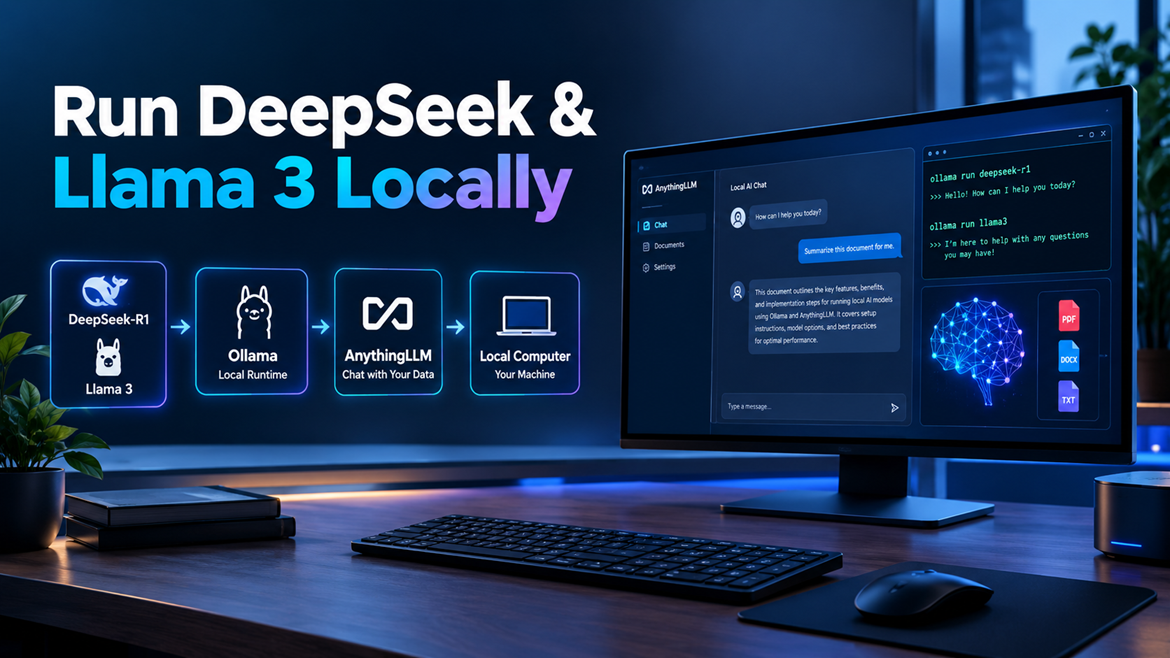
Running an AI model on your own computer sounds complicated at first. You may imagine servers, complicated Linux commands, expensive GPU, and a screen full of technical errors. Fortunately, tools such as Ollama and AnythingLLM have made local AI much easier to approach. Instead of sending every prompt to a cloud-based chat bot, you can download a compatible language model, run it on your own machine, and then connect it to a friendly interface for chatting, document analysis, research, and other everyday tasks.
This setup becomes particularly interesting when you want to experiment with models such as DeepSeek-R1 or Meta Llama 3. Ollama handles much of the difficult model-running work behind the scenes, while AnythingLLM can provide a more convenient workspace for interacting with the model and your own documents. Think of Ollama as the engine under the hood and AnythingLLM as the dashboard that lets you actually use the vehicle comfortably.
The process is not identical for every computer. Your available RAM, GPU, operating system, storage, and chosen model all affect performance. A small model can be practical on a normal desktop or laptop, while a much larger model may require substantial memory and GPU resources. The good news is that you do not have to start with the biggest model. In fact, beginners are usually better off starting small, testing the workflow, and upgrading when they understand what their hardware can handle.
What Ollama and AnythingLLM Do
Ollama is a local model runtime designed to make running open models relatively straightforward. After installation, you can use commands such as ollama run to download and start supported models from the command line. Ollama also provides a local API, which means other applications can communicate with the model instead of requiring you to interact with the terminal every time.
AnythingLLM sits at a different layer. It is designed to give you a workspace where you can interact with language models and work with information such as documents. Its documentation lists Ollama among its supported local language-model providers, alongside several other local and cloud options. This separation is useful because you can change the model provider or model configuration without rebuilding your entire workflow.
The combination is therefore more useful than either tool alone for many people. Ollama provides the local inference engine, while AnythingLLM provides an application layer for conversations and knowledge workflows. Once connected, you can ask questions through AnythingLLM while the underlying responses are generated by the model running through Ollama.
Why Run an AI Model Locally?
The biggest attraction of local AI is control. When the model is running on your own computer, your prompts and locally processed information do not automatically have to travel to a third-party AI service. That can be particularly valuable when experimenting with private notes, internal documents, drafts, source material, or other information you would rather keep on your own machine.
Local AI can also reduce dependence on subscription services. You still pay the normal costs associated with your hardware, electricity, storage, and maintenance, but you are not necessarily paying for every individual request through an online API. Once a model is downloaded, you can repeatedly experiment with it without treating each prompt as a separate cloud transaction.
There is another advantage: learning. Running an LLM locally teaches you what actually happens between a prompt and an AI response. You start thinking about model size, quantization, RAM, GPU memory, context length, inference speed, and application integration. That knowledge becomes increasingly useful as local AI tools continue to develop.
Local does not automatically mean perfect, however. A model running on modest hardware may be slower than a powerful cloud service. Some large models can be impractical for ordinary laptops. You also become responsible for keeping your software updated, protecting your computer, managing storage, and understanding what information you are exposing through any connected application.
DeepSeek vs. Llama 3 for Local Use
DeepSeek-R1 and Llama 3 represent somewhat different choices. DeepSeek-R1 is particularly interesting for users who want a reasoning-oriented model, while Llama 3 is a widely used general-purpose model family. O llama’s current DeepSeek-R1 library includes multiple distilled and quantize variants, including 1.5B, 7B, 8B, 14B, 32B, 70B, and much larger models.
The right choice depends on what you want to accomplish. If you are primarily interested in reasoning, mathematics, programming problems, or experimenting with a reasoning-focused model, DeepSeek-R1 can be an appealing starting point. If you want a familiar general-purpose conversational model and already have experience with the Llama ecosystem, Llama 3 can be a straightforward option.
You do not need to treat the decision as permanent. One of the nicest aspects of Ollama is that you can install multiple models and switch between them. You might use one smaller model for fast everyday questions and another larger model when quality matters more than speed.
What You Need Before Installing
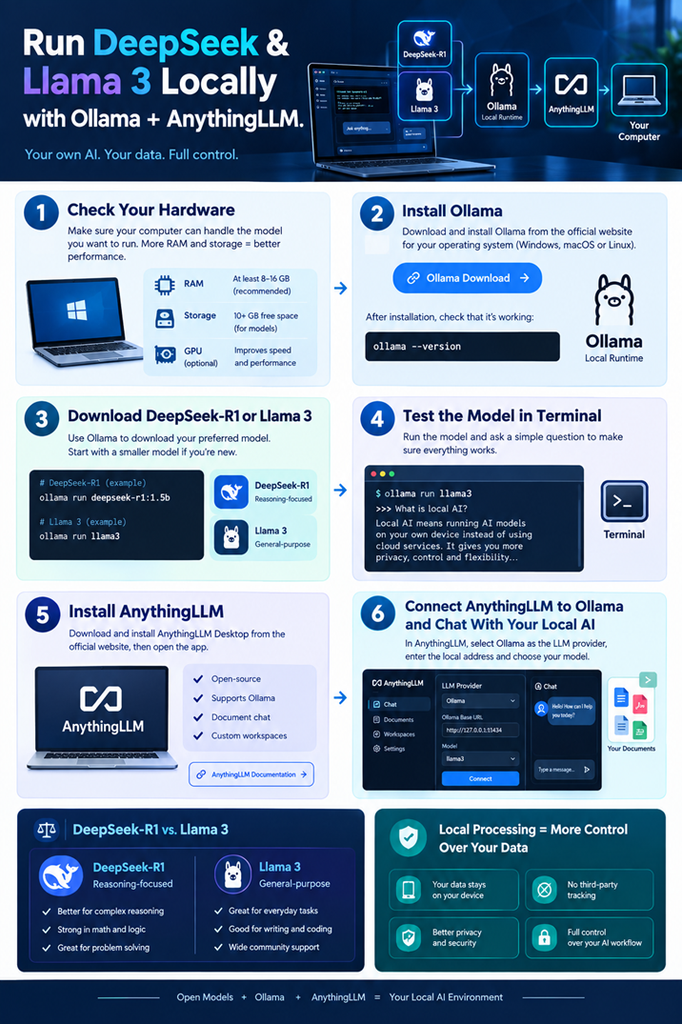
Before downloading anything, take a minute to understand your computer. The most common beginner mistake is choosing a model because its name sounds impressive without checking whether the machine has enough resources to run it comfortably. Model size is not the only consideration, but it is a useful first indicator of how demanding a model may be.
Storage is the easiest requirement to understand. If a model download is several gigabytes, you need at least that much free disk space, plus room for your operating system, applications, caches, and potentially additional models. If you download several variants, storage consumption can grow surprisingly quickly.
Memory matters just as much. A model needs to be loaded into available system or GPU memory during inference, and additional memory may be needed for the context and application overhead. Quantize versions can dramatically reduce storage and memory requirements compared with higher-precision versions, which is one reason they are so popular for local AI.
Hardware and Storage Requirements
There is no single hardware specification that guarantees a particular experience because performance depends on the model, quantization, context size, CPU, GPU, memory bandwidth, and software environment. A small model may run acceptably on a typical modern computer, while larger models can require workstation-class hardware.
For a beginner, the simplest strategy is to start with a relatively small model. DeepSeek-R1’s official Ollama listing currently shows a 1.5B variant at about 1.1 GB, a 7B variant around 4.7 GB, an 8B variant around 5.2 GB, and a 14B variant around 9 GB. Much larger variants increase rapidly, with the listed 32B model around 20 GB and the 70B variant around 43 GB.
These figures are model-file sizes, not a guarantee of required total system RAM or GPU memory. Your computer also needs to handle the operating system, Ollama, AnythingLLM, context, and other running applications. Therefore, avoid interpreting a 5 GB model as meaning that a computer with exactly 5 GB of RAM will comfortably run it.
Choosing the Right Model Size
A useful rule is start with the smallest model that can reasonably accomplish your task. You can always move upward after testing. This is much easier than downloading a huge model first and discovering that your computer spends minutes generating a short response.
For example, a smaller DeepSeek model can be useful for experimentation and basic question answering. A medium-sized model may provide better reasoning and writing quality if your hardware can handle it. Larger models can offer stronger capabilities but require significantly more resources.
Llama 3 follows the same general principle. The official Ollama library lists Llama 3 in 8B and 70B variants, with the listed model sizes around 4.7 GB and 40 GB respectively.
Do not choose solely by parameter count. A smaller newer or distilled model can sometimes be more useful for a particular task than an older, larger model. Test actual workloads rather than assuming that bigger automatically means better.
How to Install Ollama
Installing Ollama is usually the first major step. The official Ollama download page provides platform-specific installation options, including an installation command for Linux and an installer approach for Windows.
On Windows or macOS, download the appropriate Ollama application from the official website and complete the normal installation process. On Linux, the official installation command is provided directly by Ollama. After installation, open a terminal and verify that the ollama command is available.
The exact user interface can change as applications receive updates, so it is better to think in terms of the workflow rather than memorizing every button. Install Ollama, make sure the Ollama service is available, download a model, run the model, and then verify that you can interact with it successfully.
Installing Ollama on Windows, macOS, or Linux
For Linux, Ollama currently documents the following installation command:
curl -fsSL https://ollama.com/install.sh | sh
Windows users can install Ollama using the official Windows installer or the documented PowerShell installation method. macOS users can use the official application distribution. Always obtain the installer from the official Ollama site rather than downloading an unofficial executable from a random software repository.
After installation, open your terminal or command prompt and type:
ollama –version
If Ollama is installed correctly, the command should return version information. You can then move on to downloading a model.
Checking That Ollama Works
The simplest test is to run a small model. For example, you can start with:
ollama run deepseek-r1:1.5b
Ollama will download the model if it is not already present and then start an interactive session. The first download can take some time depending on your internet connection because the model must be stored locally.
You can also test Llama 3 using:
ollama run llama3
The official Ollama Llama 3 page documents this command as the basic way to launch the model.
Once the model responds to a simple question, you know that the core Ollama installation is working. At this point, there is no need to install AnythingLLM yet. Confirm the engine works first; then add the graphical workspace.
Running DeepSeek Locally
DeepSeek-R1 is one of the more interesting options for local experimentation because its Ollama library includes multiple sizes and distilled variants. The official listing currently includes several smaller models as well as substantially larger versions.
For a beginner computer, start with a smaller version. The command is straightforward:
If your hardware is capable of handling a larger model, you could instead try a 7B or 8B variant. The exact choice should be based on real performance rather than simply choosing the largest number you can download.
Downloading and Starting DeepSeek-R1
When you run the command, Ollama downloads the necessary model files and starts the local session. You can then type a question directly into the terminal.
Try a simple test:
Explain how photosynthesis works in simple language.
Then try a more reasoning-oriented prompt:
The goal at this stage is not to benchmark the model scientifically. You are simply checking response quality and speed.
If the model is extremely slow, your computer may be struggling with the selected model. That does not necessarily mean Ollama is broken. Try a smaller model and compare the experience.
Choosing a DeepSeek Model
The current Ollama DeepSeek-R1 catalog makes model selection relatively flexible. The listed variants include 1.5B, 7B, 8B, 14B, 32B, 70B, and 671B versions, with dramatically different storage requirements.
For most beginners, there is little reason to jump directly to an enormous model. A smaller model lets you learn the workflow without turning your first experiment into a hardware troubleshooting project.
Running Llama 3 Locally
Llama 3 is another excellent model to test through Ollama. The official Ollama library lists Llama 3 8B and 70B variants, and the basic command is:
ollama run llama3
The 8B version is a much more approachable starting point for many personal computers than the 70B version. The listed Ollama model sizes are approximately 4.7 GB for the 8B version and 40 GB for the 70B version.
You can switch between DeepSeek and Llama without changing the basic Ollama workflow. Once both are installed, you can launch whichever one is appropriate for the task.
Downloading Llama 3 With Ollama
Start Llama 3 with:
ollama run llama3
You can also explicitly request the 70B variant:
ollama run llama3:70b
The larger version should only be considered if your hardware can handle it. Downloading a model successfully does not mean that your computer will necessarily run it at a comfortable speed.
The advantage of testing both models is that you can form your own opinion. Give them the same writing task, coding problem, stigmatization request, and reasoning question. Compare response quality, latency, memory usage, and how naturally each model follows your instructions.
Testing Llama 3 in the Terminal
A simple test might be:
Write a short explanation of why local AI can be useful for privacy-conscious users.
Then ask it to rewrite the answer in a different tone. You can also test coding, brainstorming, stigmatization, or structured output.
Once you are satisfied that Llama 3 works, you are ready for the more user-friendly part of the setup.
Installing AnythingLLM
AnythingLLM can provide a more convenient interface for working with local language models. Its documentation describes support for local providers including Ollama and also explains that multiple LLM configurations can be used for system, workspace, and agent purposes.
For Windows users, AnythingLLM Desktop also has built-in local LLM functionality powered by O llama’s engine, although its documentation distinguishes this built-in provider from installing and connecting to a separate full Ollama installation.
If you specifically want to use your own Ollama installation, install AnythingLLM Desktop and select Ollama as the LLM provider in the application’s configuration.
Connecting AnythingLLM to Ollama
The important detail is the Ollama server address. A normal local installation commonly uses:
http://127.0.0.1:11434
AnythingLLM’s documentation says its desktop and Docker versions can automatically detect common Ollama URLs, including 127.0.0.1:11434, but a URL may need to be configured manually if automatic detection does not work.
Once connected, AnythingLLM should be able to see the models available through Ollama. Select your preferred model, save the configuration, and start a workspace.
If the model does not appear, do not immediately reinstall everything. First verify that Ollama itself is running and that the model can be launched from the terminal.
Using Local AI With Your Own Documents
This is where the Ollama and AnythingLLM combination becomes particularly useful. Instead of using a local model only as a generic chat bot, you can create a workspace around a collection of documents and ask questions about that information.
Imagine you have a folder containing product documentation, research notes, company procedures, or your own writing drafts. Rather than repeatedly opening individual files and manually searching them, you can use a document-oriented AI workflow to interact with the material conversationally.
The important concept is that the model is not magically memorizing your entire hard drive. Document workflows generally involve processing information and retrieving relevant pieces when answering questions. The exact behavior depends on the application, embedding configuration, model, and workspace settings.
This is also why local AI can be attractive for private projects. You can build a personal knowledge workflow without automatically sending every document to a public cloud AI provider. However, local processing is not a substitute for basic security. If your computer is compromised, local documents and local AI applications can still be exposed.
DeepSeek vs. Llama 3: Which Should You Use?
There is no universal winner. The better choice depends on your workload and hardware.
| Feature | DeepSeek-R1 | Llama 3 |
| Local availability | Yes | Yes |
| Ollama support | Yes | Yes |
| Small variants | Yes | Yes |
| Reasoning focus | Strong choice | General-purpose |
| General chat | Good | Good |
| Coding experiments | Good | Good |
| Beginner-friendly | Smaller variants recommended | 8B is a practical starting point |
| Very large variants | Available | 70B available |
| Best starting approach | Test a smaller R1 model | Test Llama 3 8B |
DeepSeek-R1 is especially attractive if your primary interest is reasoning-oriented tasks. Llama 3 is a strong option for general conversational use and experimentation. The Ollama libraries make it easy to keep both available, so there is no reason to turn the decision into a permanent commitment.
A practical strategy is to start with one smaller model, learn the interface, then install a second model for comparison. You will quickly discover which model works best for your particular prompts.
Troubleshooting Common Ollama and AnythingLLM Problems
The most common problem is that AnythingLLM cannot connect to Ollama. Start by confirming that Ollama is actually running. AnythingLLM’s troubleshooting documentation recommends checking the local Ollama endpoint and explains that ollama serve can be used when the server is not running.
Another frequent issue occurs when AnythingLLM is running inside Docker. In that situation, local host refers to the Docker container itself rather than the host computer running Ollama. AnythingLLM documents host.docker.internal as the appropriate approach for Windows and macOS Docker setups, while Linux Docker setups may use 172.17.0.1 depending on the environment.
Slow responses are usually a hardware or model-selection problem rather than a connection problem. Try a smaller model first. Close unnecessary applications, make sure your computer has adequate free memory, and check whether GPU acceleration is available and configured correctly.
If a model fails to download, check your internet connection and available storage. If a model launches but AnythingLLM cannot see it, verify that both applications are using the same Ollama installation and endpoint.
Privacy, Security, and Local AI
One of the strongest reasons to experiment with local AI is privacy. When the model runs locally, you have substantially more control over where the model inference happens. That can be valuable when dealing with documents that contain personal, proprietary, or sensitive information.
However, avoid the common mistake of assuming that local means automatically secure. Your operating system still needs updates. Your user account needs protection. AnythingLLM and Ollama should be installed from trusted sources. Network access should be configured deliberately, especially if you make the Ollama server reachable from another computer.
You should also understand the difference between a local application and a cloud-connected feature. AnythingLLM supports both local and cloud LLM providers, so always check which provider your workspace is actually using. Its documentation also warns against exposing a local Ollama installation to the public internet merely to connect it to AnythingLLM Cloud.
For maximum privacy, keep the workflow local, restrict unnecessary network access, protect your operating-system account, and avoid uploading confidential information to services you do not trust.
Performance Optimization Tips
Performance tuning starts with model selection. If a 14B model feels painfully slow, moving to an 8B or 7B model may produce a much better overall experience. A slightly smaller model that responds quickly can be more useful than a theoretically stronger model that makes you wait after every prompt.
GPU acceleration can also make a substantial difference when supported by your hardware and software configuration. AnythingLLM’s Windows installation documentation notes that additional dependencies can be installed for GPU or NPU acceleration and that missing dependencies can result in reduced performance because processing may fall back to the CPU.
Context size also matters. Larger contexts can allow the model to consider more information, but they can increase resource requirements. When experimenting, avoid unnecessarily huge prompts. Give the model the information it actually needs.
Finally, keep your local AI environment organized. Do not download ten different models simply because they are available. Keep one or two models that you genuinely use, remove unnecessary downloads when storage becomes tight, and record which model works best for each recurring task.
Conclusion
Running DeepSeek or Llama 3 locally with Ollama and AnythingLLM is no longer an experiment reserved for AI engineers. The basic workflow is surprisingly approachable: install Ollama, download a suitable model, confirm that it works, install AnythingLLM, connect AnythingLLM to your local Ollama server, and then build a workspace around the tasks you actually care about.
The most important lesson is to start small. You do not need a massive GPU or a 70B model to discover whether local AI is useful to you. A smaller DeepSeek-R1 or Llama 3 model can teach you the complete workflow without demanding workstation-level resources.
Once the basic setup works, you can gradually experiment with larger models, different prompts, document collections, work spaces, and automation. You may eventually discover that local AI is useful for much more than chatting: research, document analysis, coding assistance, brainstorming, stigmatization, private knowledge management, and personal productivity can all become part of the same workflow.
The combination of Ollama + DeepSeek/Llama + AnythingLLM essentially gives you a personal AI environment where the model engine, user interface, and knowledge workflow can work together. Start with a model your computer can comfortably handle, test it with real tasks, and upgrade only when you have a reason to do so.
FAQs
1. Can I run DeepSeek-R1 locally without a powerful GPU?
Yes. Smaller DeepSeek-R1 variants can be run on more modest computers, although CPU-only inference can be slower. The smaller 1.5B and 7B variants are much easier starting points than the largest models. O llama’s current model listing shows substantial differences in model size, so choosing the right variant for your hardware is important.
2. Is Ollama free to use?
Ollama provides a local runtime for running supported models on your computer. The model itself may have its own license, so you should check the license of any model you plan to use, especially for commercial projects. The current DeepSeek-R1 Ollama listing, for example, provides licensing information for its model family and notes distinctions involving distilled models.
3. Can AnythingLLM use both DeepSeek and Llama?
Yes. If both models are available through your Ollama installation, you can use them as local model options. This makes it practical to compare different models for different work spaces and tasks rather than committing to one model.
4. Why can’t AnythingLLM connect to Ollama?
First check whether Ollama is running and whether its server is reachable. For a standard local setup, the Ollama endpoint commonly uses port 11434. If AnythingLLM is running through Docker, do not assume that local host refers to the host computer; Docker networking requires a different connection approach.
5. Which is better for beginners: DeepSeek-R1 or Llama 3?
Both are worth testing. DeepSeek-R1 is a particularly interesting choice for reasoning-focused experimentation, while Llama 3 is a strong general-purpose starting point. Instead of relying only on benchmarks, install a smaller version of each and test the tasks you personally care about. The model that produces the best combination of quality, speed, and resource usage on your computer is the better choice for you.

1 Comment
Pingback: Open-Source AI vs GitHub Copilot: Full Comparison