

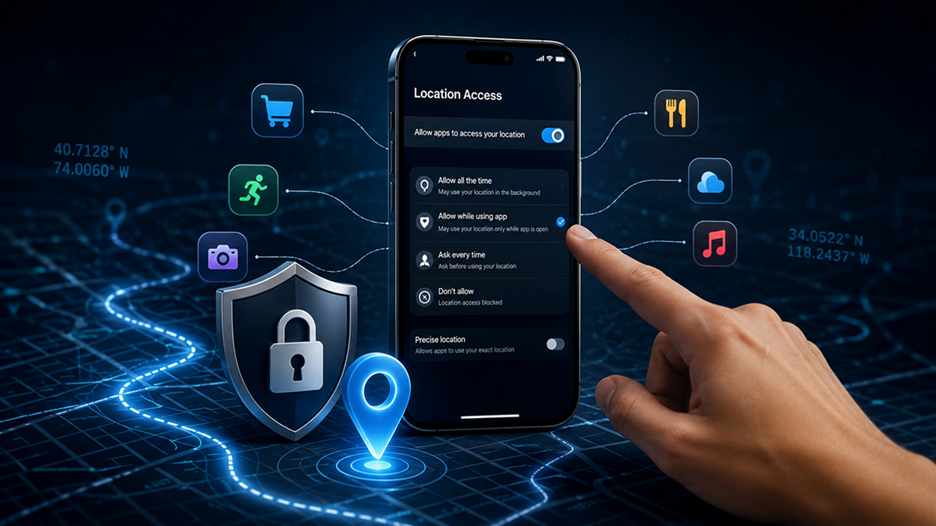
Your phone knows surprisingly much about where you go. It can recognize when you leave home, arrive at work, visit a store, travel to another place, or return to the same location regularly.
Much of this information supports useful features such as navigation, weather updates, emergency services, fitness tracking, and location-based reminders. These features can make your phone more helpful in everyday situations.
The concern begins when an app has more location access than it actually needs. If an app can access your location while you are not actively using it, repeated location data can reveal a much broader picture of your daily movements.
The good news is that you do not need to disable every location feature on your phone to improve privacy. Both Android and iPhone provide controls that let you decide which apps can access your location and when they can access it.
You can also control how accurately an app determines your position. Depending on your device and software version, you may be able to choose between precise and approximate location access.
On iPhone, available options can include Never, Ask Next Time Or When I Share, While Using the App, and Always. Android provides comparable options such as Allow all the time, Allow only while using the app, Ask every time, and Don’t allow.
By reviewing these settings, you can keep useful location features while limiting unnecessary background access.
Why Background Location Tracking Matters
Location data can be more revealing than many other app permissions. Repeated location information can create a detailed picture of your daily routine.
A single location reading might show roughly where you are at one moment. A series of readings, however, can reveal places you visit regularly, how often you travel, and how your routine changes over time.
This does not automatically mean an app is doing something harmful. Many legitimate services genuinely need location information to provide features you expect and use.
For example, a navigation app needs your location while you are driving or walking. It uses that information to calculate your route and provide directions.
A weather app may need your general area to provide a local forecast. A fitness app may use location to record an outdoor running or cycling route.
Ask Whether Background Access Is Necessary
The important question is not simply “Does this app use my location?” Instead, ask yourself: “Does this app need continuous access to my location when I am not using it?”
That distinction matters because background access can allow an app to obtain location information outside the moments when you actively interact with it.
If an application only needs location while you are using a particular feature, continuous access may provide more information than necessary. A privacy-conscious approach is to match each app’s permission to its actual purpose.
Understand While Using vs. Always
Apple distinguishes between While Using the App and Always. While Using allows location access when the app or one of its features is visible on the screen.
The Always option can allow an app to access location even when it is running in the background. This can be useful for certain services, but it is not necessary for every app.
Android provides a similar distinction between foreground and background access. Users can change an app’s location permission based on how much access it actually requires.
Think of Location Permission Like a Key
Think of location permission like giving someone a key to your home. You might give a trusted person temporary access when they need to perform a specific task.
That does not mean they need unlimited access at all times. Your smartphone works in much the same way.
The goal is not to eliminate location access completely. The goal is to give each app only the level of access it genuinely needs.
Before changing your settings, review which apps currently have location permission. You may discover that an app you rarely use has access that you granted months or even years ago.
Once you identify those apps, decide whether they really need background location access. If they do not, consider switching them to While Using the App, approximate location, or Don’t Allow.
This simple permission review can give you more control over your location data without preventing useful apps from working normally.
What Background Location Access Means
Background location access means an application can obtain location information when that application is not actively visible on your screen. This is different from simply having Location Services enabled on your phone. Your device can have location services turned on while individual apps have different levels of access. For example, you might leave Location Services enabled because you use maps and emergency features, while preventing a shopping app from accessing your location when you are not using it. On Android, Google describes Allow all the time as permission that lets an app use location even when you are not using it, while Allow only while using the app restricts access to periods when you are actively using that application.
On iPhone, the distinction is similarly clear. Apple’s current guidance says While Using the App allows location access when the app or one of its features is visible on the screen, whereas Always allows access even when the app is in the background. This distinction is one of the most useful privacy controls available because you can preserve location functionality without giving an application unrestricted background access. Some apps may only present certain choices depending on their features, so you should not assume every application will offer exactly the same permission menu.
Why Apps Request Location Access
Apps request location for many different reasons, and not every request should immediately be treated as suspicious. Maps and navigation applications obviously need it to calculate routes and provide turn-by-turn directions. Weather applications may use location to identify the local forecast. Ride-hailing and delivery apps need it to connect you with drivers or couriers and to show useful information about your current position. Fitness applications can use location to record outdoor walking, cycling, or running routes. Some social and shopping applications may use location for personalization, local recommendations, nearby content, or other features.
The important part is matching the permission to the purpose. If an app only needs your location while you are actively using a feature, While Using the App is usually a more privacy-conscious choice than continuous background access. Android also lets you choose between precise and approximate location, while Apple’s Precise Location control can be disabled for individual apps when exact positioning is unnecessary. Google explains that approximate location gives an app a broader area rather than the precise position of the device.
Check Which Apps Can Access Your Location
Before changing settings randomly, take a few minutes to inspect your current permissions. This is often the fastest way to discover why you are concerned about background tracking. You may find that several apps have location access that you granted months or years ago and have simply forgotten about. An app’s current usefulness can also be different from when you originally installed it. Perhaps you once needed continuous location for a fitness application but no longer use that feature. Reviewing permissions gives you an opportunity to bring your settings back in line with how you actually use your phone.
How to Review Location Permissions on Android
On supported Android devices, open Settings, go to Location, and select App location permissions. Google says you can then review apps grouped under categories such as Allowed all the time, Allowed only while in use, Ask every time or allow when I share, and Not allowed. You can tap an individual app to change its location access. Depending on the phone and Android version, menu names can vary slightly because manufacturers sometimes customize the Settings interface. If you cannot find the exact wording, searching your Settings app for Location permissions is often the quickest route.
| Android permission | What it generally means | Privacy choice |
| Allow all the time | App can access location even when you are not using it | Use only when genuinely necessary |
| Allow only while using the app | Location is available while you use the app | Good default for many apps |
| Ask every time | You decide when access is granted | Stronger control |
| Don’t allow | App has no location access | Best when location is unnecessary |
Android also provides a direct route through an app’s information page: open Settings > Apps, choose the app, select Permissions, and then examine its Location permission. Google notes that the precise menu can differ by device.
How to Review Location Permissions on iPhone
On an iPhone, open Settings > Privacy & Security > Location Services. You will see applications that have requested access and can tap each one to review its permission. Apple currently provides options including Never, Ask Next Time Or When I Share, While Using the App, and Always, although some apps may offer fewer choices. If you see an app set to Always, ask yourself whether it genuinely needs to know your location when you are not actively using it.
This screen is also useful because it puts your location permissions in one place. Instead of guessing which apps might be accessing your location, you can work through the list systematically. Start with apps you rarely use, then review social media, shopping, entertainment, finance, productivity, and utility applications. You do not have to disable everything at once. A better approach is to consider each app’s purpose and choose the least permissive setting that still gives you the features you actually want.
Stop Background Location Tracking on Android
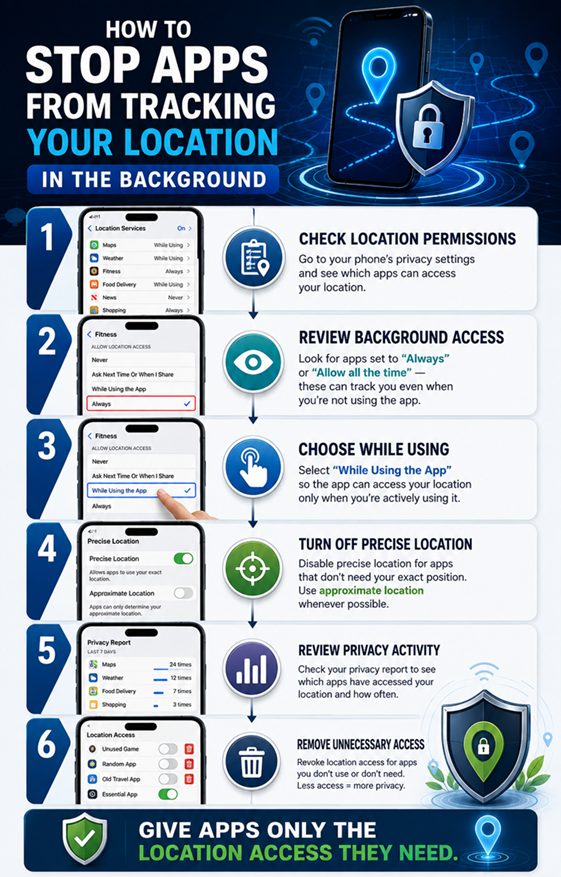
Once you have identified apps with unnecessary background access, changing the permission is straightforward. Open Settings > Location > App location permissions, select an app listed under all-time access, and change it to Allow only while using the app, Ask every time, or Don’t allow, depending on what you need. Google specifically provides these permission choices so users can control how applications access location.
For many everyday apps, Allow only while using the app is the most practical compromise. It means a weather app can determine your location when you open it, a shopping app can use location when you are actively browsing a local feature, and a map app can access location during navigation. You retain useful functionality without automatically granting continuous access. If an app stops working correctly after changing its permission, you can always return to the setting and reconsider whether that particular feature actually requires background access.
Android also has privacy controls that help you understand what an application says about its location data practices. Google notes that certain apps may display information indicating that they share location data with third parties, and users can review those disclosures when available. These disclosures are provided by app developers, so they should be treated as useful information rather than an absolute guarantee of how every data practice works.
Change an App to While Using the App
The While Using option is particularly useful when you want functionality without constant access. Imagine a weather application that only needs your location when you open it to check the forecast. There is little practical reason to give it the same level of access as an application designed to continuously record a journey. The same logic applies to many shopping, restaurant, news, and entertainment applications. If location is simply a convenience rather than the central purpose of the app, limiting access to active use can significantly reduce unnecessary background exposure.
On Android, Google explicitly defines Allow only while using the app as access available when you use that application. On iPhone, Apple describes While Using the App as access available when the app or one of its features is visible on screen. These settings are therefore excellent starting points for users who want to reduce background location access without turning location services off completely.
Use Approximate Location Instead of Precise Location
Stopping background access is only one part of location privacy. You should also consider how accurate the location information needs to be. Sometimes an app does not need to know your exact position. A weather application might only need to know your general area, for example. A local-news app may also function perfectly well with an approximate location. In situations like these, giving the app precise coordinates may provide more information than necessary.
Android allows users to choose approximate or precise location when supported. Google explains that approximate location can identify a broader area, while precise location provides much more exact positioning. Apple’s Precise Location setting similarly allows you to turn off precise location for an individual app, leaving it with approximate location instead.
| Setting | Best suited for | Privacy level |
| Precise location | Navigation, active ride tracking, route recording | More detailed |
| Approximate location | Weather, local content, general recommendations | Less detailed |
| While using | Apps needing location during active use | Stronger |
| Always / all the time | Genuine background location features | More exposure |
The best strategy is not necessarily to eliminate location access. It is to minimize the precision and duration of access. Giving an app approximate location while using it can be a much better privacy compromise than allowing precise location access around the clock.
Stop Background Location Tracking on iPhone
For iPhone users, the main control is found under Settings > Privacy & Security > Location Services. Tap an application that has access and review the available options. If an app is set to Always but you do not need it to operate in the background, change it to While Using the App, Ask Next Time Or When I Share, or Never, depending on your needs. Apple confirms that the Always option permits background location access, while While Using limits access to when the app or its feature is visible.
You can also turn off Precise Location for apps that do not need exact positioning. Apple says that disabling Precise Location allows an app to receive only your approximate location. This can be useful when you want an app to provide location-based information but do not want to give it your exact position.
If you are unsure about an app, start with a less permissive location setting and test it.
When everything continues to work normally, you have likely found a good balance between privacy and convenience.
Should an important feature stop working, restore a more permissive setting for that specific app.
This method is safer than giving broad location access to every app simply because one application needs it.
Find Apps That Do Not Need Location Access
A useful privacy cleanup begins with the apps you barely use. Think about the applications you installed for a single occasion, apps you downloaded because of a promotion, games that you opened once, or services you no longer use. If one of these apps has location permission, ask why it still needs access. An application that has no location-dependent feature generally has little reason to retain location access.
You should also pay attention to apps that request location for vague reasons. A request for location is not automatically suspicious, but the purpose should make sense in context. Android’s location permission system lets you see which applications have access and change their permissions, while Apple’s Location Services screen lets you review access app by app.
A simple rule works well: if you cannot explain why an app needs your location, do not automatically give it location access. You can deny the request and see whether the app still works. If it later needs location for a legitimate feature, you can grant temporary or while-in-use access at that point.
Reduce Location Tracking Without Breaking Useful Features
Privacy settings should make your phone safer without making it frustrating to use. Turning off every location-related feature may sound like the strongest solution, but it can interfere with navigation, emergency functions, weather information, location-based reminders, fitness tracking, and other useful services. A smarter approach is to divide apps into categories. Applications whose core purpose depends on real-time location may deserve broader access, while applications that only use location as an optional convenience can usually work with restricted permissions.
For example, a navigation app may need location during a journey, but that does not necessarily mean every shopping or social application needs continuous access. A fitness application that records outdoor routes may need background access while an exercise session is running, but an ordinary calculator clearly does not. The goal is to create a permission diet: give each app only the amount of location access required for its job.
Google’s current Android guidance also emphasizes the distinction between foreground and background access, while Android’s developer documentation explains that approximate location can be sufficient for apps that do not need exact positioning. This gives you another practical way to reduce exposure without abandoning useful location features.
Check Location Activity and Privacy Reports
Changing permissions is helpful, but monitoring access afterward can reveal whether your settings match your expectations. On iPhone, App Privacy Report can show how often apps accessed privacy-sensitive information, including location, during the previous seven days after the report has been enabled. Apple says the report is stored on the device and begins collecting information after you turn it on.
To enable it, go to Settings > Privacy & Security > App Privacy Report and turn it on. After you have used your phone for a while, return to the report and review the location access information. This can be particularly useful when you suspect an application is accessing data more frequently than expected. Remember that the report begins collecting after activation, so it will not instantly provide a historical record from before you enabled it.
Android also provides ways to review location permissions and information about an app’s stated location-data sharing practices. Google explains that some apps can disclose whether they share location information with third parties, while the permission controls let you change access.
What to Do If an App Keeps Requesting Location
Some apps repeatedly ask for location because a feature depends on it. That does not necessarily mean the app is tracking you in the background. A permission prompt is actually useful because it gives you an opportunity to reconsider whether the requested access is appropriate. If you repeatedly deny location and the app continues to ask, look at whether you genuinely need the feature that requires location.
On iPhone, you can use Ask Next Time Or When I Share where available, which gives you more control over future access. Apple also allows you to revoke permissions later through Location Services. On Android, Ask every time can provide similar control for supported apps, while Don’t allow blocks location access completely.
If an application cannot perform its core function without continuous background access and you are uncomfortable with that requirement, consider whether you actually need that app. Sometimes the strongest privacy decision is not finding a clever setting but choosing a service that asks for less data.
Extra Steps to Improve Location Privacy
Location permissions are only one layer of privacy. You should also review apps you no longer use and remove them if they serve no purpose. Keeping fewer applications installed reduces the number of services that can potentially request sensitive permissions. Keep your operating system and apps updated as well, because privacy controls and permission behavior can change with software updates.
You can also review other permissions alongside location. An application that has access to location, contacts, photos, microphone, and other sensitive information may deserve a closer look than an app with one narrowly defined permission. Apple provides privacy controls under Settings > Privacy & Security, where users can review access to information such as Location Services, Contacts, Photos, Bluetooth, Microphone, Camera, and more.
Another useful habit is to avoid automatically approving permission requests. When an app asks for location, pause for a moment and ask what feature you are about to use. If you are ordering a ride, location makes obvious sense. If you are opening a simple offline game, the request deserves more thought. Small decisions made consistently can turn your smartphone from a device that freely shares information into one where you control access deliberately.
Conclusion
Stopping apps from tracking your location in the background does not require turning off every location feature on your phone. The better approach is to review your app permissions, identify applications with unnecessary background access, and downgrade them to While Using, Ask Every Time, or Don’t Allow where appropriate. On Android, you can manage location permissions through Settings and choose between all-time, while-in-use, asking every time, and denied access. On iPhone, Settings > Privacy & Security > Location Services gives you similar control, including the ability to switch apps away from Always and disable Precise Location when exact positioning is unnecessary.
The most important idea is simple: an app does not automatically deserve continuous access just because you once approved location permission. Your needs change, apps change, and privacy settings can be revisited whenever you want. Give navigation and other genuinely location-dependent services the access they need, but be more selective with apps that only use location for optional personalization or convenience. By combining limited background access, approximate location, regular permission reviews, and privacy reports, you can keep useful location features while reducing unnecessary exposure of your movements.
FAQs
1. How Do I Stop an App From Tracking My Location in the Background?
On Android, open Settings > Location > App location permissions, select the app, and change Allow all the time to Allow only while using the app, Ask every time, or Don’t allow.
On iPhone, open Settings > Privacy & Security > Location Services, select the app, and change Always to a more restrictive option.
The exact menu names can vary slightly depending on your phone model and software version.
2. Is Turning Off Precise Location Enough to Stop Background Tracking?
No. Precise Location controls how accurately an app can determine your position. It does not necessarily prevent the app from accessing your location in the background.
To restrict background access, you also need to change the app’s location permission.
For apps that do not need your exact position, consider combining approximate location with a While Using the App permission.
3. Should I Turn Off Location Services Completely?
Usually, you do not need to turn off Location Services completely.
Doing so can interfere with useful features such as navigation, weather updates, emergency services, location-based reminders, and fitness tracking.
A better approach is to keep Location Services available while controlling access for individual apps. This lets you protect your privacy without sacrificing useful location features.
4. How Can I Tell Whether an iPhone App Has Accessed My Location?
You can use Apple’s App Privacy Report to review certain app activity.
Go to Settings > Privacy & Security > App Privacy Report and turn the feature on. After it collects information, you can review how often apps accessed sensitive information, including location.
Keep in mind that the report starts collecting information after you enable it, so it does not immediately show activity from before activation.
5. What Is the Best Location Permission for Most Apps?
There is no single setting that is perfect for every application.
For many apps, While Using the App is a good starting point because it allows location access when you actively use the service without automatically providing continuous background access.
Apps that only need your general area may also work with approximate location instead of precise location.
Reserve continuous background access for applications whose main features genuinely require it, such as certain navigation, fitness, or location-based services.

1 Comment
Pingback: Run DeepSeek & Llama 3 Locally with Ollama