

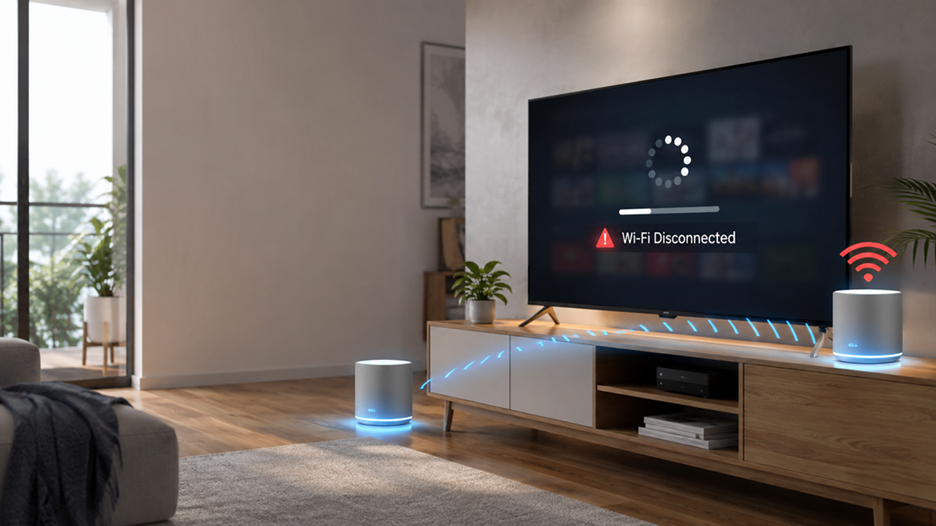
Current Research & Key Findings
Recent troubleshooting guides from major networking brands such as TP-Link, Sony, Google Nest, and Linksys show that most Smart TV disconnection problems are caused by mesh roaming, outdated firmware, Wi-Fi interference, band steering, poor node placement, or compatibility issues between older TVs and newer Wi-Fi features. Manufacturers also recommend updating firmware, checking mesh node placement, disabling Fast Roaming (when necessary), and ensuring the TV is connected to the strongest access point.
Introduction
A mesh Wi-Fi system is supposed to eliminate dead zones and provide seamless internet throughout your home. So when your Smart TV keeps disconnecting while your phone, laptop, or tablet stays online, it can be incredibly frustrating. Streaming pauses, buffering becomes frequent, and sometimes the television disconnects entirely in the middle of your favorite movie.
The good news is that this usually doesn’t mean your Smart TV is broken. In most cases, the issue comes from how the TV communicates with the mesh network. Unlike smartphones, many Smart TVs have less powerful Wi-Fi hardware and older wireless chipsets. They may struggle with modern features such as Fast Roaming, Band Steering, or automatic switching between mesh nodes. Understanding why these disconnects occur is the first step toward fixing them permanently.
This guide explains the most common causes, proven troubleshooting methods, and long-term solutions to keep your Smart TV connected to your mesh Wi-Fi reliably.
Understanding How Mesh Wi-Fi Works
Unlike a traditional router that broadcasts Wi-Fi from a single location, a mesh Wi-Fi system uses multiple interconnected nodes to provide consistent wireless coverage throughout your home. Each node communicates with the others, allowing devices to move seamlessly from room to room without losing connectivity.
While this technology works exceptionally well for smartphones and laptops, Smart TVs often remain in one location. Ironically, that stationary nature can create unexpected problems. If the TV sits between two mesh nodes with similar signal strength, it may repeatedly switch between them. This constant handoff can interrupt streaming sessions or temporarily disconnect the television from the network.
Manufacturers also note that features like Fast Roaming and Beamforming, while designed to improve overall performance, may occasionally cause compatibility issues with certain Smart TVs or older wireless chipsets. Updating firmware and adjusting these settings often resolves the issue.
Why Smart TVs Disconnect More Often Than Other Devices
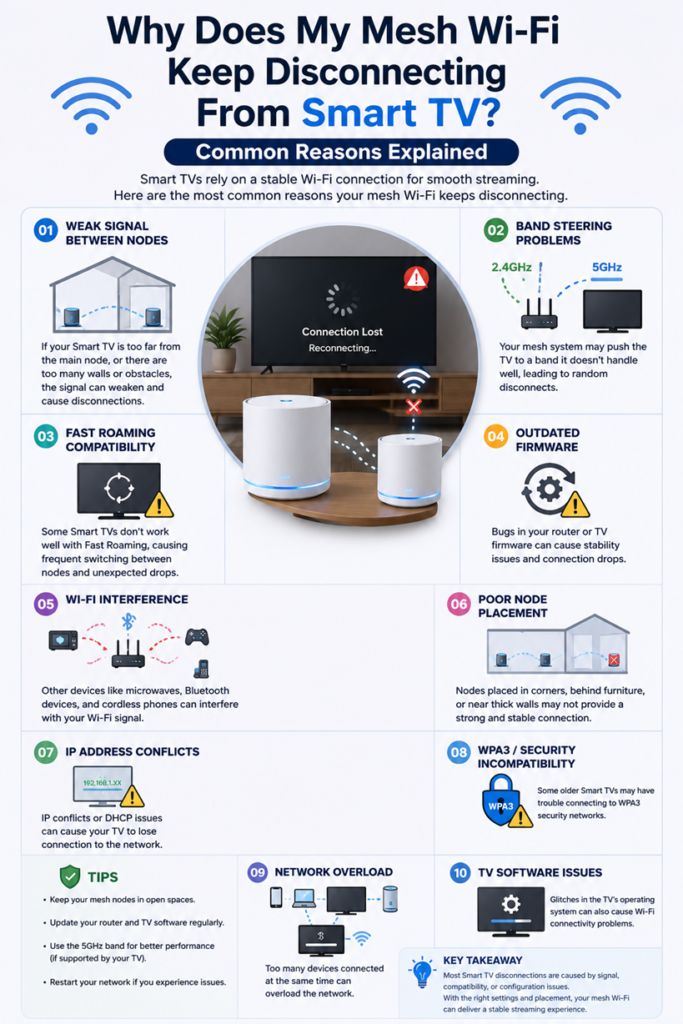
A Smart TV isn’t designed exactly like a smartphone. Many televisions prioritize video decoding and display quality over high-performance wireless networking. Their Wi-Fi antennas are often located behind large metal panels, reducing signal strength.
Several additional factors make TVs more susceptible to disconnections:
| Cause | Effect |
| Older Wi-Fi chipsets | Compatibility issues with newer mesh systems |
| Weak antenna placement | Lower signal quality |
| Aggressive power-saving modes | Temporary Wi-Fi drops |
| Older firmware | Network instability |
| Band steering incompatibility | Frequent reconnects |
Because of these hardware limitations, a TV that worked perfectly with an older router may struggle after upgrading to a modern mesh system.
Common Reasons Your Mesh Wi-Fi Keeps Disconnecting
The most common causes include:
- Weak signal between mesh nodes
- Outdated router firmware
- Outdated TV software
- Fast Roaming incompatibility
- Band Steering conflicts
- Heavy Wi-Fi interference
- DHCP/IP address conflicts
- WPA3 compatibility problems
- Poor mesh node placement
Recent support documentation from Sony and TP-Link highlights firmware updates, router placement, Smart Connect settings, and channel congestion as leading causes of intermittent Wi-Fi drops.
How to Fix the Problem
1. Update Everything
Start by updating:
- Smart TV software
- Mesh router firmware
- Mesh satellite firmware
Firmware updates frequently contain fixes for wireless stability and compatibility.
2. Move Your Mesh Nodes
Avoid placing mesh nodes:
- Behind televisions
- Inside cabinets
- Near microwaves
- Beside refrigerators
- Close to cordless phones
Manufacturers recommend keeping nodes in open spaces with minimal interference.
3. Disable Fast Roaming
If your mesh system allows it, temporarily disable:
- Fast Roaming
- Beamforming
- Smart Connect
Many users find that older Smart TVs maintain a much more stable connection with these features turned off. TP-Link specifically recommends testing these settings when only certain devices disconnect.
4. Separate 2.4 GHz and 5 GHz Networks
Some Smart TVs perform better when connected to a dedicated band instead of relying on automatic band steering.
- Use 2.4 GHz for maximum stability and longer range.
- Use 5 GHz for higher speeds if the TV is close to a mesh node.
5. Reserve a Static DHCP Address
A DHCP reservation ensures your TV always receives the same IP address, helping avoid lease renewal issues and reconnect loops. Some troubleshooting guides identify DHCP renewals as a cause of intermittent TV disconnects.
Prevent Future Wi-Fi Disconnects
Once your connection is stable, keep it that way by following a few best practices:
- Install firmware updates regularly.
- Restart your mesh network occasionally after major updates.
- Keep mesh nodes in open, elevated locations.
- Avoid placing TVs between two equally strong mesh nodes.
- Minimize interference from Bluetooth devices and household appliances.
- If your mesh app supports it, bind or prioritize the TV to the nearest node to reduce unnecessary roaming.
These small adjustments often make a noticeable difference in long-term reliability, especially in larger homes where multiple mesh nodes overlap.
Conclusion
If your mesh Wi-Fi keeps disconnecting from your Smart TV, the problem is usually not the television itself. Modern mesh systems use intelligent features like roaming and band steering that improve performance for mobile devices but can sometimes confuse older or less capable Smart TV Wi-Fi hardware. The most effective fixes include updating firmware, improving mesh node placement, separating Wi-Fi bands when appropriate, disabling Fast Roaming for testing, and assigning a reserved IP address.
By systematically working through these troubleshooting steps, you can eliminate most random disconnects and enjoy uninterrupted streaming, smoother 4K playback, and a more reliable home network.
Frequently Asked Questions
1. Why does only my Smart TV disconnect while other devices stay connected?
Smart TVs often have less advanced Wi-Fi hardware and may struggle with mesh roaming, band steering, or weak signal conditions that newer phones and laptops handle without issues.
2. Should I connect my TV to 2.4 GHz or 5 GHz?
If your TV is close to a mesh node, 5 GHz offers faster speeds. If it’s farther away or disconnects frequently, 2.4 GHz usually provides a more stable connection.
3. Does updating my TV software really help?
Yes. Manufacturers regularly release firmware updates that improve wireless stability, fix bugs, and enhance compatibility with newer routers and mesh systems.
4. Can Fast Roaming cause disconnects?
On some older Smart TVs, yes. Temporarily disabling Fast Roaming is a recommended troubleshooting step if only the TV experiences intermittent drops.
5. Is Ethernet better than Wi-Fi for a Smart TV?
Absolutely. If your TV is close enough to a router or mesh node, a wired Ethernet connection provides the most stable performance for streaming, gaming, and high-bitrate 4K content.
