

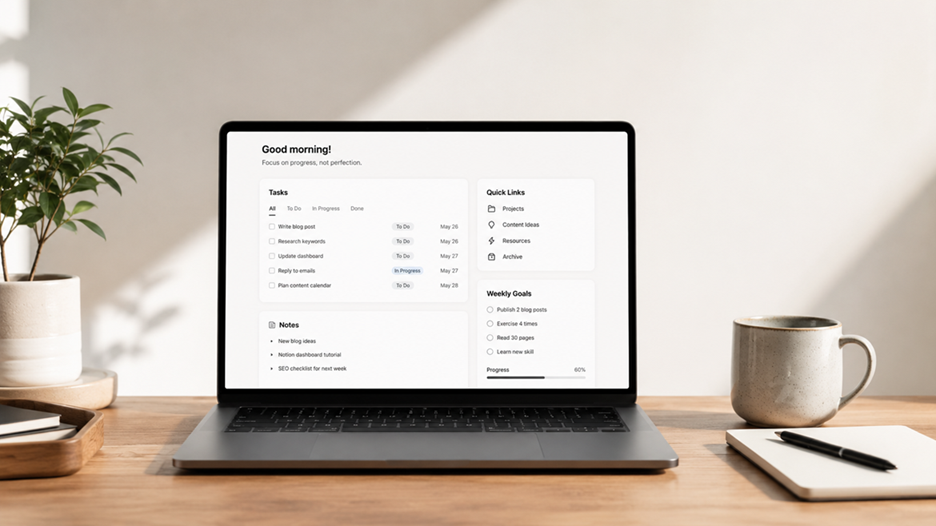
Introduction
Creating a minimal Notion dashboard is one of the easiest ways to organize your work, studies, and personal life without feeling overwhelmed. While countless YouTube videos showcase beautiful “second brain” systems with dozens of databases, most beginners don’t need that complexity. In fact, many experienced Notion users recommend starting with a simple workspace that you can actually maintain instead of building something that looks impressive but quickly becomes abandoned. Community discussions throughout 2025 consistently highlight that overly complicated dashboards are one of the biggest reasons beginners give up on Notion.
This guide will show you how to create a clean, functional dashboard using only the essential features. You’ll learn which blocks matter, how to organize your homepage, and why keeping things simple often leads to better productivity.
What Is a Notion Dashboard?
A Notion dashboard is your personal homepage inside Notion that brings together everything you need in one place. Think of it as the control center for your digital life. Instead of opening multiple pages to check your tasks, notes, calendar, or projects, you can access them from a single screen. This saves time and helps reduce distractions throughout your day.
For beginners, the biggest advantage is simplicity. You don’t need advanced databases, formulas, or automations to benefit from Notion. A minimal dashboard acts as a central hub where you can quickly navigate to the pages you use most often. Many long-time users have found that simple dashboards are easier to maintain and more likely to become part of a daily routine than elaborate productivity systems.
If you’re using the free version of Notion, you can still build a powerful dashboard with pages, headings, linked pages, to-do lists, callouts, and simple databases. Recent updates also introduced dedicated dashboard views for Business and Enterprise workspaces, while free users can continue creating effective dashboard pages using inline databases and linked views.
Benefits of a Minimal Dashboard
A minimal dashboard isn’t about having fewer features—it’s about removing unnecessary ones. When your homepage contains only the information you actually use every day, you spend less time searching and more time doing meaningful work.
Minimal dashboards also reduce decision fatigue. Instead of staring at dozens of widgets, progress bars, and decorative elements, your attention naturally flows to your priorities. This is especially valuable for students, freelancers, bloggers, and anyone juggling multiple responsibilities.
Another important benefit is maintenance. Every additional database, automation, or relation requires upkeep. Beginners often download beautiful templates only to abandon them because they’re too complicated. A clean dashboard with essential pages—tasks, notes, projects, and goals—is much easier to keep updated, making it sustainable over the long term. Community discussions in the Notion ecosystem repeatedly emphasize that the most effective dashboards are often the simplest ones.
What You’ll Need Before You Start
Before building your dashboard, create a free Notion account if you haven’t already. Once you’re inside your workspace, familiarize yourself with the basics. Learn how to create a new page, insert headings, add checklists, create simple databases, and use the slash (/) command to insert blocks.
You don’t need to master every Notion feature on day one. Understanding pages, callouts, dividers, toggle lists, and linked pages is enough to create an excellent beginner dashboard.
A good mindset is equally important. Don’t try to build your “ultimate productivity system” immediately. Instead, create something useful today and improve it gradually over time.
Step-by-Step Guide
Step 1 – Create a Home Page
Create a new page called Dashboard or Home. Choose a simple icon and, if you like, add a clean cover image. This page will become the starting point every time you open Notion.
Keep the page uncluttered. Leave plenty of white space so the content feels easy to scan. Think of it like the homepage of a website—everything important should be easy to find within seconds.
Step 2 – Add a Welcome Section
At the top, include a friendly greeting such as:
Good Morning! What are your top priorities today?
You can also include today’s focus or an inspirational quote if it motivates you. Avoid adding too many decorative widgets because they often distract rather than help.
Step 3 – Create Quick Links
Create links to pages you use frequently, such as:
- Tasks
- Notes
- Projects
- Reading List
- Journal
- Content Ideas
These links become your navigation menu, making it unnecessary to browse through the sidebar constantly.
Step 4 – Build a Task List
Your task database is the heart of the dashboard.
Create properties such as:
| Property | Purpose |
| Task | Task Name |
| Status | To Do, Doing, Done |
| Due Date | Deadline |
| Priority | High, Medium, Low |
Instead of displaying every task, filter the view so it only shows incomplete items. According to Notion’s Help Center, filtering dashboard widgets improves both usability and performance by reducing unnecessary information.
Step 5 – Add a Notes Section
Create a simple page for notes where you can quickly capture ideas. Don’t worry about organizing everything perfectly. You can categorize notes later.
Many productivity experts recommend separating quick notes from permanent knowledge because this keeps your dashboard clean while ensuring important ideas aren’t lost.
Step 6 – Create a Weekly Goals Area
Add a heading called This Week.
Under it, write three to five goals that matter most.
For example:
- Publish one blog article
- Exercise four times
- Finish one online course lesson
- Read 50 pages
Keeping weekly goals visible encourages consistent progress without overwhelming your daily task list.
Recommended Dashboard Layout
A beginner-friendly layout could look like this:
| Section | Purpose |
| Welcome | Daily motivation |
| Quick Links | Fast navigation |
| Today’s Tasks | Daily priorities |
| Weekly Goals | Main objectives |
| Recent Notes | Quick reference |
| Projects | Ongoing work |
This layout remains simple while covering nearly everything a beginner needs.
Common Mistakes Beginners Make
One of the biggest mistakes is downloading huge templates filled with advanced databases before understanding the basics. While these templates look attractive, they often introduce unnecessary complexity.
Another mistake is trying to track every aspect of life immediately. You don’t need separate databases for books, habits, finances, recipes, workouts, movies, and travel during your first week. Begin with just tasks and notes.
Ignoring regular maintenance is another common issue. Even a simple dashboard requires occasional cleanup. Archive completed projects, delete unused pages, and refine your layout every few weeks.
Finally, avoid chasing aesthetics over functionality. A beautiful dashboard that you never use isn’t productive. Focus on building something that helps you accomplish real work every day.
Best Productivity Tips
Use your dashboard every morning before starting work. Spend five minutes reviewing today’s priorities and updating your task list.
Limit yourself to three major priorities each day. Long task lists often create stress rather than motivation.
Review your dashboard weekly. Remove outdated pages, archive finished projects, and update your goals.
If you’re a blogger—such as someone managing a site like blackbud.net—consider adding quick links for article ideas, keyword research, publishing schedules, and SEO checklists. This keeps your content workflow organized without requiring additional productivity apps.
Free Templates Worth Exploring
While building your own dashboard teaches you more about Notion, free templates can provide inspiration. Browse the official template gallery or community-created examples, but customize them to fit your workflow rather than copying everything.
Remember that templates should serve your process—not dictate it. Start with the simplest version and add features only when you genuinely need them.
Final Thoughts
The best minimal Notion dashboard isn’t the one with the most widgets or the fanciest design. It’s the one you actually use every day.
Start with a clean homepage, create quick navigation, manage your tasks, capture notes, and review your goals regularly. As your needs grow, your dashboard can evolve naturally without becoming overwhelming.
Notion is incredibly flexible, but flexibility doesn’t require complexity. By focusing on the essentials, you’ll build a dashboard that supports your productivity instead of distracting from it.
FAQs
1. Is Notion free for beginners?
Yes. The free Personal plan includes everything most beginners need to create pages, databases, notes, and dashboards.
2. Do I need databases for a simple dashboard?
No. You can begin with regular pages, checklists, and linked pages before moving to databases.
3. How many sections should a beginner dashboard have?
Five to seven sections are usually enough: welcome, quick links, tasks, notes, goals, projects, and calendar (optional).
4. Can I use Notion on my phone?
Yes. Notion offers apps for Android and iPhone, allowing you to update your dashboard anywhere.
5. Should I download templates or build from scratch?
Building from scratch helps you understand Notion better. Templates are useful for inspiration, but avoid overly complicated systems until you’re comfortable with the basics.
